
How to Delete All Photos on iPhone
By CleanX TeamPublished
Quick answer
- In Photos, tap Select, then slide your finger across the thumbnails to select many at once. Tap the Delete button and confirm.
- In iOS 26, the Library’s select mode has no Select All button; in a collection, tap Select, then Select All.
- Deleted photos stay in Recently Deleted for 30 days. With iCloud Photos on, they’re deleted from all your devices.
Before you delete everything, back up anything you want to keep. Apple notes that with iCloud Photos, a photo you delete on one device is deleted on every device signed in with the same Apple Account.
Select and delete many photos at once
Step 1: Open the Library
Open Photos and go to your Library.
Step 2: Select
Tap Select, then tap photos one by one or slide your finger across several thumbnails to select more than one.
Step 3: Delete
Tap the Delete button, then confirm.

Empty Recently Deleted to get the space back
Deleted photos and videos go to Recently Deleted for 30 days before they’re permanently removed, so the space doesn’t come back right away.
Step 1: Open the album
In Photos, tap Collections, then tap Recently Deleted under Utilities. Tap View Album and unlock with Face ID, Touch ID or your passcode.
Step 2: Select
Tap Select, but don’t pick any items. If some are already selected, tap Cancel, then Select again.
Step 3: Delete for good
Tap the More button, then Delete All, and confirm. Items deleted here can’t be recovered.
More on that album: Recently Deleted on iPhone.
Free up space but keep your photos in iCloud
If you want the space back but don’t want to lose your photos, deleting isn’t the right tool while iCloud Photos is on, because deletions sync. Apple’s answer is Optimize iPhone Storage: full-resolution photos and videos are kept in iCloud, with space-saving versions on your iPhone. To delete in one place only, see how to delete photos from iCloud but not iPhone. For other ways to make room, see how to free up space on iPhone.
Step 1: Open iCloud Photos settings
Go to Settings › [your name] › iCloud › Photos and make sure Sync this iPhone is on.
Step 2: Optimize
Make sure Optimize iPhone Storage is selected (in iOS 27 or later, tap iPhone Storage first).
If you don’t use iCloud Photos, copy your photos to a Mac or PC before you delete them from your iPhone.
If the Delete button is gray
Apple says photos added by syncing your iPhone with a computer can’t be deleted directly in the Photos app; if the Delete button is gray, you may need to stop syncing photos from your computer.
| Photos app | CleanX | |
|---|---|---|
| Selecting many photos | Slide across thumbnails; Select All in collections | Select All within each group or list CleanX finds |
| Finding what to delete | Duplicates under Utilities; Screenshots and Selfies under Media Types | Similar photos, duplicates, screenshots, blurry shots, chat photos, selfies and photos with text |
| Reviewing first | Look through the Library yourself | Each group shows its count and size; blurry, chat, selfie and text photos can be swiped through to keep or trash |
| Cost | Free | Scanning free; deleting needs CleanX Pro |
CleanX
Don’t want to delete everything? Clear out groups with CleanX
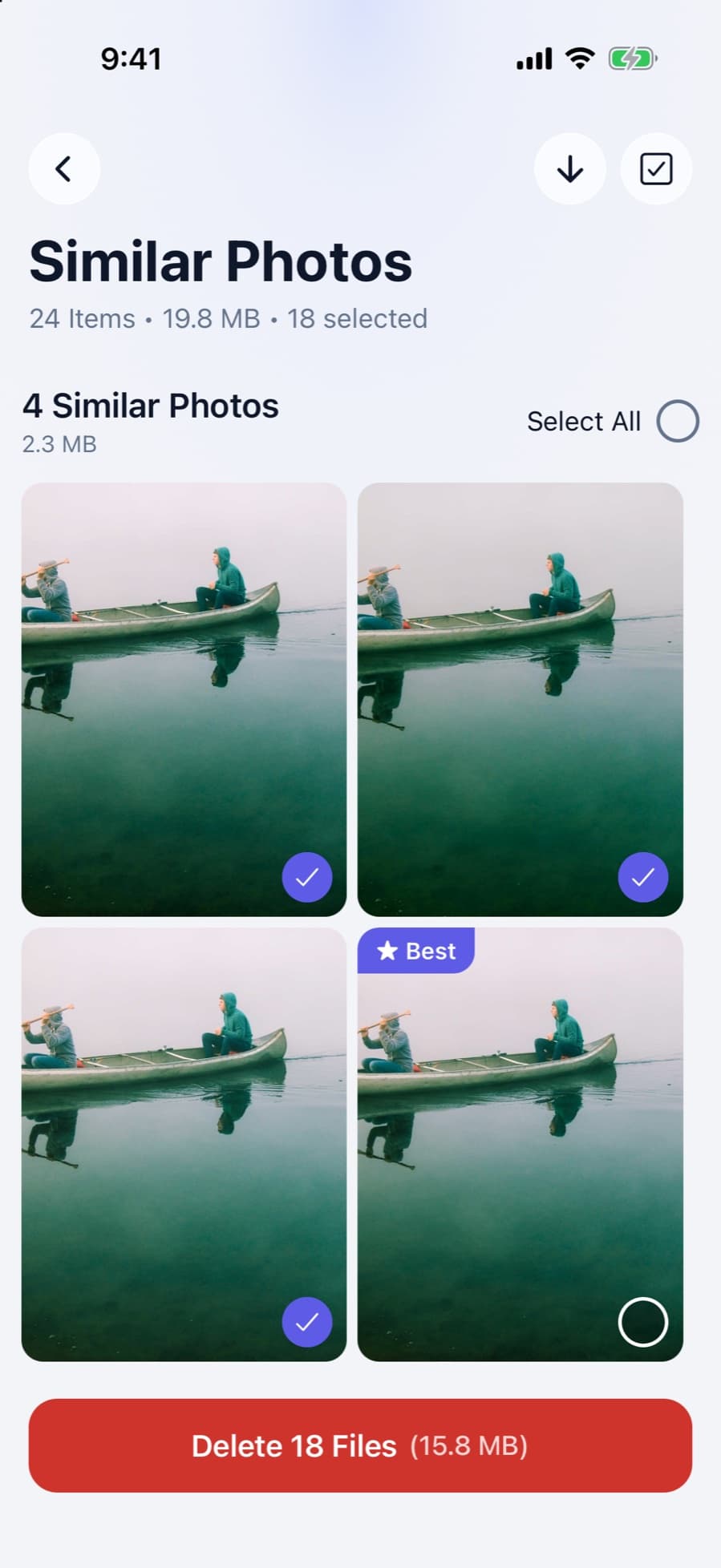
If you only want certain kinds of photos gone, not the whole library, CleanX sorts your photos into groups such as similar photos, duplicates, screenshots, blurry shots and chat photos, so you can select a whole group at once. Blurry shots, chat photos, selfies and photos with text can also be swiped through one by one. Deleted photos go to Recently Deleted, like any deletion in Photos.
- Select All within each group or list
- Swipe review for blurry, chat, selfie and text photos
- Scanning is free; deleting needs CleanX Pro

Before you delete all your photos
- Check your backup. With iCloud Photos on, deleting removes photos from your other devices and iCloud too.
- Shared Library: anyone in an iCloud Shared Photo Library can delete items in it, and deleted items disappear for everyone.
- If only copies are the problem, merge them instead: see how to delete duplicate photos on iPhone.
Frequently asked questions
Is there a way to select all photos at once on iPhone?
In the Library, tap Select and slide your finger across the thumbnails to select many at once; in iOS 26 there’s no Select All button there. In a collection, tap Select, then Select All.
How do I delete all photos from my iPhone but not iCloud?
With iCloud Photos on, deletions sync to iCloud, so use Optimize iPhone Storage instead: full-resolution photos stay in iCloud and your iPhone keeps space-saving versions.
Why didn’t I get space back after deleting photos?
Deleted photos stay in Recently Deleted for 30 days. Open that album in Collections and choose Delete All to remove them for good.
Can I get photos back after deleting them?
Yes, within 30 days: open Recently Deleted, select the photos, then tap the More button and Recover. Items deleted from Recently Deleted can’t be recovered.
Why can’t I delete some photos on my iPhone?
Photos synced from a computer can’t be deleted directly in Photos; Apple says you may need to stop syncing photos from your computer.
Related guides
- Recently Deleted Photos on iPhone: Find, Recover or EmptyWhere deleted photos go, how to get them back, and how to clear them for good.
- Delete Photos From iCloud but Not iPhone (or the Other Way Around)Deletes sync everywhere with iCloud Photos on. Turn off sync first, or let Optimize Storage free iPhone space.
- How to Delete All Screenshots on iPhone at OnceOpen Collections › Media Types › Screenshots, Select › Select All, delete, then empty Recently Deleted.
