Recently Deleted Photos on iPhone: Find, Recover or Empty
By CleanX TeamPublished
Quick answer
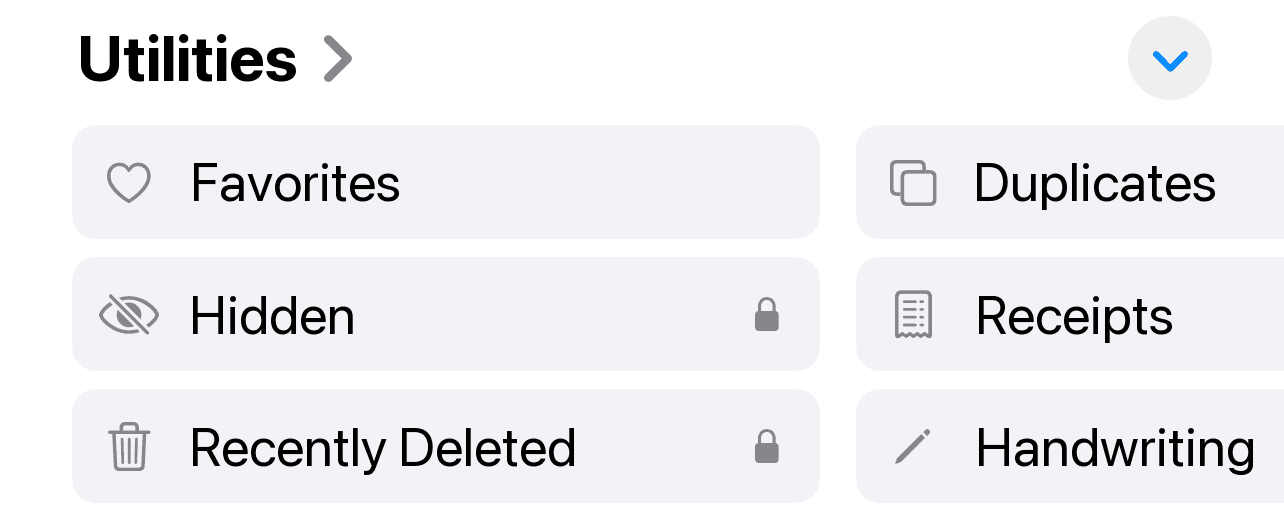
- Open Photos, tap Collections, then Utilities › Recently Deleted and unlock it with Face ID, Touch ID or your passcode.
- Deleted photos and videos stay there for 30 days, then they’re deleted permanently.
- To get one back: Select, pick the photo, then More › Recover.
- To clear the album: Select, then More › Delete All. This can’t be undone.
When you delete a photo or video on iPhone, it usually isn’t gone right away. It moves to the Recently Deleted album, where it waits for 30 days so you can change your mind.
Where is Recently Deleted on iPhone?
Step 1: Open Collections
Open the Photos app and tap Collections at the bottom.
Step 2: Find Utilities
Scroll down to Utilities and tap Recently Deleted.
Step 3: Unlock the album
Tap View Album and use Face ID, Touch ID or your passcode. Since iOS 16 the album is locked by default.
How to recover recently deleted photos
Step 1: Open the album
Go to Collections › Utilities › Recently Deleted and unlock it.
Step 2: Select
Tap Select, then tap the photos and videos you want back.
Step 3: Recover
Tap the More button, then Recover (or Recover All for everything), and confirm.
Recovered items go back to your Library. This also works for copies removed when you merge duplicate photos.
How to empty Recently Deleted
Step 1: Open the album
Go to Collections › Utilities › Recently Deleted and unlock it.
Step 2: Delete
Tap Select. To remove some items, pick them and tap More › Delete. To clear the album, don’t pick anything and tap More › Delete All.
Step 3: Confirm
Confirm with Delete from All Devices (Apple also lists Delete Photos I Added).
Shortcut: in Settings › General › iPhone Storage, iOS may recommend the “Recently Deleted” Album, show how much space you’d save, and offer an Empty button that permanently deletes the album’s photos and videos.

Does Recently Deleted take up storage?
On your iPhone, yes. In our test we added 174 MB of photos to an iPhone 17 Pro simulator running iOS 27 and deleted them. Photos said they’d stay in Recently Deleted for 30 days, and the files still took up the same 174 MB on the device. iOS itself agrees: its iPhone Storage recommendation offers to empty the album to save space. Items leave the device for good when you empty the album or after 30 days, when iPhone deletes them permanently.
In iCloud, no. Apple says items in Recently Deleted don’t count toward your iCloud storage.
| Recently Deleted (iOS) | CleanX trash | |
|---|---|---|
| What it’s for | Keeps photos you deleted | Collects photos you plan to delete |
| Getting photos back | Recover within 30 days | Restore one or all, any time before deleting |
| How long items stay | 30 days, then deleted automatically | Until you delete them |
| Deleting from here | Permanent, can’t be recovered | Goes to iOS Recently Deleted after one system confirmation |
| Cost | Free, built in | Reviewing free; deleting needs CleanX Pro |
CleanX
Review before you delete with CleanX
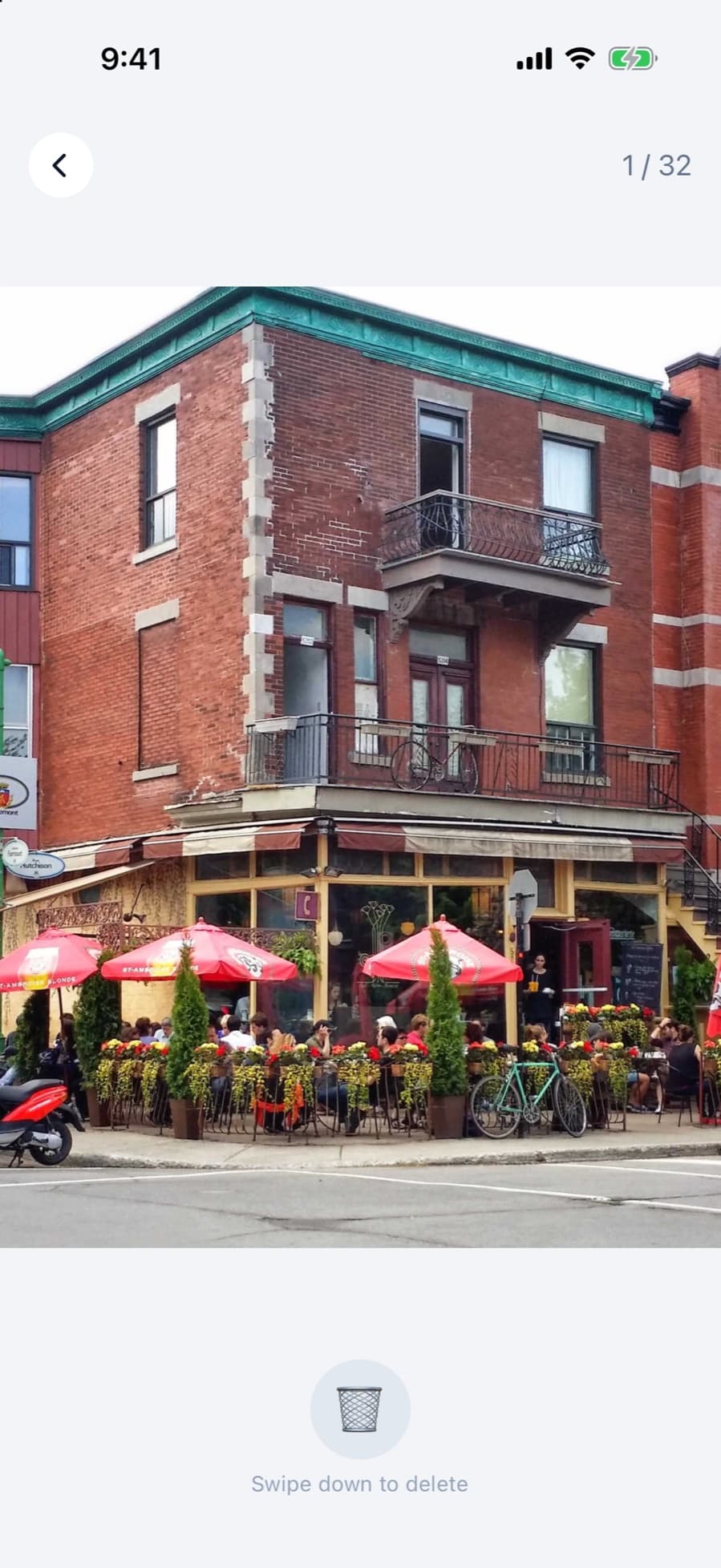
In CleanX you swipe through photos and send the ones you don’t want to its own trash first. You can still restore them there. When you’re sure, you delete them with one system confirmation, and they go to Recently Deleted like any other deletion.
- Swipe to keep or trash, with an undo for each decision
- Restore one photo or everything from the CleanX trash
- Deleting needs CleanX Pro; reviewing is free

Why a photo isn’t in Recently Deleted
- It was deleted more than 30 days ago. After 30 days items are deleted permanently.
- It was already deleted from the album. Anything removed from Recently Deleted is gone for good.
- Your iCloud storage was full. In that case deleted photos skip the album.
- It was in a Shared Photo Library. A photo another participant deletes disappears for you too, and Apple says only the person who added it can recover it from Recently Deleted.
Stop Recently Deleted asking for Face ID
Open Settings › Apps › Photos and turn off Use Face ID. This unlocks both Recently Deleted and the Hidden album by default, so only do it if nobody else uses your phone.
Frequently asked questions
How long do photos stay in Recently Deleted?
30 days. After that, iPhone deletes them permanently.
Can I get photos back after deleting them from Recently Deleted?
Not from your iPhone. Apple says items deleted from Recently Deleted can’t be recovered. Only a copy you saved somewhere else, such as on a computer, would still have them.
Does Recently Deleted count toward iCloud storage?
No. Apple says items in Recently Deleted don’t count toward your iCloud storage.
Why does Recently Deleted ask for my passcode?
Since iOS 16 the Hidden and Recently Deleted albums are locked by default. You can turn this off in Settings › Apps › Photos › Use Face ID.
If I delete a photo on iPhone, is it deleted on my other devices?
If iCloud Photos is on, yes. Apple says deleting on one device deletes it on every device signed in with the same Apple Account.