How to Free Up Space on iPhone
By CleanX TeamPublished
Quick answer
- See what’s using space in Settings › General › iPhone Storage: your apps, how much each one uses, and sometimes recommendations.
- Photos and videos are a common source of storage use: turn on Optimize iPhone Storage for iCloud Photos and merge duplicates.
- Deleted photos stay in Recently Deleted for 30 days. In our test they kept using space there, so empty the album once you’re sure.
- Turn on Settings › Apps › App Store › Offload Unused Apps so iPhone removes unused apps when storage is low.
Apple names these common sources of storage use: photos and videos, messages, downloaded videos, files and apps. Start by checking which of them takes the most space on your iPhone, then work through the list below.
Check what’s using space
Step 1: Open Settings
Open the Settings app and tap General.
Step 2: Open iPhone Storage
Tap iPhone Storage. The available space is at the top; below it you may see recommendations, then a list of your apps with the space each one uses.
Free up space taken by photos and videos
By default iPhone keeps your photos and videos in their original, high-resolution version, which takes a lot of space. If you use iCloud Photos, Optimize iPhone Storage keeps the full-resolution versions in iCloud and, when needed, stores space-saving copies on the iPhone.
Step 1: Open iCloud Photos settings
Go to Settings, tap your name, then iCloud › Photos.
Step 2: Turn on syncing
Turn on Sync this iPhone. In iOS 27 or later, tap iPhone Storage next.
Step 3: Optimize
Make sure Optimize iPhone Storage is turned on.
- Merge duplicates. The Photos app finds duplicates automatically: see how to delete duplicate photos on iPhone.
- Empty Recently Deleted when you’re sure. Deleted photos stay there for 30 days before iPhone deletes them permanently. In our test, 174 MB of deleted photos still took up the same space on the device while they sat in the album. See Recently Deleted on iPhone.
Offload or delete apps you don’t use
Deleting an app you no longer use frees its space, and you can download it again later. Offloading keeps more: iPhone removes the app but keeps your documents and data, and the icon stays on the Home Screen with a cloud symbol so you can tap it to reinstall.
Step 1: Open App Store settings
Go to Settings › Apps › App Store.
Step 2: Turn on offloading
Turn on Offload Unused Apps. From then on, iPhone removes unused apps automatically when storage is low.
| Built into iPhone | CleanX | |
|---|---|---|
| Duplicate photos | Duplicates album finds duplicates; you merge them | Duplicates and similar shots, with a suggested best shot |
| Large videos | Delete them, or keep the originals in iCloud with Optimize iPhone Storage | Compress to 1080p, 720p or 480p, with the estimated new size shown first |
| Overview | Space used by each app, plus recommendations | Space used by similar, duplicate and blurry photos, screenshots and videos |
| Cost | Free | Scanning free; deleting and compressing need CleanX Pro |
CleanX
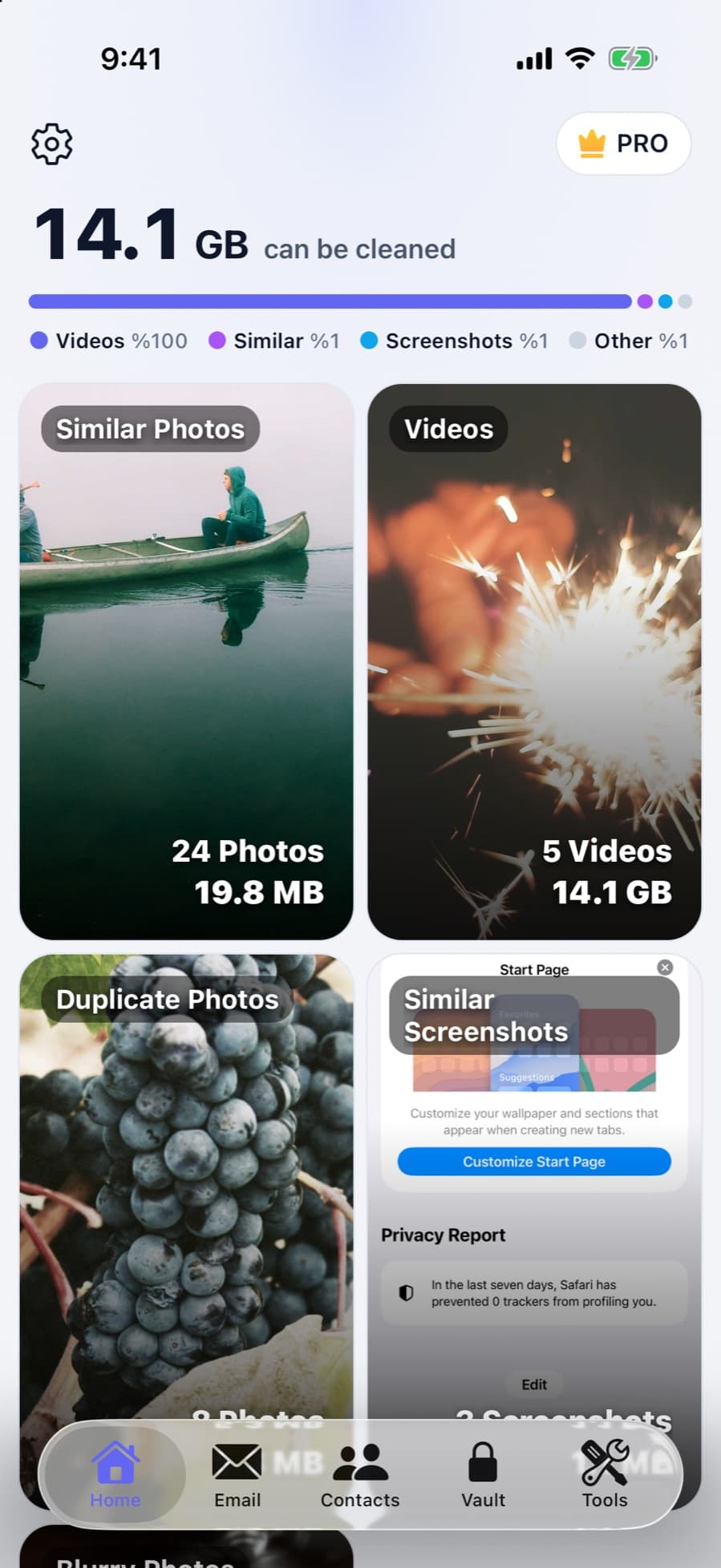
See what you can clear with CleanX
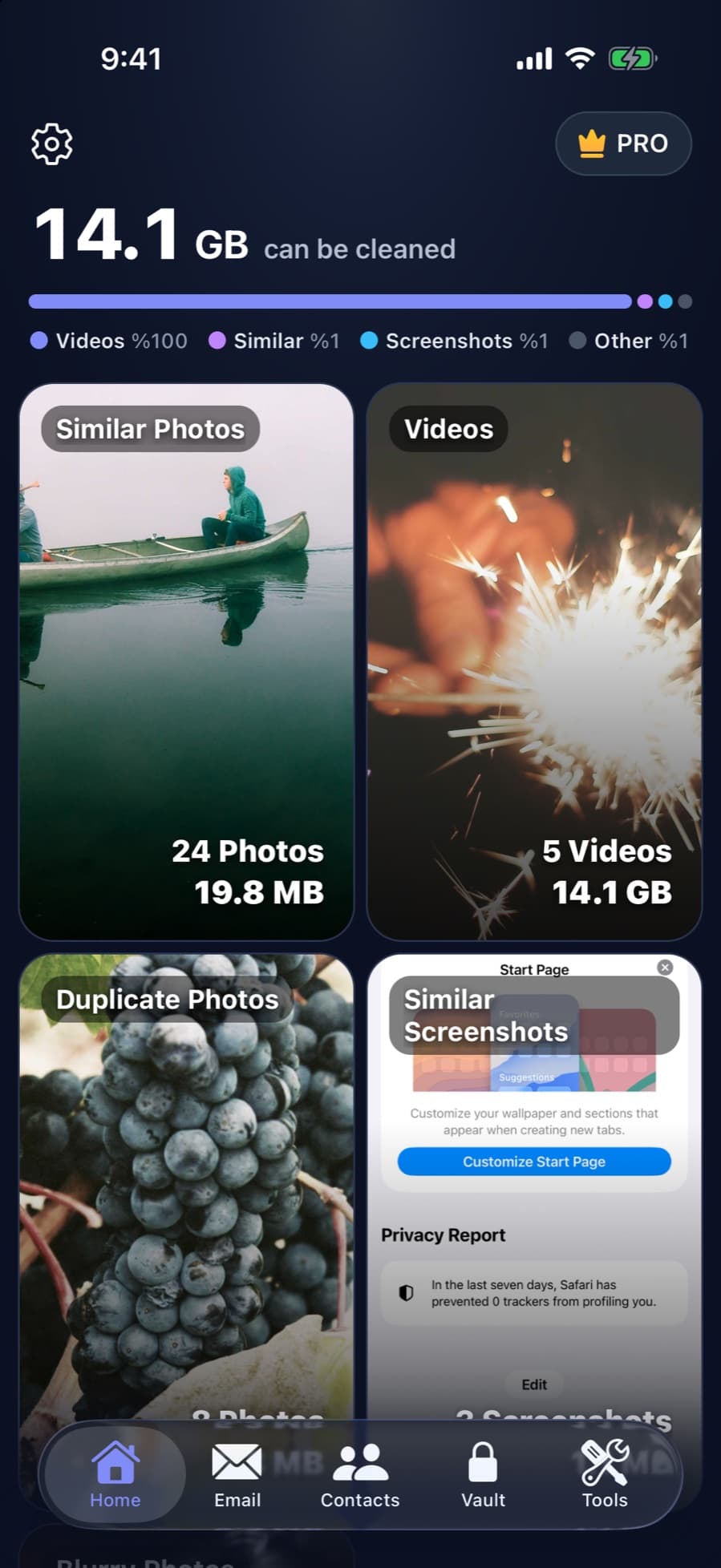
CleanX scans your library on your iPhone and shows, on one screen, how much space similar photos, duplicates, screenshots, blurry photos and videos take. Nothing is deleted without your approval.
- Counts and sizes for each group of photos and videos
- Video compression replaces the original with the compressed copy
- Scanning is free; deleting and compressing need CleanX Pro
Clear messages, downloads and files
- Messages: delete conversations and attachments you no longer need.
- Downloaded videos: in the TV app and other streaming apps, remove videos you downloaded for offline viewing and have already watched.
- Files: find and delete files you no longer need in the Files app.
Free up space without deleting photos
- Turn on Optimize iPhone Storage (above) so the full-resolution photos are kept in iCloud.
- Turn on Offload Unused Apps, which removes unused apps when storage is low and keeps their data.
- Delete message attachments and watched downloads, which aren’t part of your photo library.
iCloud storage is not iPhone storage
Buying more iCloud storage doesn’t add space to your iPhone by itself. It helps when you use iCloud Photos with Optimize iPhone Storage: the full-resolution photos are kept in iCloud, and the iPhone stores space-saving copies when it needs room.
Frequently asked questions
What takes up the most storage on iPhone?
It differs for every phone. Settings › General › iPhone Storage lists your apps and the space each one uses; Apple names photos and videos, messages, downloaded videos, files and apps as common sources.
Why is my iPhone storage still full after deleting photos?
Deleted photos wait in Recently Deleted for 30 days. In our test they kept taking up the same space on the device while they were there, so empty the album once you’re sure.
Does offloading an app delete my data?
No. Offloading removes the app but keeps its documents and data; tap the icon with the cloud symbol to reinstall it.
Is iCloud storage the same as iPhone storage?
No. iCloud storage is online; iPhone storage is on the device. With Optimize iPhone Storage, iCloud keeps the full-resolution photos so the iPhone can store space-saving copies.
Do I need an app to free up space on iPhone?
No, every step above is built in. An app can add things these steps don’t cover, such as grouping similar shots or compressing videos.
Related guides
- How to Delete Duplicate Photos on iPhoneUse the built-in Duplicates album, then deal with the similar shots it leaves behind.
- Recently Deleted Photos on iPhone: Find, Recover or EmptyWhere deleted photos go, how to get them back, and how to clear them for good.
- How to Clear Cache on iPhoneClear Safari’s cache in Settings and learn what really clears an app’s data.