How to Clear Cache on iPhone
By CleanX TeamPublished
Quick answer
- You may not need to: Apple says iPhone removes cached and temporary files itself when it needs space.
- Safari: Settings › Apps › Safari › Clear History and Website Data.
- To keep your history: Settings › Apps › Safari › Advanced › Website Data › Remove All Website Data.
- Other apps: use the app’s own setting if it has one, or delete and reinstall the app. Offloading keeps the app’s data.
A cache is data a browser or app saves on your phone so it can load things faster next time. Apple says that to free up space, iPhone removes cached and temporary files on its own, so you don’t have to. There’s no button that clears every app at once, but you can clear Safari’s data yourself and reset an app by reinstalling it.
Clear Safari history, cache and cookies
Step 1: Open Safari settings
Go to Settings, tap Apps, then Safari.
Step 2: Clear
Scroll down to History and Website Data and tap Clear History and Website Data.
Step 3: Choose a timeframe
Confirm the timeframe you want to clear, then tap Clear History. This doesn’t change your AutoFill information.
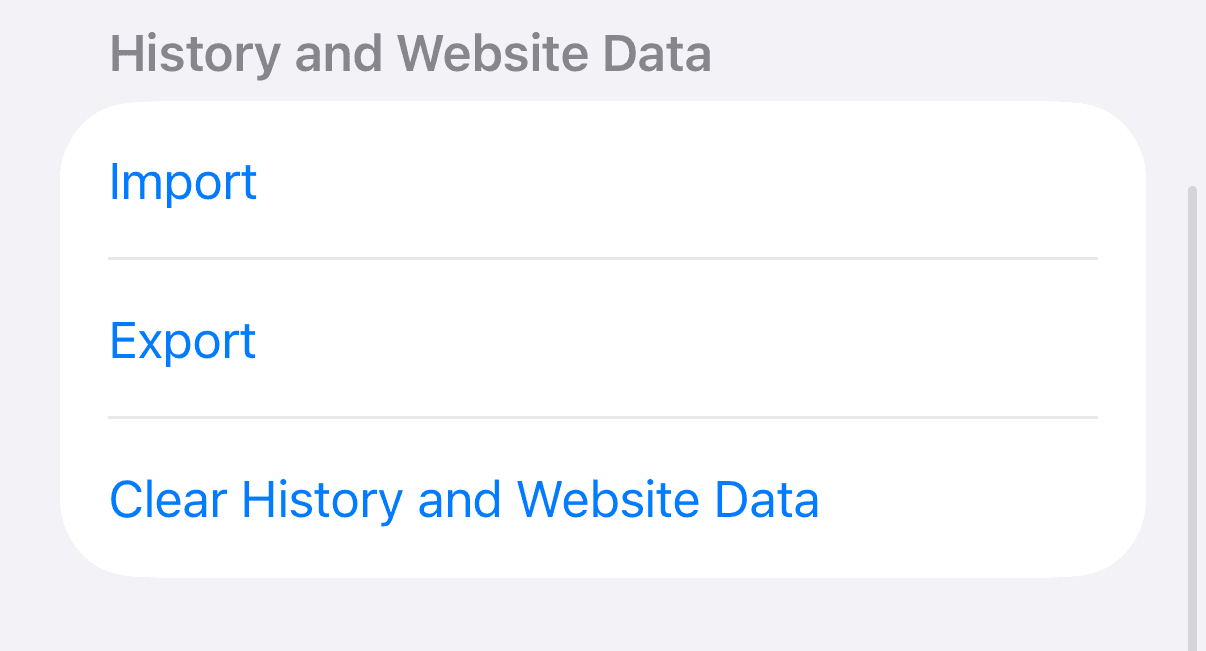
Clear Safari cache but keep your history
Step 1: Open Website Data
Go to Settings › Apps › Safari, tap Advanced, then Website Data.
Step 2: Remove
Tap Remove All Website Data, then Remove Now. If the button is gray, the same Screen Time check applies.
Apple says this clears data used for tracking and data websites use to save login information for faster browsing, so you may need to sign in to sites again.
Clear an app’s cache
iOS doesn’t offer a cache button for other apps. Some apps may offer their own option in their settings. Otherwise, the way to clear an app’s data from your iPhone is to delete the app and download it again.
Step 1: Open iPhone Storage
Go to Settings › General › iPhone Storage and tap the app.
Step 2: Delete the app
Tap Delete App and confirm. This removes the app and its data from your iPhone. (Some built-in Apple apps can’t be deleted.)
Step 3: Reinstall
Download it again from the App Store, if it’s still available there. You start with a fresh copy and may need to sign in again.
| Built into iPhone | CleanX | |
|---|---|---|
| Safari cache and history | Clear History and Website Data in Settings | Not covered |
| App caches | The app’s own setting, or delete and reinstall the app | Not covered |
| Photos and videos | Duplicates album, Recently Deleted | Similar and duplicate photos, screenshots, blurry shots, video compression |
| Cost | Free | Scanning free; deleting and compressing need CleanX Pro |
CleanX
Need space? Check photos and videos too
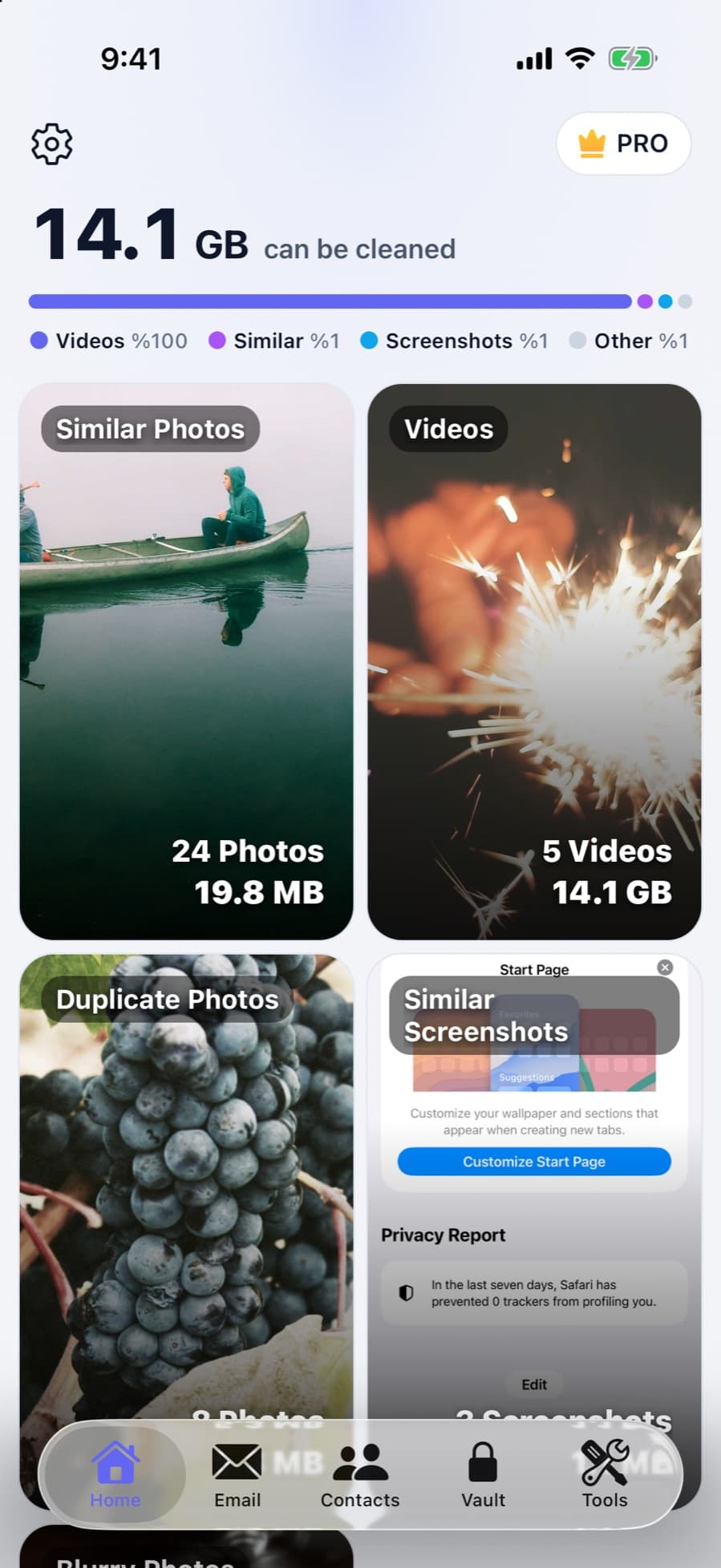
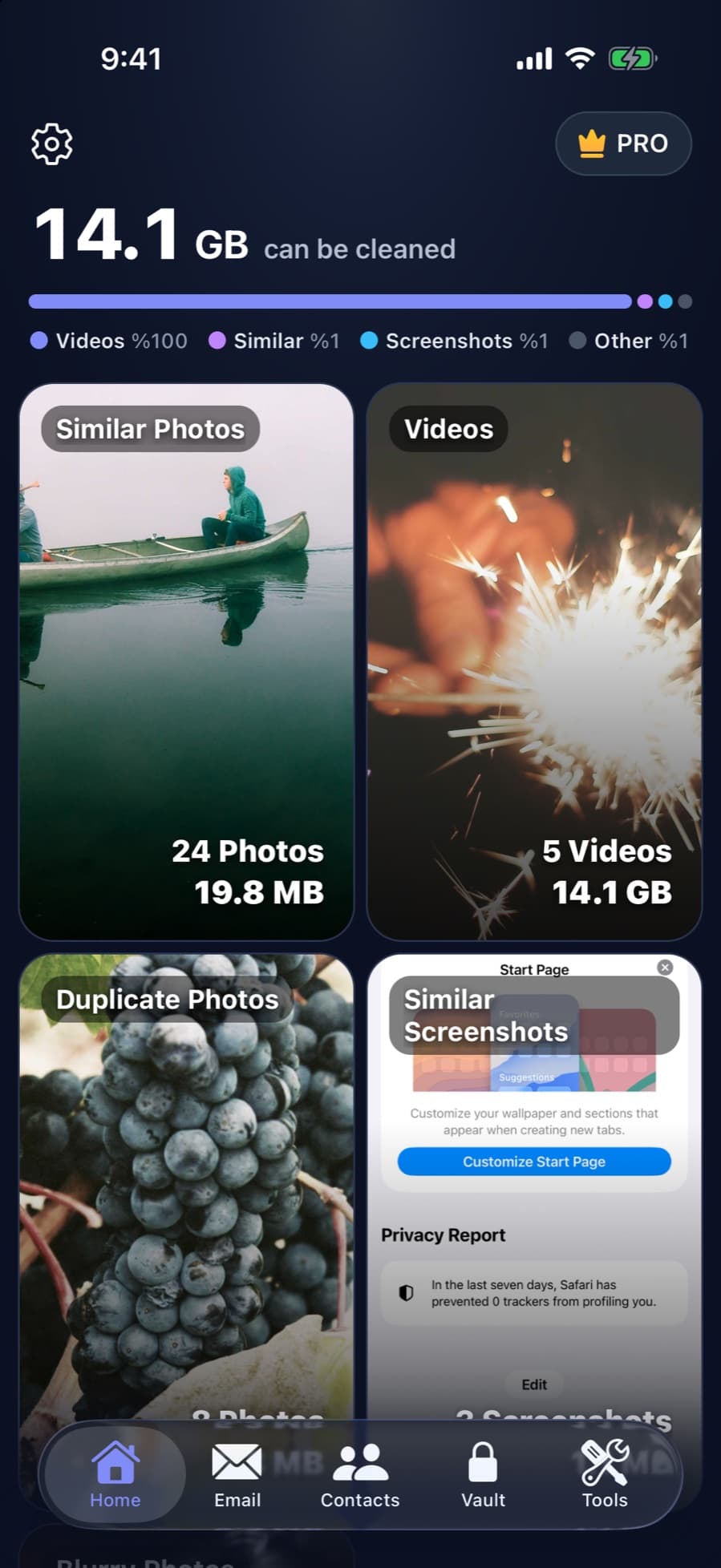
If you’re clearing the cache to free up space, check your photos and videos too. CleanX doesn’t clear app caches; it scans your photos and videos on your iPhone and shows how much space similar photos, duplicates, screenshots, blurry shots and videos take.
- Counts and sizes for each group of photos and videos
- Compress large videos to 1080p, 720p or 480p
- Scanning is free; deleting and compressing need CleanX Pro
What happens when you clear the cache
- Safari: Apple says clearing your Safari history removes the websites you visited, recent searches, cookies and the permissions you gave websites, such as location or notifications.
- Sign-ins: websites may ask you to sign in again after their data is removed.
- Apps you delete: their data is removed from your iPhone; data they keep in iCloud stays.
- Other browsers and apps: clearing Safari doesn’t clear history kept by other apps or by the websites themselves.
Frequently asked questions
Is there a way to clear all cache on iPhone at once?
No. There’s no single button for every app. Apple says iPhone removes cached and temporary files itself when it needs space; Safari’s data can also be cleared in Settings.
Does offloading an app clear its cache?
No. Apple says offloading frees the space used by the app but keeps its documents and data. To remove the app’s data from your iPhone, delete the app instead.
Does clearing Safari cache delete my passwords?
Apple says Clear History and Website Data doesn’t change your AutoFill information. Websites may still ask you to sign in again.
Is it safe to clear the cache on iPhone?
Clearing Safari’s data is safe, but websites may ask you to sign in again, and your history is removed unless you use Remove All Website Data instead. Deleting an app removes its data from your iPhone; data the app stores in iCloud isn’t deleted.
Does clearing cache free up a lot of space?
It may free less than you expect, because iPhone already removes cached files when it needs space. Apple also notes that cached and temporary data might not count in an app’s storage usage, so iPhone Storage gives only a rough idea.