
Swipe Photo Cleaner: Swipe Left to Trash, Right to Keep
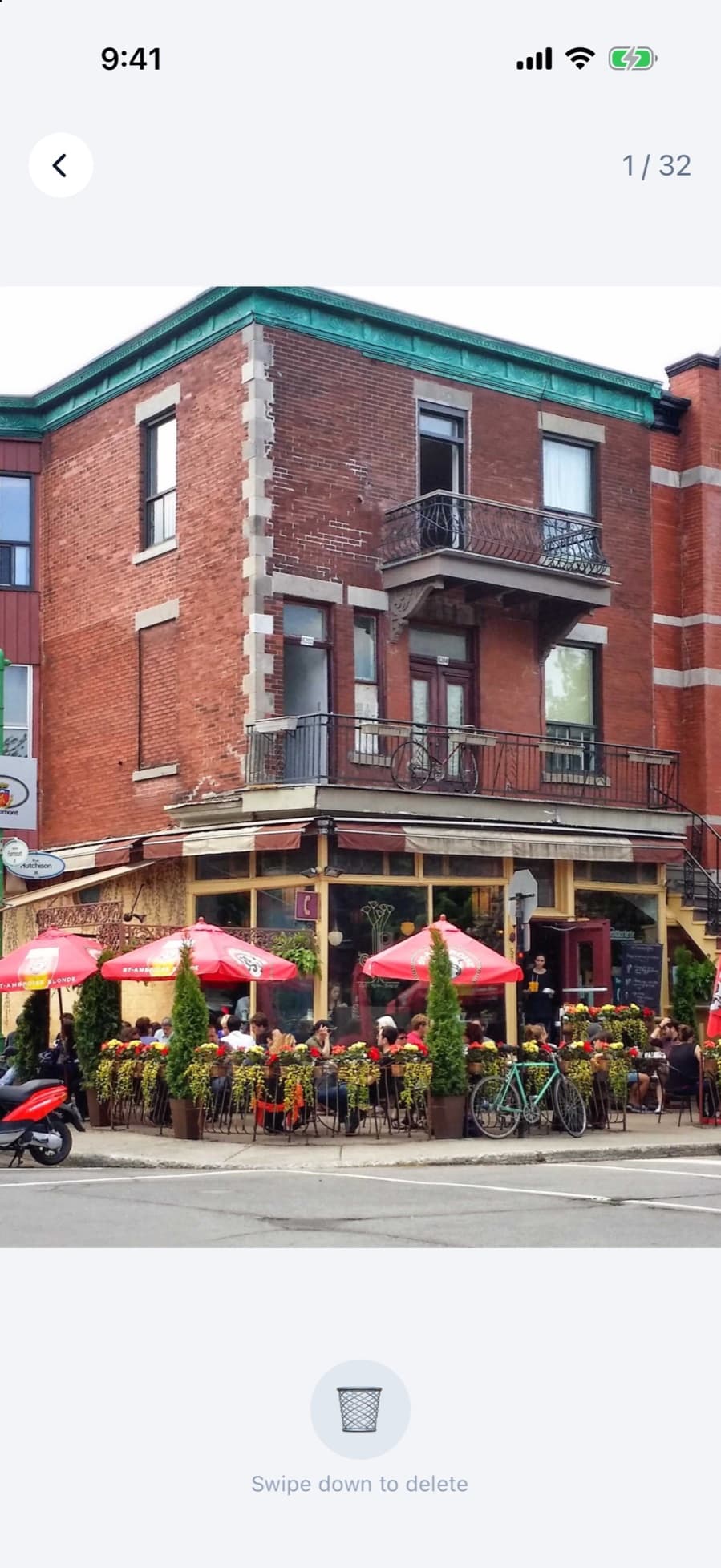
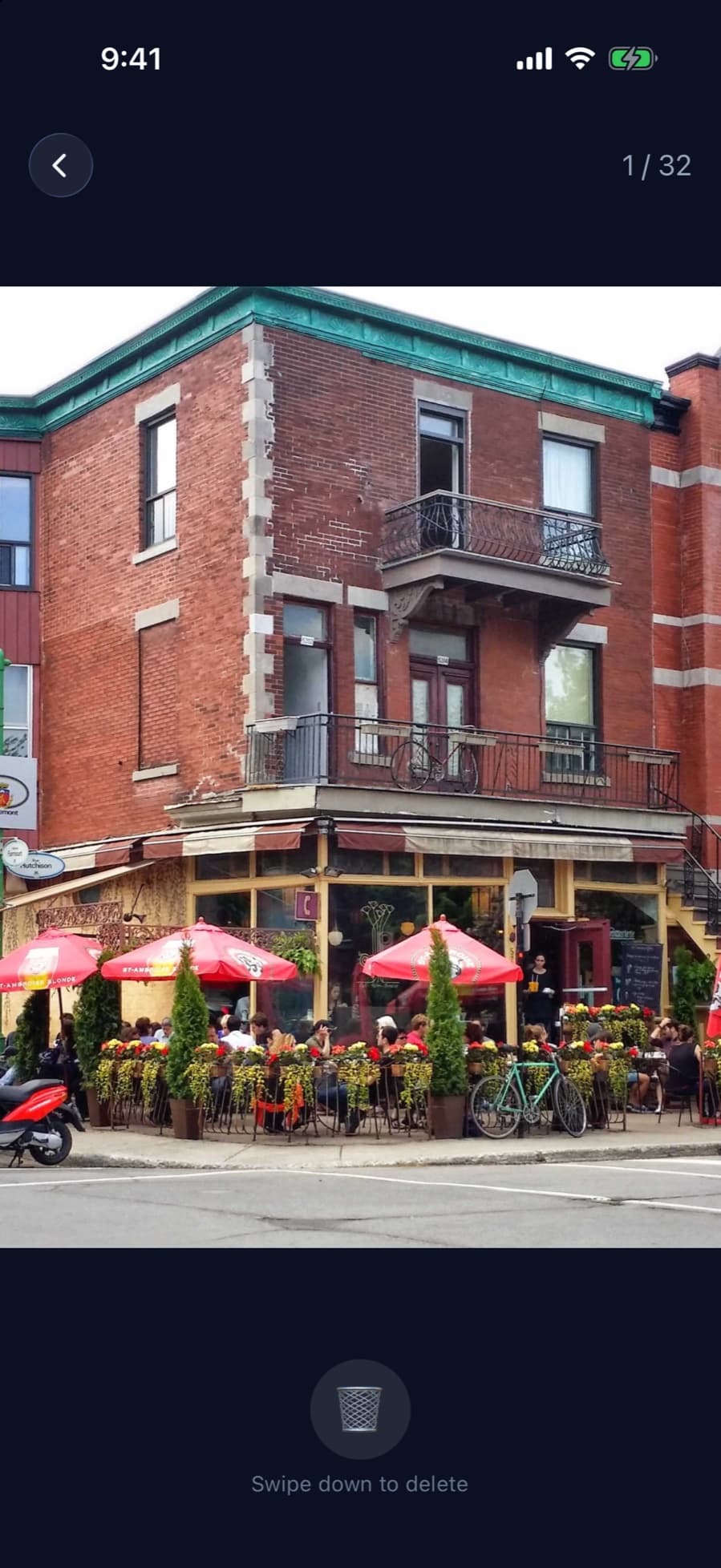
Some photos are easier to judge one at a time than in a grid. In CleanX, tap a photo in a list to open it as a card: swipe left to send it to CleanX’s trash, right to keep it. Nothing is deleted until you open the trash and delete it.
What swipe review does
- One photo at a time: swipe right to keep, left to send it to the trash.
- Undo: take back your swipes one at a time, whether you kept or trashed the photo.
- A trash you review: trashed photos wait in CleanX’s trash, grouped by list. Restore one, restore all, or delete them all at once instead of one photo at a time, per list or for the whole trash.
- Trash is saved: if you leave, CleanX asks whether to review the trash now or keep it for later.
- Videos too: video cards show a cover, and the video plays when you tap it.
Where you can swipe
Swipe review opens from the lists where every photo needs a decision of its own: Blurry Photos, Chat Photos (photos in WhatsApp, Telegram, Instagram and other chat-app albums), Selfies, Photos with Text and Videos. For groups of duplicates and similar shots, CleanX keeps one photo per group and lets you clear the rest at once instead: see duplicate photo remover.
How it works
Step 1: Open a list
Pick a list on the home screen, such as Blurry Photos, and tap a photo.
Step 2: Swipe
Left sends the photo to CleanX’s trash, right keeps it and shows the next one.
Step 3: Review the trash
Open the trash to see everything you swiped left; restore any photo you want back.
Step 4: Delete once
Delete everything in the trash at once. On iPhone, iOS asks you to confirm once and the photos go to Recently Deleted for 30 days; on Android, they’re deleted permanently, and on Android 11 and later Android asks you to confirm first.
What it doesn’t do
- Swiping left doesn’t delete. Photos stay in CleanX’s trash until you delete them there.
- It doesn’t judge your photos. You decide on every card.
- It isn’t on every list. Duplicate and similar groups use selection instead of swiping.
CleanX vs. deleting in the Photos app
You can delete photos one by one in Photos or Google Photos for free. See how to delete all photos on iPhone and how to delete blurry photos.
| Photos app (free) | CleanX | |
|---|---|---|
| Deciding | Open each photo, tap delete | Swipe left or right |
| Mistakes | Recently Deleted (iPhone) | Undo, then restore from CleanX’s trash |
| Confirming | Each deletion | Once for the whole trash (iPhone, Android 11+) |
| Cost | Free | Swiping free; deleting the trash needs CleanX Pro |
What’s free and what needs CleanX Pro
Swiping and reviewing the trash are free. Deleting the trash needs CleanX Pro, available as a weekly plan with a 7-day free trial for new subscribers, or as a one-time Lifetime purchase with no subscription. See what else it covers in iPhone storage cleaner.
Frequently asked questions
Does swiping left delete the photo?
No. It goes to CleanX’s trash, where you can restore it. Photos are deleted only when you delete the trash.
Can I undo a swipe?
Yes. Undo takes back your swipes one at a time, and you can restore any photo from the trash before deleting.
Which photos can I swipe through?
Blurry photos, chat photos, selfies, photos with text and videos. Duplicate and similar groups use selection instead.
Does it work on Android?
Yes, on iPhone and Android. On Android, deleted photos are gone for good; on Android 11 and later, Android asks you to confirm first.
Is swiping free?
Yes. Deleting the trash needs CleanX Pro: a weekly plan with a 7-day free trial, or a one-time Lifetime purchase.
Guides on this topic
- How to Find and Delete Blurry Photos on iPhone and AndroidiPhone has no blurry album: review Bursts and your Library yourself. Google Photos suggests blurry shots from your backed-up photos.
- How to Delete All Photos on iPhoneSelect many photos at once in Photos, delete them, then empty Recently Deleted.
- How to Clear WhatsApp Storage on iPhone (and Stop Saving Photos)Turn off Save to Photos, limit auto-download, and clear WhatsApp media and the copies in Photos.
Other features
- iPhone Storage Cleaner: See What Fills Your iPhone and Clear ItAll in one app: see what fills your iPhone, grouped and sized, and clear it only after you confirm.
- Email Cleaner for Gmail: Clear Your Inbox by Sender and CategoryGmail cleanup from your phone: senders by size, whole categories with filters, and unsubscribing from the app.
- Duplicate Photo Remover for iPhone and Android: Find Copies and LookalikesDuplicates and similar shots on your phone, grouped with their size, with one photo per group kept.
- Video Compressor App for iPhone and Android: Shrink Videos on Your PhoneFind your largest videos, see the estimated new size, and replace each one with a smaller copy, on your phone.
- Duplicate Contacts Remover: Merge Duplicates and Fix Incomplete ContactsFind contacts saved twice by name or number, choose what the merged card keeps, and fix contacts with missing info.
How we checked this page
Swipe directions, undo, the trash, supported lists, platforms and the Pro gate checked against the CleanX iOS and Android app code on October 28, 2026. Written with AI assistance and reviewed by the CleanX team.
