
Duplicate Contacts Remover: Merge Duplicates and Fix Incomplete Contacts
CleanX reads your address book on the phone and finds contacts saved more than once, by the same name or the same phone number, so entries saved under different names still show up. Before a merge you choose the name and phone numbers to keep, and you can back up your contacts first.
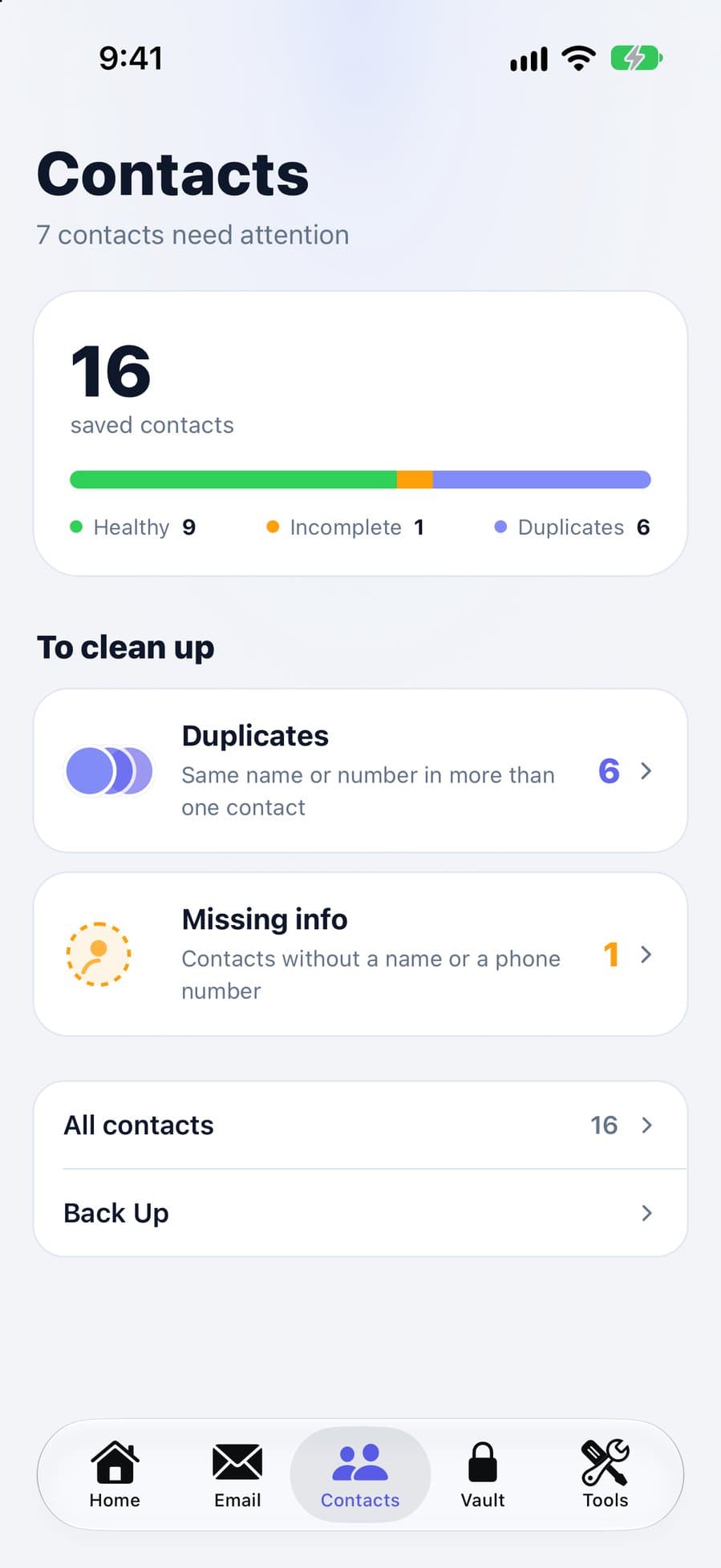
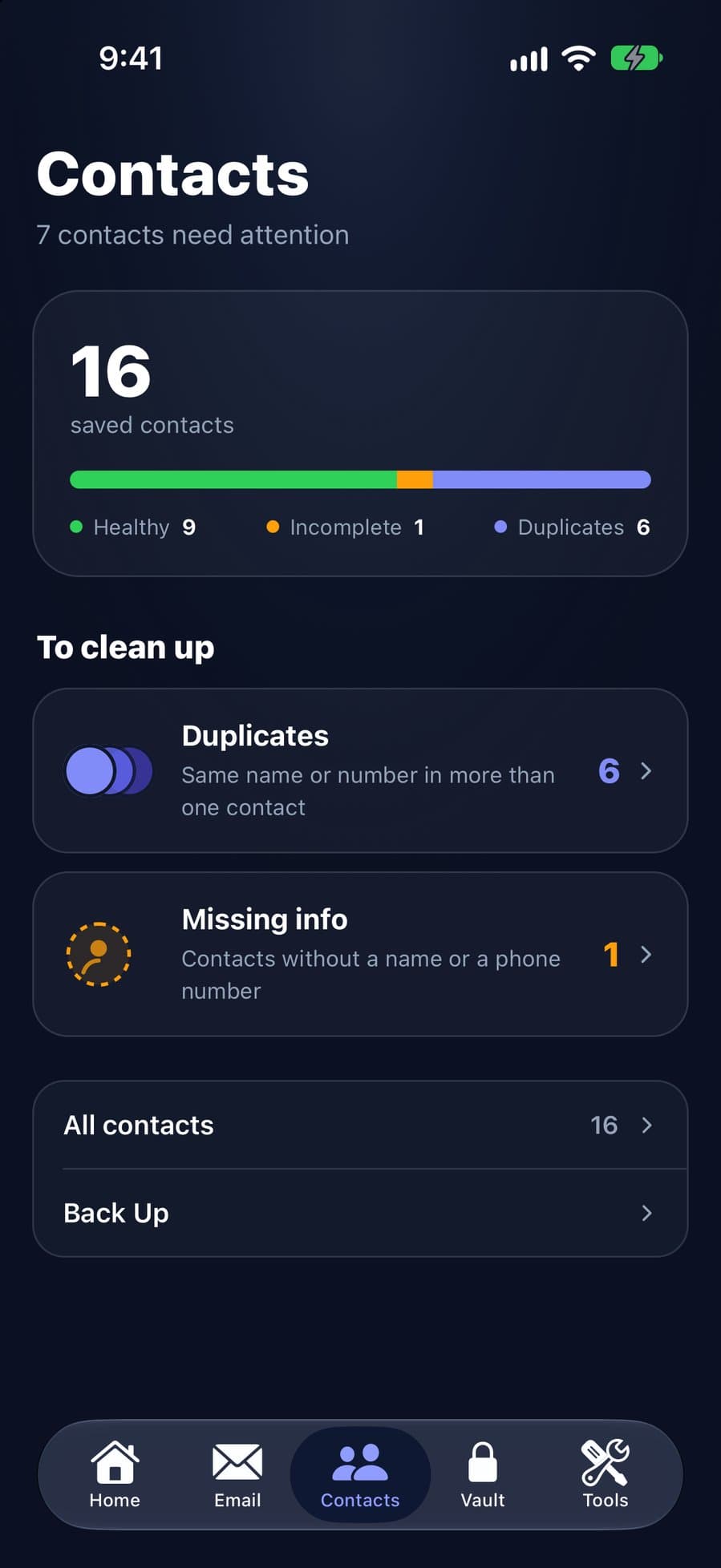
What it does
- Duplicates: contacts with the same name or the same phone number are grouped. Numbers match with or without a leading 0 and, for some countries such as the US, with or without the country code.
- Merge preview: choose which name to keep and leave out phone numbers you don’t want before you merge.
- Contacts with missing info: contacts without a name or without a phone number are listed so you can fix or delete them.
- Backup: save a backup of your contacts inside the app before you merge or delete, and restore missing contacts from it later.
How merging works
Step 1: Select the contacts
In Duplicates, tap Select All on a group or pick contacts one by one, then tap Merge.
Step 2: Check the preview
Pick the name to keep and untick phone numbers you don’t want.
Step 3: Merge
Tap Merge and confirm. CleanX updates the first contact with the chosen name, the phone numbers you kept and every email address from the selected contacts, and deletes the other cards.
What it doesn’t do
- It doesn’t merge on its own. Every merge and deletion waits for your confirmation.
- It doesn’t combine every field. Only names, phone numbers and email addresses are merged.
- It can’t undo a merge directly. Restoring a backup adds the original cards back next to the merged one; you can then delete the merged card.
- A backup isn’t a full copy. Restoring brings back names, phone numbers, email and postal addresses, company and websites; photos, birthdays and notes don’t come back. The backup is deleted if you delete CleanX. See how to back up contacts.
CleanX vs. built-in tools
Both phones can merge duplicates for free: see how to merge duplicate contacts on iPhone and on Android.
| iPhone (View Duplicates) | Android (Merge & fix) | CleanX | |
|---|---|---|---|
| Finds duplicates by | Same first and last name | Google’s suggestions | Same name or same phone number |
| Before merging | Tap a contact to review | Review each suggestion | Choose the name and the phone numbers to keep |
| Contacts with missing info | No list | No list of missing names or numbers | No name or no phone number |
| Undo | No undo described | Undo changes | Restore from a CleanX backup |
| Cost | Free | Free | Finding free; merging, deleting and backing up need CleanX Pro |
What’s free and what needs CleanX Pro
Finding duplicates and contacts with missing info is free, and so is restoring a backup. Merging, deleting and making a backup need CleanX Pro, available as a weekly plan with a 7-day free trial for new subscribers, or as a one-time Lifetime purchase with no subscription.
Frequently asked questions
How does CleanX find duplicate contacts?
It groups contacts with the same name or the same phone number. Numbers match with or without a leading 0, and for some countries with or without the country code.
What happens to the other contacts when I merge?
The first contact gets the chosen name, the phone numbers you kept and every email address; the others are deleted after you confirm. Their postal addresses, notes, company and birthday aren’t copied.
Can I undo a merge?
Not directly. If you backed up first, restoring adds the original cards back next to the merged one, and you can delete the merged card.
Does CleanX upload my contacts?
No. Your address book is read on the phone, and backups are saved inside the app.
Is the duplicate contacts remover free?
Finding duplicates is free. Merging, deleting and backing up need CleanX Pro: a weekly plan with a 7-day free trial, or a one-time Lifetime purchase.
Guides on this topic
- How to Merge Duplicate Contacts on iPhoneUse View Duplicates in Contacts, link the rest, and catch same-number duplicates.
- How to Merge Duplicate Contacts on AndroidContacts app › Fix & manage › Merge & fix › Merge duplicates, then Merge all.
- How to Back Up Contacts on iPhoneTurn on iCloud Contacts, export a vCard, and know what iCloud’s archive keeps.
- How to Delete Contacts on iPhone (One, Several or All)Delete one contact, several at once on iCloud.com, or all contacts from an account.
Other features
- iPhone Storage Cleaner: See What Fills Your iPhone and Clear ItAll in one app: see what fills your iPhone, grouped and sized, and clear it only after you confirm.
- Email Cleaner for Gmail: Clear Your Inbox by Sender and CategoryGmail cleanup from your phone: senders by size, whole categories with filters, and unsubscribing from the app.
- Duplicate Photo Remover for iPhone and Android: Find Copies and LookalikesDuplicates and similar shots on your phone, grouped with their size, with one photo per group kept.
- Video Compressor App for iPhone and Android: Shrink Videos on Your PhoneFind your largest videos, see the estimated new size, and replace each one with a smaller copy, on your phone.
- Swipe Photo Cleaner: Swipe Left to Trash, Right to KeepGo through photos one at a time with a swipe, then delete the trash at once instead of photo by photo.
How we checked this page
Duplicate detection, the merge rules, backups, platforms and the Pro gate checked against the CleanX iOS and Android app code on October 28, 2026. Built-in tools checked against Apple’s iPhone User Guide and Google Contacts Help. Written with AI assistance and reviewed by the CleanX team.
