
How to Delete Contacts on iPhone (One, Several or All)
By CleanX TeamPublished
Quick answer
- One contact: in Contacts, tap the contact, tap Edit, scroll down and tap Delete Contact twice.
- Several at once: on a computer, go to iCloud.com/contacts, select the contacts, then choose Delete Contact from the Actions button.
- All contacts from one account: Settings › Apps › Contacts › Contacts Accounts, tap the account and turn off Contacts.
Apple says a contact you delete is permanently removed from your device. If the contact is stored in an email account, it’s also deleted from every device signed in to that account, so decide which contacts you really want gone before you start.
Delete a single contact in the Contacts app
Step 1: Open the contact
Open Contacts and tap the contact you want to delete.
Step 2: Edit
Tap Edit, then scroll to the bottom of the card.
Step 3: Delete
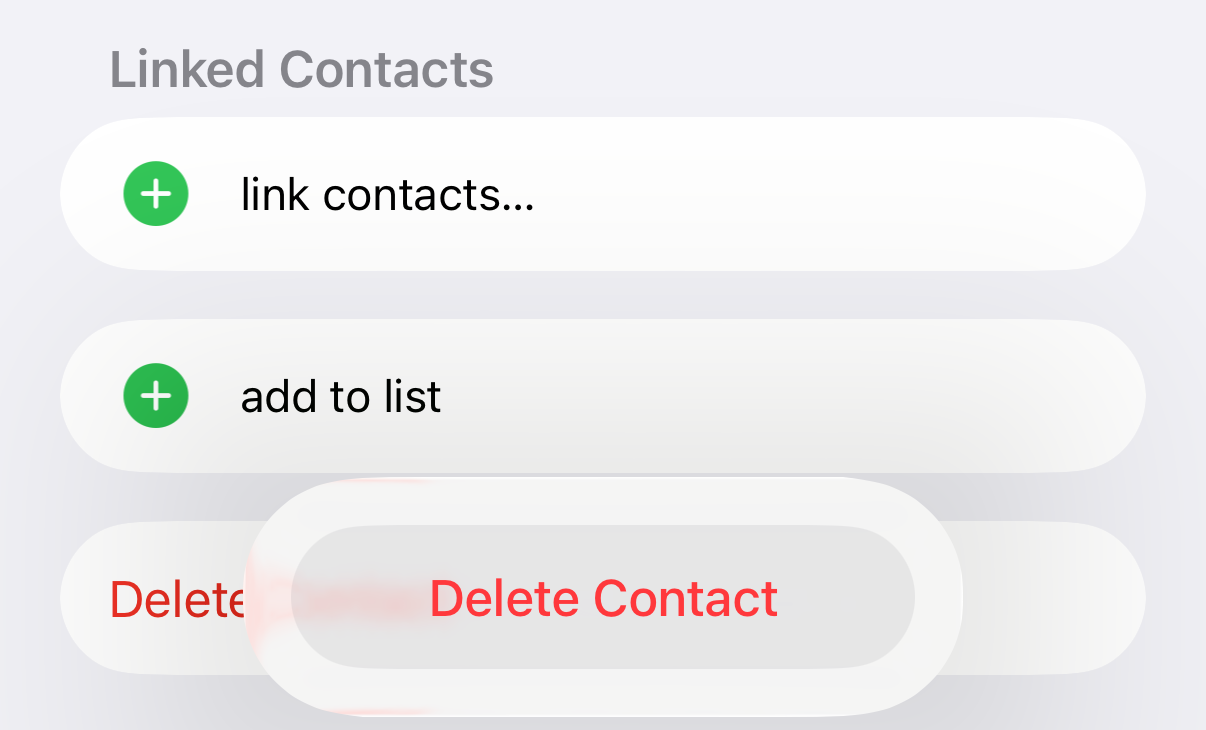
Tap Delete Contact, then tap Delete Contact again to confirm.
Delete multiple contacts at once on iCloud.com
If your contacts are in iCloud, you can select several and delete them in one go on iCloud.com. Selecting more than one contact with Command or Control works only on a computer.
Step 1: Open iCloud Contacts
Go to icloud.com/contacts and sign in with your Apple Account if needed.
Step 2: Show all contacts
Select All Contacts in the sidebar.
Step 3: Select contacts
Hold Command (Mac) or Control (Windows) and click each contact. To select everything, choose Select All Contacts from the Actions button at the top of the list.
Step 4: Delete
Select the Actions button, choose Delete Contact, then Delete.
Remove all contacts from an account
If your contacts come from an account such as Gmail or a work or school directory, you can remove all of that account’s contacts from your iPhone without deleting them one by one.
Step 1: Open Contacts settings
Go to Settings › Apps › Contacts.
Step 2: Choose the account
Tap Contacts Accounts, then tap the account whose contacts you want to remove.
Step 3: Turn off Contacts
Turn off Contacts, then tap Delete Account to remove them from your iPhone.
Deleted a contact by mistake?
For contacts stored in iCloud, Apple keeps archived versions you can go back to. On iCloud.com, open the App Launcher button in the toolbar, select Data Recovery, then Restore Contacts, and choose Restore next to a version. Apple says your current version is archived first, that after a recent deletion it may take up to 24 hours for the archive to appear, and that restored contacts appear on all your devices with Contacts turned on in iCloud settings.
| iPhone and iCloud.com | CleanX | |
|---|---|---|
| Delete several at once | Apple’s documented way: iCloud.com on a computer (iCloud contacts) | In the app on your iPhone: tick contacts or select them all |
| Find contacts to delete | Search or scroll the list | Contacts without a name or phone number listed separately |
| Undo a mistake | Restore an earlier version on iCloud.com (iCloud contacts) | Re-add missing contacts from a backup saved in the app on this iPhone (names, numbers, emails, addresses) |
| Cost | Free | Scanning free; deleting, merging and backups need CleanX Pro |
CleanX
Delete several contacts on your iPhone with CleanX
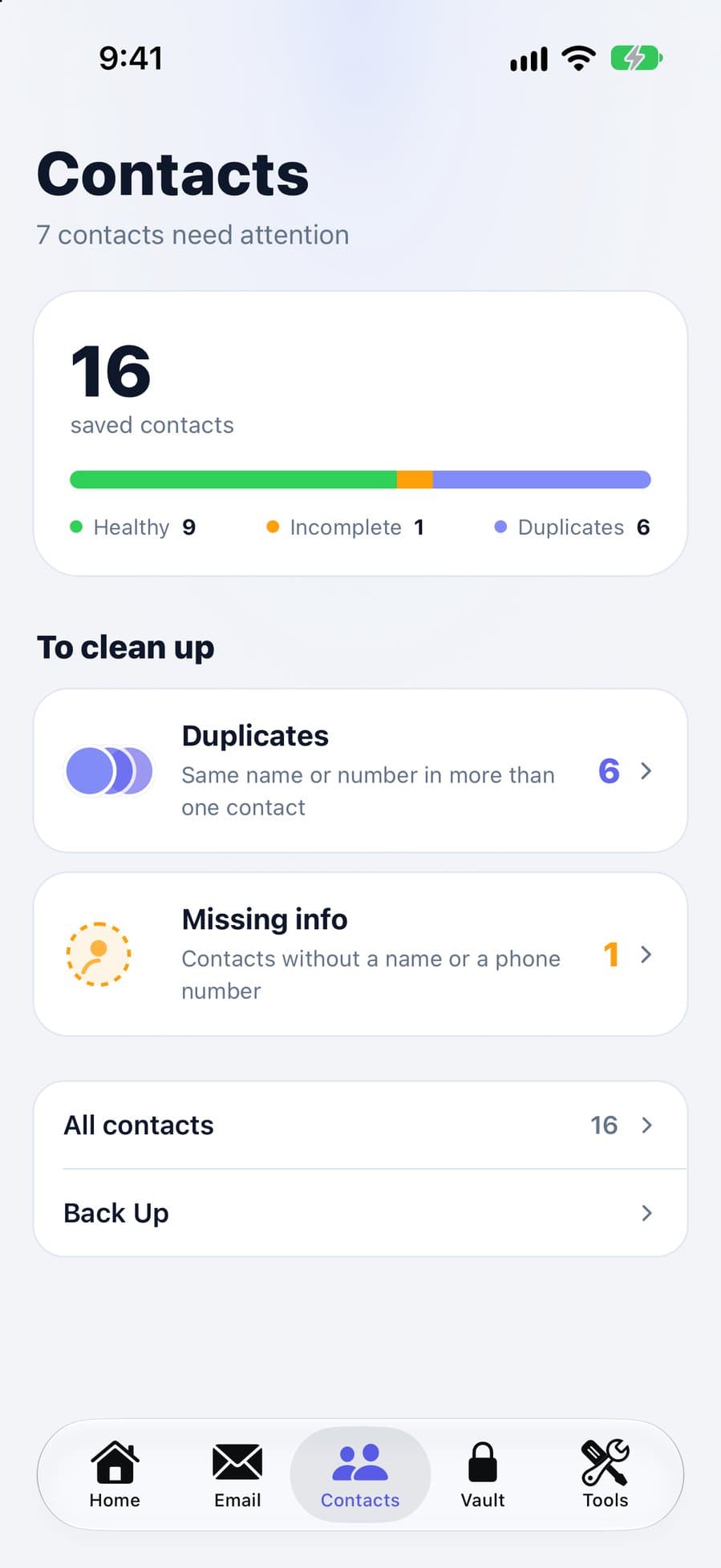
In CleanX, open All contacts or the Missing info card, tick the contacts you want to remove or tap the double-checkmark button at the top right to select them all, then tap Delete N Contacts. CleanX asks you to confirm first. Deleting in CleanX removes contacts from your address book the same way, including from a synced account, so back up your contacts before you start.
- Select contacts one by one or all at once
- Contacts without a name or phone number listed separately
- Scanning is free; deleting and backups need CleanX Pro
Before you delete contacts
- Back up first. In Contacts on iPhone, tap the Lists button, touch and hold a list, then tap Export; on iCloud.com you can export a vCard. CleanX can also save a contacts backup, kept inside the app on this iPhone.
- Check where the contact lives. Deleting a contact stored in an email account or iCloud removes it from the other devices using that account too.
- If the same person appears twice, merging may be better than deleting: see how to merge duplicate contacts on iPhone.
Frequently asked questions
How do I delete multiple contacts on my iPhone?
Apple documents bulk deletion on iCloud.com: for contacts in iCloud, select them in All Contacts on a computer, then choose Delete Contact from the Actions button. CleanX also lets you select and delete several contacts on the iPhone.
How do I delete all contacts on my iPhone?
Turn off Contacts for each account in Settings › Apps › Contacts › Contacts Accounts. For contacts stored in iCloud, choose Select All Contacts on iCloud.com, then Delete Contact.
If I delete a contact on my iPhone, is it deleted everywhere?
Apple says it’s removed from your device, and if the contact is in an email account, it’s also deleted from every device signed in to that account.
Can I get back a contact I deleted?
For iCloud contacts, yes: on iCloud.com, go to Data Recovery › Restore Contacts and restore an earlier version. After a recent deletion, the archive can take up to 24 hours to appear.
Is there an app to delete contacts in bulk?
CleanX lists all your contacts with checkboxes and a button to select them all, and asks you to confirm before deleting. Scanning is free; deleting needs CleanX Pro.
