
How to Merge Duplicate Contacts on iPhone
By CleanX TeamPublished
Quick answer
- Open Contacts. Below My Card, tap View Duplicates.
- Tap Merge All, or tap contacts one by one to review and merge them.
- iOS treats cards with the same first and last name as duplicates; for other cases, use Edit › Link Contacts.
Apple explains that when contacts come from more than one source, such as different accounts, the same person can appear more than once. The Contacts app can merge duplicates, and you can link the rest yourself.
Merge duplicate contacts with View Duplicates
Step 1: Open Contacts
Open the Contacts app.
Step 2: View duplicates
Below My Card, tap View Duplicates.
Step 3: Merge
Tap Merge All to merge every duplicate, or tap individual contacts to review and merge them one at a time.
Why “View Duplicates” doesn’t appear
Apple describes duplicates as contact cards with the same first and last name, so if none of your cards share a first and last name, there may be nothing for View Duplicates to show. Cards with different names, for example the same number saved as “Mom” and as a full name, aren’t merged this way.
Link contacts that iOS doesn’t merge
Step 1: Open a contact
In Contacts, tap one of the entries for the person and tap Edit.
Step 2: Link
Tap Link Contacts, choose the other entry, then tap Link.
Step 3: Choose the name
If the names differ, tap one of the linked cards, tap the name, then tap Use This Name For Unified Card.
| Contacts app | CleanX | |
|---|---|---|
| Finds duplicates by | Same first and last name | Same full name or same phone number |
| Same person, different names | Link the cards by hand | Grouped if the phone number matches |
| Contacts with missing details | — | Listed separately |
| Before you change anything | Review contacts one by one | Review each group, and back up your contacts in the app |
| Cost | Free | Scanning free; merging, deleting and backups need CleanX Pro |
CleanX
Catch duplicates that share a number with CleanX
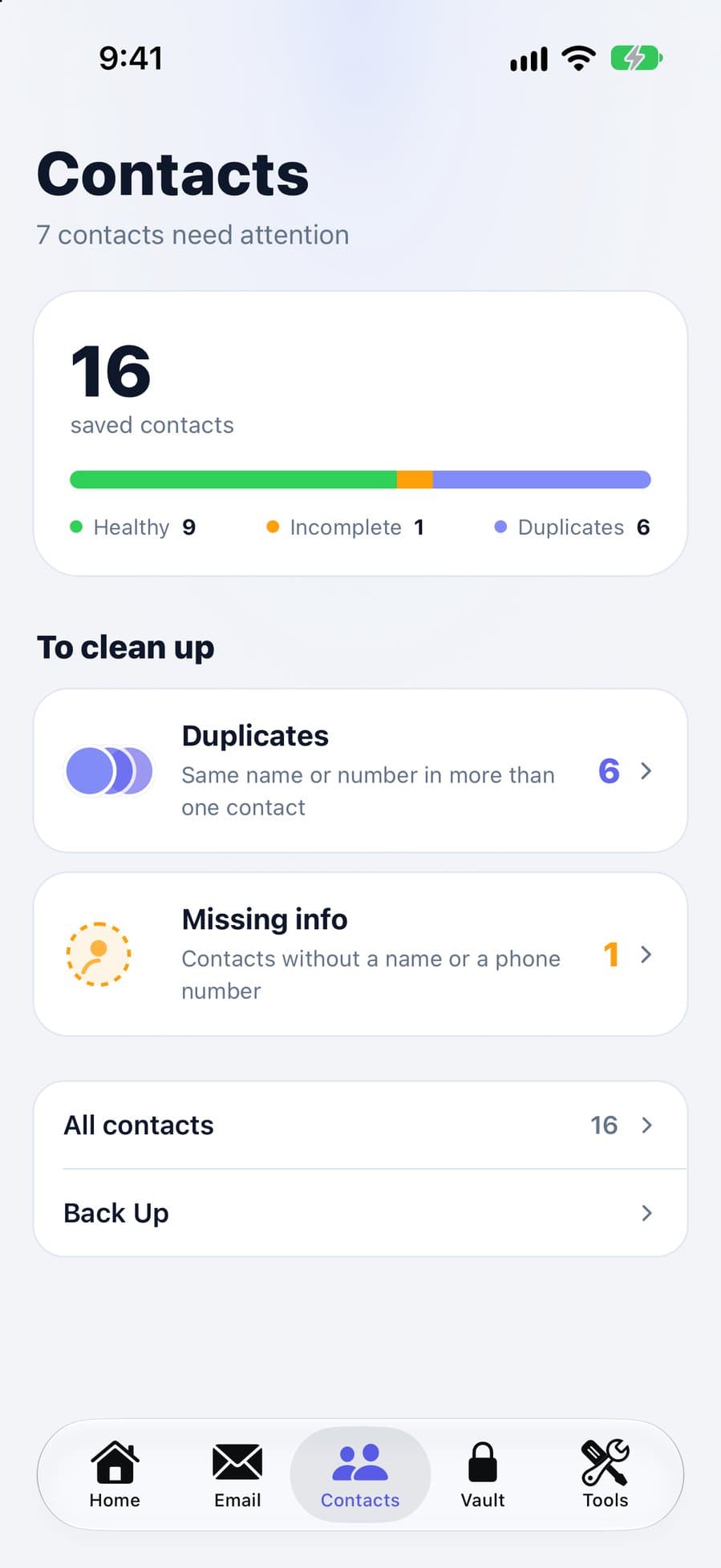
CleanX groups contacts that have the same full name or the same phone number, so entries saved under different names still show up. You review each group before anything is merged.
- Duplicates by name or phone number, plus contacts with missing details
- Review each group before merging
- Scanning is free; merging, deleting and backups need CleanX Pro
Before you merge
- Merge All merges all cards that share a first and last name, including two different people who happen to have the same name. If you have contacts like that, don’t use Merge All; tap individual contacts and merge only the real duplicates.
- Merging combines the cards into one, so check any group you’re unsure about before you merge it.
Frequently asked questions
Why does my iPhone not have the option to merge contacts?
View Duplicates is for cards with the same first and last name; if you have none, there may be nothing to show. For other duplicates, link the cards with Edit › Link Contacts.
What does merging duplicate contacts do?
It combines duplicate cards for the same person into one. Linking is different: the cards stay separate and appear as one unified contact.
How do I merge all duplicate contacts at once?
In Contacts, below My Card, tap View Duplicates, then tap Merge All.
Why do I have duplicate contacts on my iPhone?
Apple says it happens when contacts come from multiple sources, such as different accounts, so the same person is saved more than once.
Can I find duplicates with the same phone number but different names?
The Contacts app looks at first and last names, so you’d link those by hand. CleanX also groups contacts that share a phone number.
Related guides
- How to Delete Duplicate Photos on iPhoneUse the built-in Duplicates album, then deal with the similar shots it leaves behind.
- How to Free Up Space on iPhoneSee what fills your iPhone and clear it with the settings Apple already gives you.
- How to Delete Contacts on iPhone (One, Several or All)Delete one contact, several at once on iCloud.com, or all contacts from an account.
- How to Merge Duplicate Contacts on AndroidContacts app › Fix & manage › Merge & fix › Merge duplicates, then Merge all.
