
How to Delete All Emails in Gmail (Bulk Delete)
By CleanX TeamPublished
Quick answer
- On a computer, open a folder such as Inbox or All mail, check the Select box, then click Select all … conversations in the notice above your messages and click Delete.
- In the Gmail app on iPhone, Select all picks up to 50 messages at a time, so a whole inbox is a job for the computer.
- Deleted emails stay in Trash for 30 days; empty it so the space is freed without waiting.
Gmail shares up to 15 GB of free storage with Google Drive and Google Photos. Google says that when your account reaches its limit, you can’t send or receive email in Gmail. Clearing out old email is one way to get under the limit.
Delete all emails in Gmail on a computer
Step 1: Pick a folder
Go to Gmail in a browser and choose a folder or tab, for example Inbox, Promotions or All mail.
Step 2: Select the page
Above your messages, check the Select box. This selects only the conversations on the current page.
Step 3: Select everything
In the notice above your messages, click the link to select all conversations, for example “Select all 2,000 conversations in Inbox.”
Step 4: Delete
Click Delete at the top. Everything moves to Trash.
Bulk delete only what you choose with search
Type a search in the Gmail search bar, then use the same Select box and the select-all link in the notice. These search operators from Google’s list are useful for a clean-up:
- older_than:1y — emails older than a year (use d, m or y for days, months or years)
- larger:10M — emails bigger than 10 MB
- category:promotions or category:social — a whole inbox tab
- from:news@example.com — everything from one sender (see Gmail sort by sender)
- has:attachment — emails with attachments
Delete emails in bulk in the Gmail app on iPhone
Step 1: Start selecting
Open the Gmail app and touch and hold a message.
Step 2: Select all
At the top left, tap the box next to Select all. Google says this selects up to 50 messages.
Step 3: Delete and repeat
Tap Delete. For the next 50, scroll to the top and tap Select all again.
Searching first (for example older_than:1y) narrows the list, but the app still works in batches of 50. For thousands of emails, use Gmail in a browser.
Empty the Trash to free storage
Deleted emails stay in Trash for up to 30 days, then they’re permanently deleted. Google’s short-term fix for a full account is to empty Trash and Spam; you can empty Spam the same way.
Step 1: On a computer
Click More › Trash on the left, then click Empty Trash now in the notice at the top.
Step 2: In the iPhone app
Tap Menu › Trash, then tap Empty trash now at the top.
| Gmail | CleanX | |
|---|---|---|
| Select a whole inbox or tab | In a browser; the iPhone app selects up to 50 at a time | On iPhone, whole categories (Social, Promotions, Updates, Forums, Spam), not the whole inbox |
| Find what to delete | Search operators you type yourself | Senders listed by number of emails and size; category filters for age, starred, read/unread and keywords to keep |
| Cost | Free | Scanning free; moving to Trash and unsubscribing need CleanX Pro |
CleanX
Clear Gmail from your iPhone with CleanX
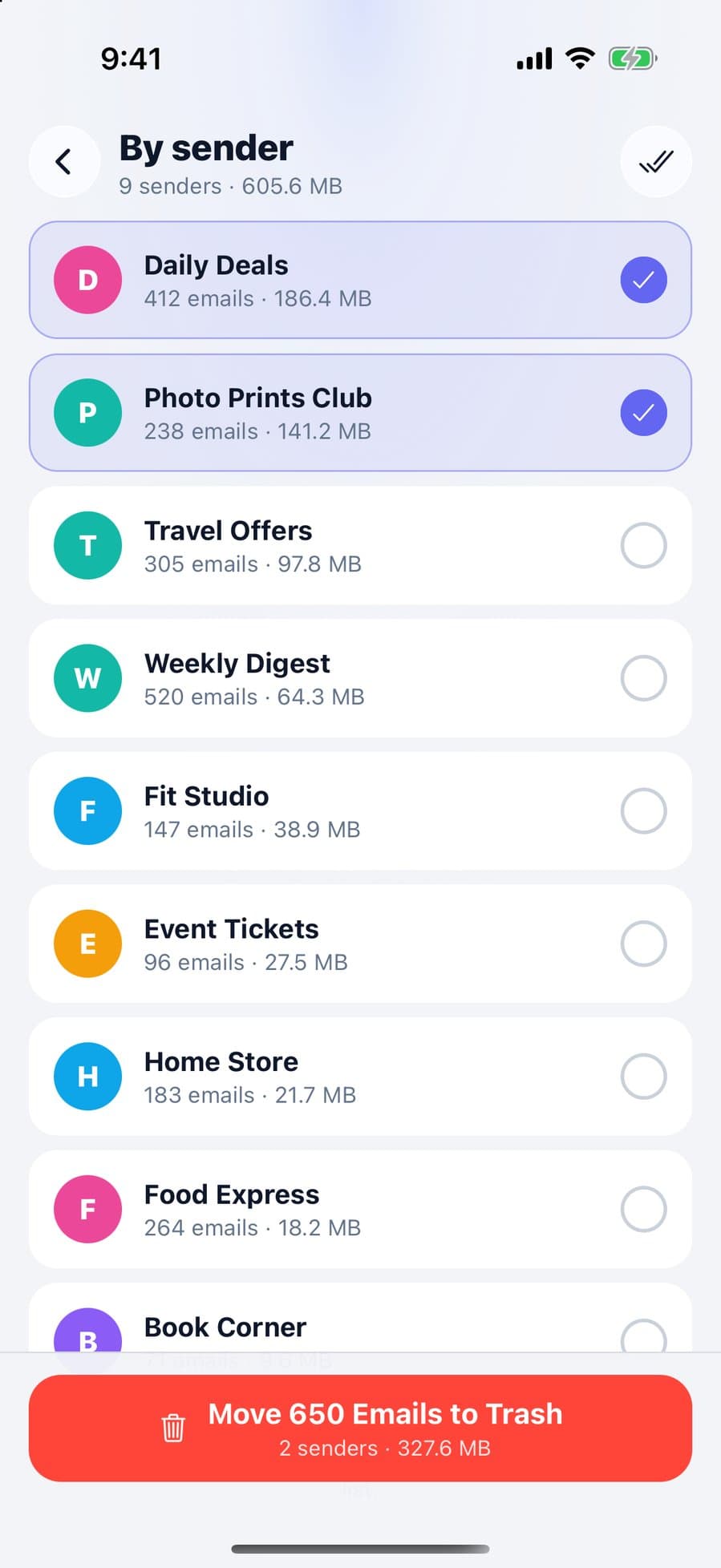
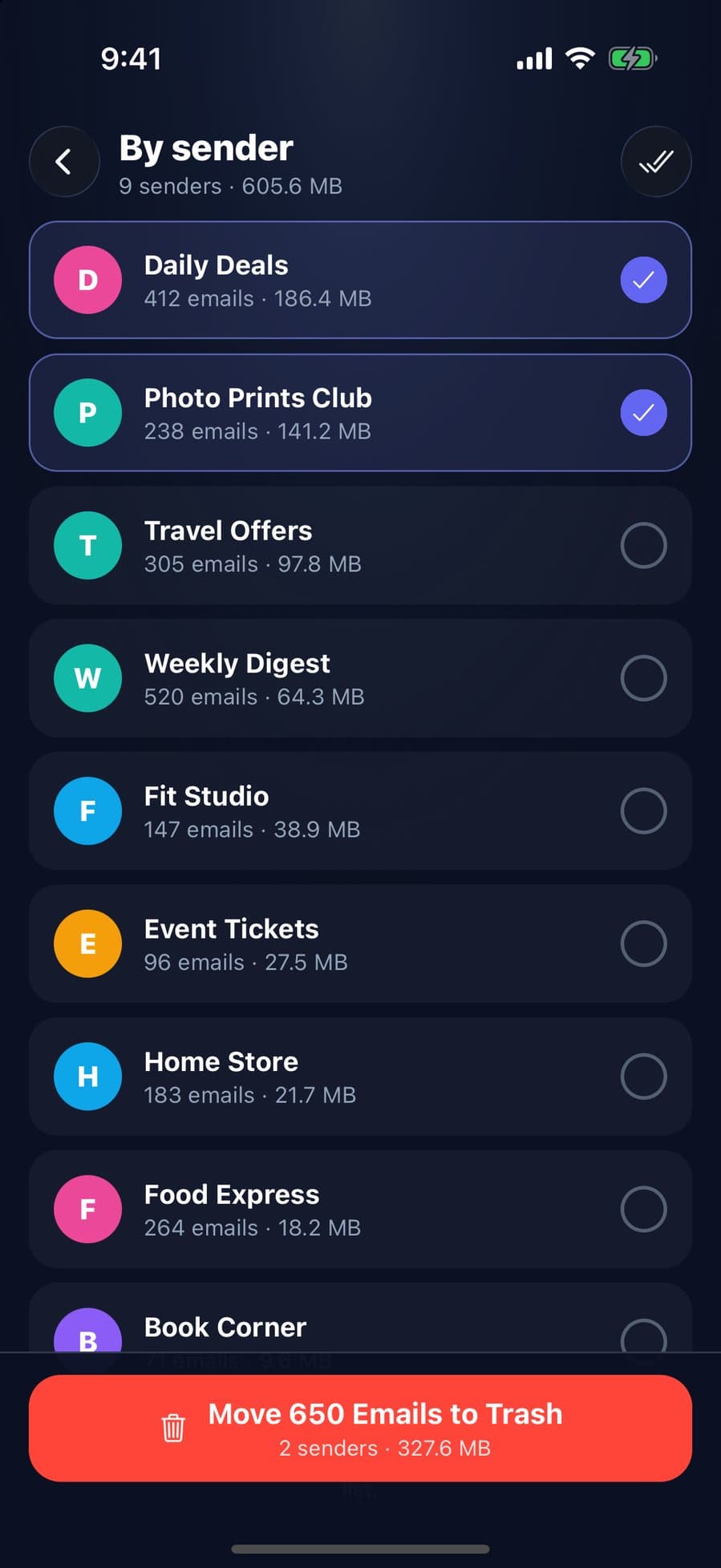
Sign in with Google and CleanX shows who fills your inbox: each sender from the latest 2,000 emails in your inbox, with their number of emails and the space they take, largest first. Tick a Gmail category such as Promotions, set filters such as older than 1 year (starred emails are kept by default), and CleanX moves the matching emails in that category to Trash in one go. Emails go to Gmail’s Trash, where you can restore them for 30 days.
- Senders sorted by size, plus Gmail categories with filters
- Unsubscribe from senders’ mailing lists
- Scanning is free; moving to Trash and unsubscribing need CleanX Pro
Before you delete all your email
- Drafts are different: Google says a deleted draft can’t be recovered from Trash.
- Emptying Trash is final. After that, or after 30 days, deleted emails can’t be recovered.
- Don’t ignore a full account: Google says that if you’re over your storage quota for 2 years, it might delete content across Gmail, Drive and Photos.
- Phone storage is separate from Google storage: for the iPhone side, see how to free up space on iPhone.
Frequently asked questions
How do I delete thousands of Gmail emails at once?
On a computer, open the folder, check the Select box, then click the “Select all … conversations” link that appears above your messages, and click Delete.
How do I select all 3,000 emails in Gmail?
The Select box selects only the current page. Click the link in the notice above your messages to select every conversation in the folder or search.
Why is it so hard to bulk delete in the Gmail app on iPhone?
Google says Select all in the iOS app selects up to 50 messages at a time. Use Gmail in a browser for a whole inbox, or CleanX to clear whole categories on your iPhone.
Does deleting emails free up Gmail storage?
Yes, once they leave Trash: deleted emails sit there for up to 30 days, so empty Trash to remove them permanently sooner. Google notes storage can take a while to update after deleting a lot at once.
Can I get deleted Gmail emails back?
Within 30 days, yes: open Trash, select the messages and move them back. Deleted drafts and emails you deleted forever can’t be recovered.
Related guides
- How to Unsubscribe From Emails in Gmail (Many at Once)Use Manage subscriptions for every list, the Unsubscribe link for one, and know when to block.
- Gmail Storage Full? How to Free Up Google StorageGmail, Drive and Photos share one 15 GB. Empty Trash, delete large emails, then clean up the rest.
- How to Delete All Promotions Emails in GmailOpen Promotions, select all conversations, delete, then empty Trash. Use category:promotions -is:starred to keep starred emails.
- How to Sort Gmail by Sender (and Delete All Emails From One Sender)Gmail can’t sort by sender, but search groups one sender’s emails so you can delete them all at once.
