
How to Sort Gmail by Sender (and Delete All Emails From One Sender)
By CleanX TeamPublished
Quick answer
- Gmail has no sort by sender option: Gmail Help describes two sort options for search results, Most relevant and Most recent.
- To see one sender’s emails on a computer, right-click a message and choose Find emails from [sender name], or search from:name@example.com.
- To delete them all, check the Select box, click the link in the notice to select all conversations, then click Delete.
- To stop future emails from that sender landing in your inbox, create a filter from the same search.
Gmail Help describes two sort options for search results: Most relevant and Most recent. There’s no column you can click to sort your inbox by sender. What Gmail does have is search: it puts every email from one sender on one list, and from there you can delete, archive or filter them together.
See all emails from one sender
Step 1: Right-click a message
On your computer, go to Gmail and right-click a message from the sender. Choose Find emails from [sender name].
Step 2: Or search by address
Type from: and the address in the search bar, for example from:news@example.com, and press Enter. To match only that exact address and not its aliases, Google suggests putting the search in quotes.
Step 3: Or use the From chip
After any search, Gmail shows chips under the search box. From narrows the results to one email address.
You can also look up several senders at once with OR, for example from:amy@example.com OR from:david@example.com.
Delete all emails from one sender on a computer
Step 1: Search for the sender
Use Find emails from or a from: search as above.
Step 2: Select the page
Above your messages, check the Select box. This selects only the conversations on the current page.
Step 3: Select everything
In the notice above your messages, click the link to select all conversations, not just the ones on this page.
Step 4: Delete
Click Delete at the top. The emails move to Trash. To keep them but clear your inbox, click Archive instead.
Delete emails from one sender on Android or iPhone
Step 1: Search
In the Gmail app, tap the search box at the top, enter the sender’s address and tap Search. You can also tap the From chip under the search box.
Step 2: Select all
Touch and hold a message, then tap the box next to Select all at the top left. Google says this selects up to 50 messages.
Step 3: Delete and repeat
Tap Delete. For the next 50, scroll to the top and tap Select all again.
For a sender with thousands of emails, the computer is faster because it can select every conversation that matches the search at once. For whole inboxes or tabs, see how to delete all emails in Gmail.
Handle future emails from a sender with a filter
Step 1: Open search options
On your computer, in the search box at the top of Gmail, click Show search options.
Step 2: Enter the sender
Type the address in From. Click Search first if you want to check which emails match.
Step 3: Create the filter
Click Create filter, choose what it should do (for example archive or delete the emails, or send them to a label), then click Create filter again.
Google’s filter steps are for Gmail on a computer. You can edit or delete them later in Settings › See all settings › Filters and Blocked Addresses.
Which senders fill your inbox?
Gmail doesn’t list all your senders with how many emails each has sent. The closest thing is Manage subscriptions (More › Manage subscriptions on a computer, Menu › Manage subscriptions in the Android and iPhone apps): it lists the senders of mailing lists you’re subscribed to, with the number of emails each sent recently, and clicking a sender’s name shows all their emails. Google says it’s rolling out gradually. To leave those lists, see how to unsubscribe from emails in Gmail.
| Gmail on a computer | Gmail app (Android, iPhone) | CleanX | |
|---|---|---|---|
| List of senders with counts | Only mailing lists, in More › Manage subscriptions | Only mailing lists, in Menu › Manage subscriptions | Yes: senders in your latest 2,000 inbox emails, with number of emails and size, largest first |
| All emails from one sender | Search, then select all conversations | Search, then up to 50 at a time | Tap the sender; covers their emails in the scan |
| Several senders at once | One search with OR | One search with OR, 50 at a time | Tick several senders |
| Future emails | Filter | No | No |
| Cost | Free | Free | Scanning free; moving to Trash needs CleanX Pro |
CleanX
See your Gmail by sender with CleanX
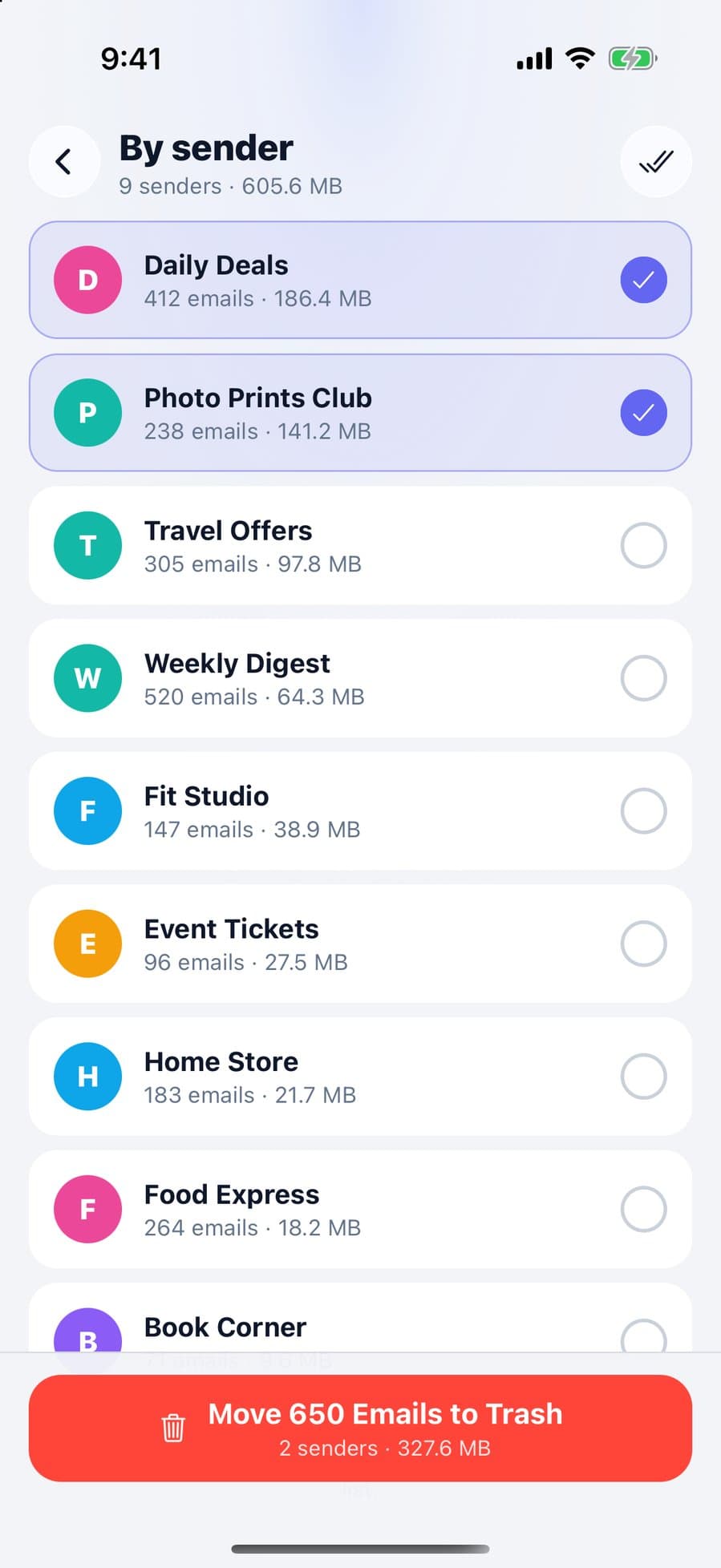
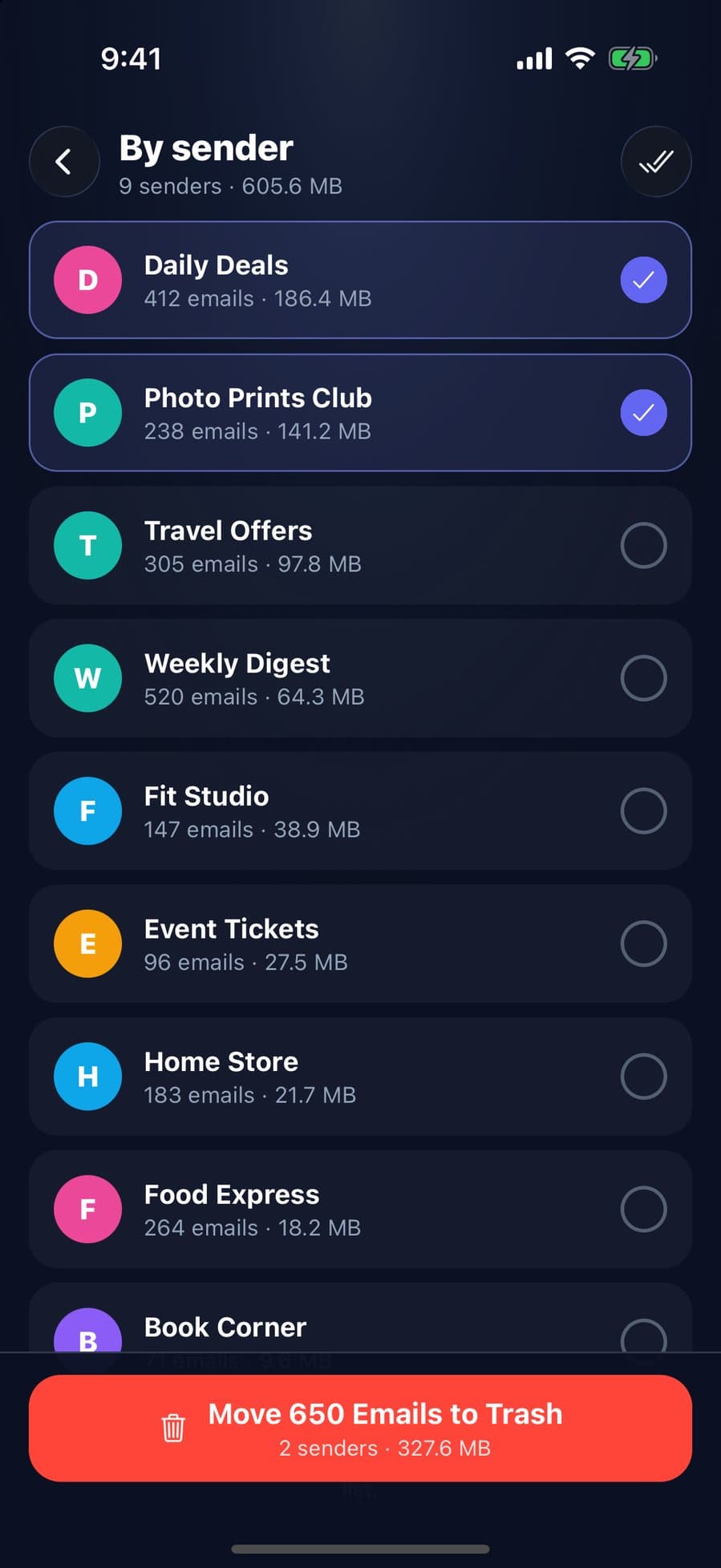
Sign in with Google, open By sender, and CleanX scans your latest 2,000 inbox emails and groups them by sender: each row shows the number of emails and the space they take, largest first. Tick one sender or several and tap Move to Trash; their emails from the scan go to Gmail’s Trash, where you can restore them for 30 days. Older or archived emails aren’t in the list, so use a from: search in Gmail for those. CleanX works with Gmail only.
- Senders grouped with email count and size
- Trash several senders’ emails in one go
- Scanning is free; moving to Trash needs CleanX Pro
Before you delete a sender’s emails
- Check the list first. A from: search can also match aliases of the address; use quotes to match only the exact address.
- Trash keeps them for 30 days. After that, or after you empty Trash, Google says they can’t be recovered.
- Deleting doesn’t unsubscribe you. New emails keep coming unless you unsubscribe, block the sender or set up a filter.
Frequently asked questions
Can you sort Gmail by sender?
No. Gmail Help describes two sort options for search results: Most relevant and Most recent. To group one sender’s emails, right-click a message and choose Find emails from, or search from: and their address.
How do I delete all emails from one sender in Gmail?
On a computer, search from: and the address, check the Select box, click the link in the notice to select all conversations, then click Delete.
How do I delete all emails from one sender in the Gmail app?
Search for the sender, touch and hold a message and tap Select all. Google says this selects up to 50 messages, so repeat until they’re gone, or use a computer.
How do I see all emails from one person in Gmail?
On a computer, right-click one of their messages and choose Find emails from [sender name]. In the app, search their address or use the From chip.
Can I automatically delete emails from a sender?
Yes, with a filter on a computer: open search options, enter the address in From, click Create filter and choose what the filter does, for example delete.
Related guides
- How to Delete All Emails in Gmail (Bulk Delete)Select every conversation on a computer, target mail with search, then empty the Trash.
- How to Unsubscribe From Emails in Gmail (Many at Once)Use Manage subscriptions for every list, the Unsubscribe link for one, and know when to block.
- How to Delete All Promotions Emails in GmailOpen Promotions, select all conversations, delete, then empty Trash. Use category:promotions -is:starred to keep starred emails.
