
How to Unsubscribe From Emails in Gmail (Many at Once)
By CleanX TeamPublished
Quick answer
- All your subscriptions in one place: in Gmail, go to More › Manage subscriptions on a computer, or Menu › Manage subscriptions in the iPhone app, and click or tap Unsubscribe next to a sender.
- From a single email: open it and tap Unsubscribe next to the sender’s name; some senders show Go to website instead.
- It can take a few days to stop; blocking a sender sends future mail to Spam but doesn’t unsubscribe you.
Google says that when you unsubscribe from a sender in Manage subscriptions, Gmail unsubscribes you from all of that sender’s active mailing lists. Google also notes the feature is rolling out gradually, so it may not be in your account yet.
Unsubscribe from many senders with Manage subscriptions
Step 1: Open the list
On a computer, open Gmail and click More › Manage subscriptions on the left. In the Gmail app on iPhone, tap Menu, then Manage subscriptions.
Step 2: Review a sender
Click or tap the sender’s name or picture to see all their emails before you decide.
Step 3: Unsubscribe
Click or tap Unsubscribe next to the sender. If a pop-up appears because the sender handles it on their website, choose Go to website or Block instead.
Unsubscribe from a single email
Step 1: Open the email
In Gmail, open a newsletter or promotional email.
Step 2: Choose Unsubscribe
Next to the sender’s name, click or tap Unsubscribe.
Step 3: Confirm
In the pop-up, choose Unsubscribe or Go to website.
Google notes that unsubscribing from one email might take you off only one of the sender’s mailing lists; Manage subscriptions finds all of them. In the iPhone app you can also turn on Unsubscribe tips in Menu › Settings › Inbox customizations › Inbox tips to get suggestions for emails you rarely read.
Unsubscribe or block?
- Unsubscribe asks the sender to stop. Google says it can take a few days, and you might still get emails in that time.
- Block doesn’t unsubscribe you; Google says future emails from the sender go straight to Spam.
- Old emails stay either way. To clear them, see how to delete all emails in Gmail.
| Gmail | CleanX | |
|---|---|---|
| Find subscriptions | Manage subscriptions (rolling out gradually) | Senders with an unsubscribe link in your latest 2,000 inbox emails |
| Unsubscribe | From every list of a sender (Manage subscriptions) or from one email | From each sender, using the link in their latest email (may cover only one of their lists): a one-click request, an email sent from your Gmail, or the sender’s website |
| Their emails | Delete them separately | After you unsubscribe, a Trash button moves that sender’s emails with an unsubscribe link found in the scan to Trash |
| Cost | Free | Scanning free; unsubscribing and moving to Trash need CleanX Pro |
CleanX
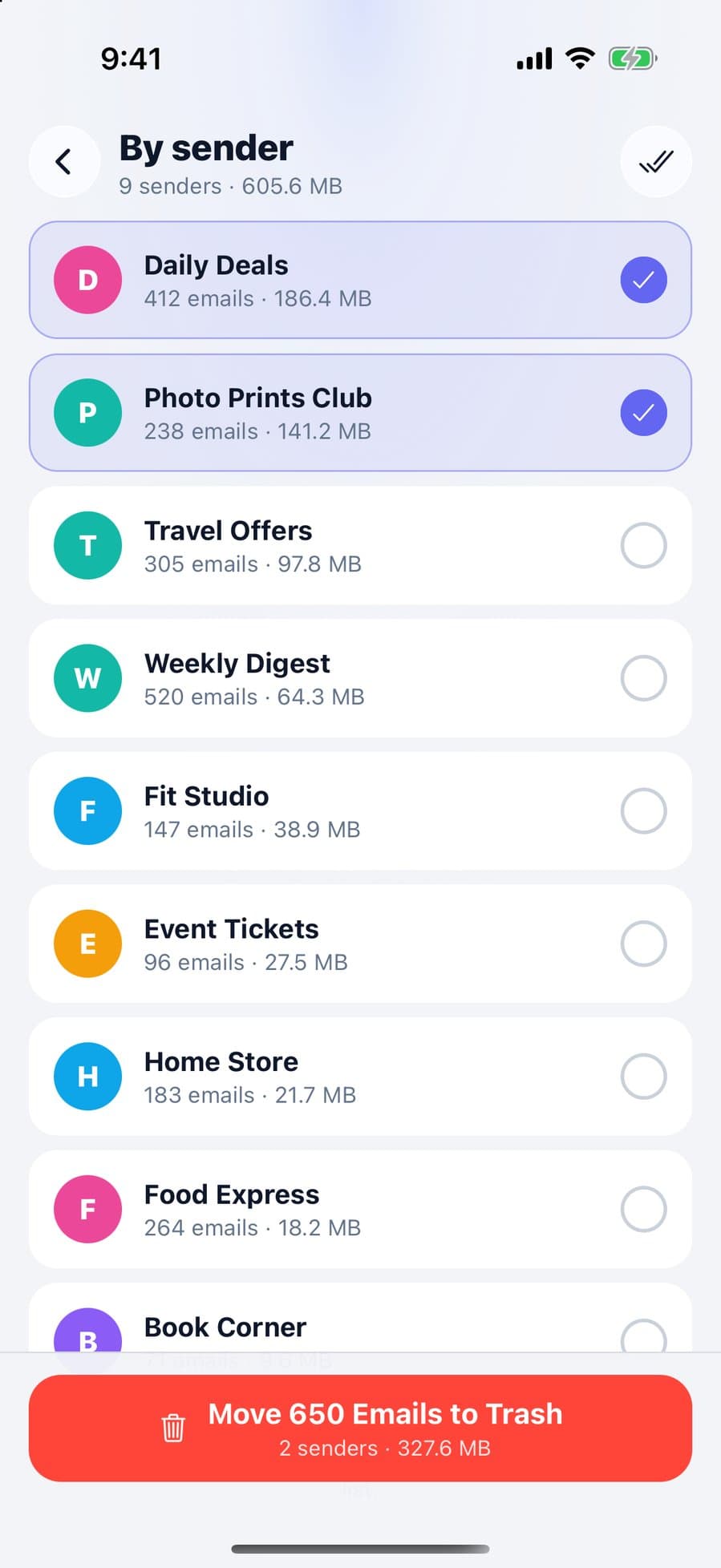
Unsubscribe and clear old emails together with CleanX
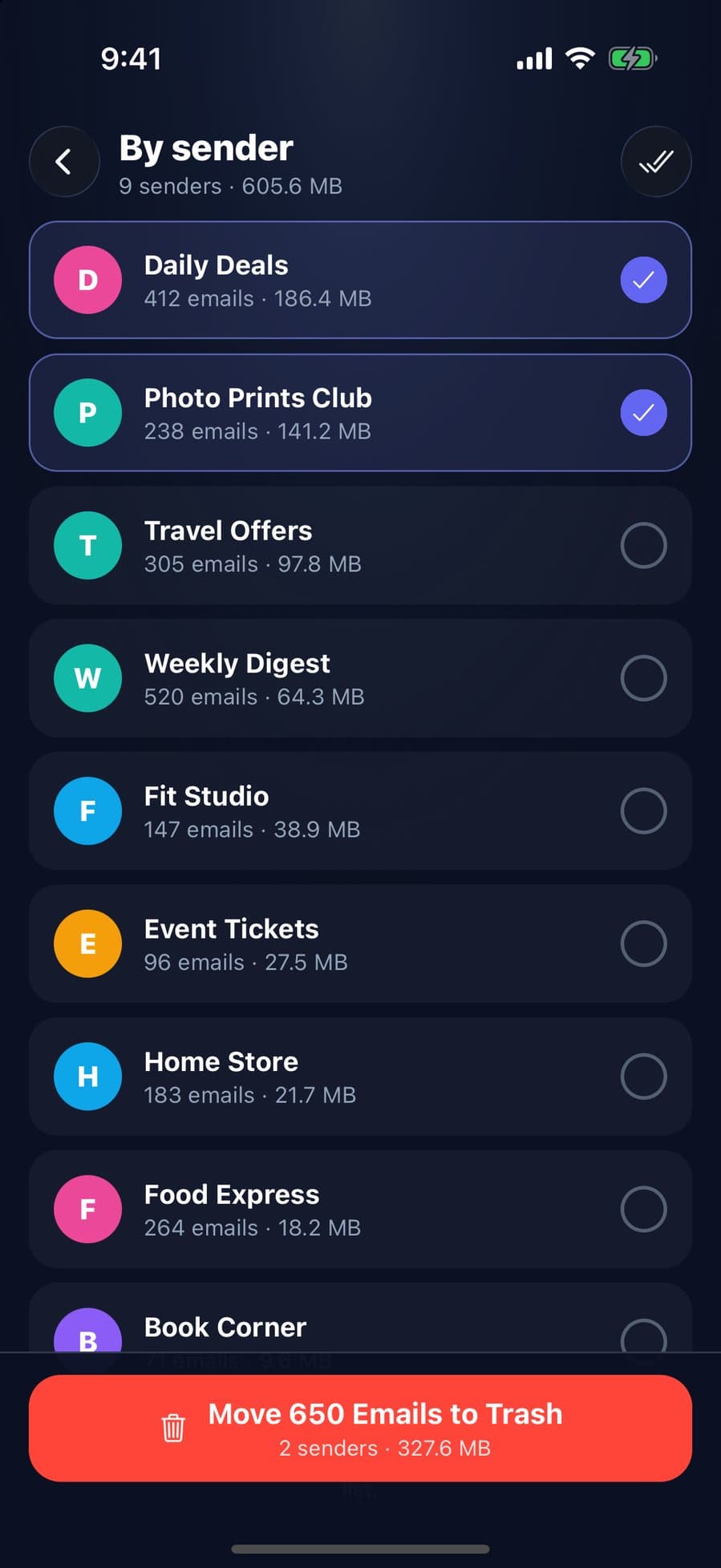
CleanX lists the senders in your latest 2,000 inbox emails that include an unsubscribe link, with how many emails each has sent. Unsubscribe from one, and CleanX sends a one-click request or an email from your Gmail, or opens the sender’s unsubscribe page. Afterwards, a Trash button next to the sender moves that sender’s emails with an unsubscribe link found in the scan to Gmail’s Trash, where they stay for 30 days.
- Senders with an unsubscribe link, found in your inbox
- Unsubscribe, then trash that sender’s emails
- Scanning is free; unsubscribing needs CleanX Pro
Before you unsubscribe
- Look before you leave. Google suggests reviewing a sender’s messages before unsubscribing, in case some are useful.
- Give it a few days. Senders may take time to process the request.
- Clearing old newsletters also frees Google storage: see how to delete all emails in Gmail.
Frequently asked questions
Is there a way to mass unsubscribe from emails in Gmail?
Not with one button, but Manage subscriptions lists your active subscriptions in one place so you can unsubscribe sender by sender: More › Manage subscriptions on a computer, or Menu › Manage subscriptions in the iPhone app. Google says it’s rolling out gradually.
How do I stop receiving unwanted emails in Gmail?
Unsubscribe from newsletters you no longer want. For a sender that keeps writing, block them so future emails go to Spam.
Why do I still get emails after unsubscribing?
Google says it can take a few days for a sender to process the request, and unsubscribing from one email might cover only one of their lists.
Does blocking a sender unsubscribe me?
No. Google says blocking sends future emails to Spam but doesn’t take you off the mailing list.
Why isn’t the Unsubscribe button working in Gmail?
If you don’t see Unsubscribe, the sender may handle it on their own website, so Gmail shows Go to website instead. After you unsubscribe, it can take a few days for emails to stop.
Why don’t I see Manage subscriptions in Gmail?
Google says the feature is rolling out gradually, so it may not be available in your account yet. Until then, unsubscribe from individual emails.
Related guides
- How to Delete All Emails in Gmail (Bulk Delete)Select every conversation on a computer, target mail with search, then empty the Trash.
- Are iPhone Cleaner Apps Safe?What cleaner apps can access, where people actually get burned, and what to check first.
- Gmail Storage Full? How to Free Up Google StorageGmail, Drive and Photos share one 15 GB. Empty Trash, delete large emails, then clean up the rest.
- How to Sort Gmail by Sender (and Delete All Emails From One Sender)Gmail can’t sort by sender, but search groups one sender’s emails so you can delete them all at once.
