
How to Compress a Video on iPhone
By CleanX TeamPublished
Quick answer
- Apple’s way: in the free iMovie app, put the video in a new Movie project, tap Share › Save or Share Video › Options, choose 720, 540 or 360, then Save Video.
- Shorter is smaller: in Photos, tap Edit, trim the ends, tap Save Video as New Clip, then delete the original.
- For new videos, choose a smaller format in Settings › Camera › Record Video.
Apple’s answer to compressing a video you’ve already recorded is to open it in iMovie and export it at a lower resolution. iMovie adds the export to your library as a new video, so both take up space until you delete the original. Apple’s steps are written for iPhone 12 or later with iOS 26 or later; on older versions they may differ.
Compress a video with iMovie (free)
Step 1: Start a project
Open iMovie, tap Start New Project, then Movie.
Step 2: Choose the video
Tap Media, then Video, tap the video you want to compress and tap Create Movie. Tap Done.
Step 3: Open the export options
Tap the Share button, tap Save or Share Video, then tap Options.
Step 4: Pick a lower resolution
Choose a resolution such as 720, 540 or 360, then tap Done.
Step 5: Save
Tap Save Video to add the smaller copy to your photo library, or Save to Files.
Apple lists these approximate sizes for one minute of video at each export resolution, and suggests 540p for social media and 360p for text messages:
- 1080p (the default for the iPhone camera and iMovie): 70–105 MB
- 720: 19–27 MB
- 540: 12–16 MB
- 360: 6–9 MB
Trim a video in Photos
If only part of a long video matters, Apple suggests trimming it. To actually free the space the full video takes, keep the trimmed part as a new clip and delete the original.
Step 1: Edit
In Photos, open the video and tap the Edit button.
Step 2: Trim
Drag either end of the frame viewer below the video to set the start and end, then tap Done.
Step 3: Save
Tap Save Video as New Clip. Check the new clip, then delete the original video.
Record smaller videos from now on
Apple says faster frame rates and higher resolutions make larger video files. In Settings › Camera › Record Video, iOS lists the formats your iPhone supports and roughly how big one minute of each will be.
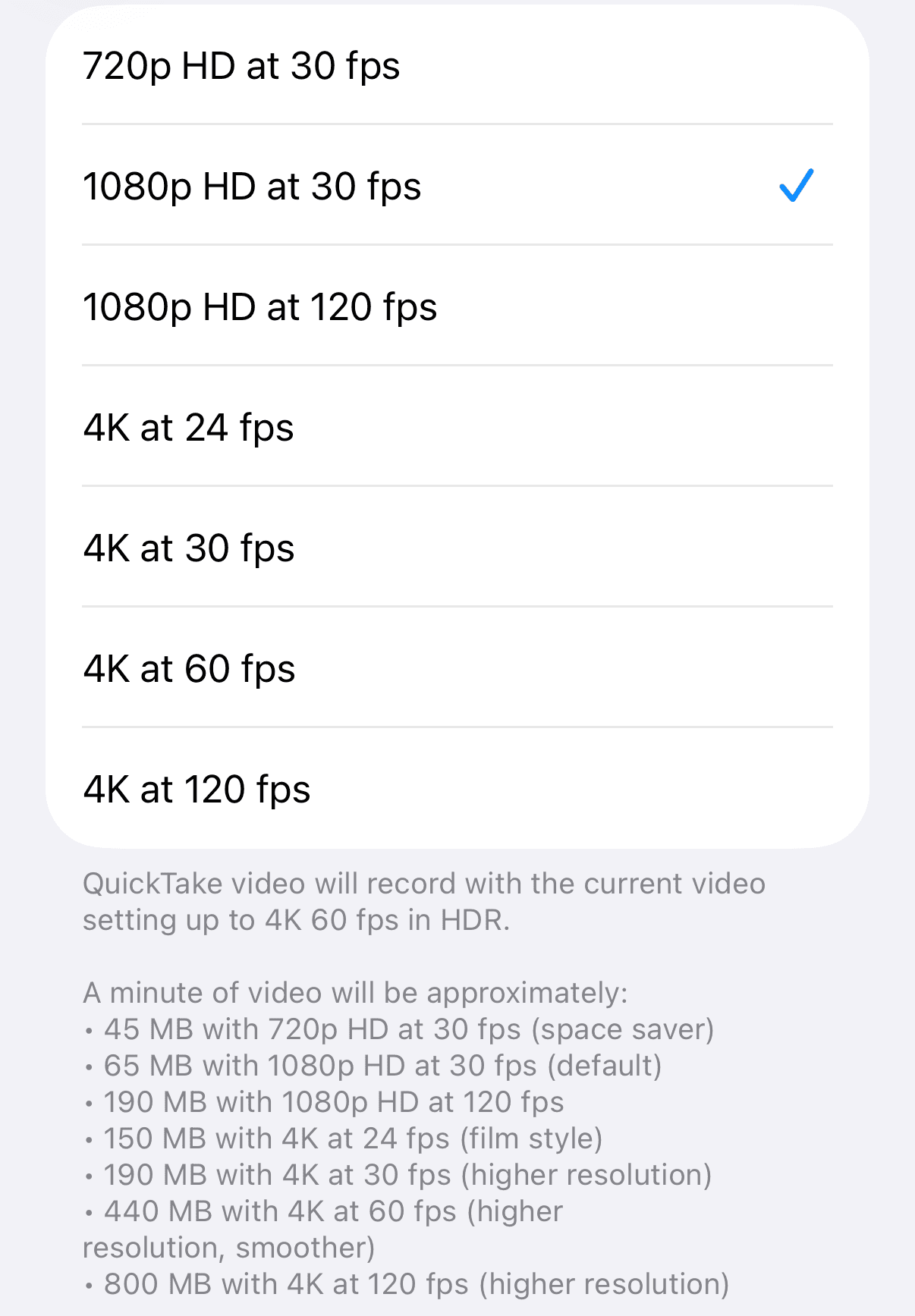
- In Settings › Camera › Formats, make sure High Efficiency is selected. Apple says HEVC compresses better than H.264, so videos use less space at the same visual quality.
- For consistently smaller video files, Apple also suggests turning off HDR Video in Settings › Camera › Record Video.
- On iPhone models that record Apple ProRes, Apple says ProRes files are up to 30 times larger than HEVC files. Use it only when you need it.
| iMovie (free, from Apple) | CleanX | |
|---|---|---|
| Finding large videos | Choose from your library | Videos listed largest first |
| Resolutions | Lower resolutions such as 720, 540 or 360 | High (1080p), Medium (720p) or Low |
| Before compressing | Apple’s approximate sizes per minute; exact size after exporting | Estimated new size of that video for each option |
| The original | Stays in your library until you delete it | Replaced: the smaller copy keeps the original date and location, the original goes to Recently Deleted |
| Cost | Free | Viewing sizes free; compressing needs CleanX Pro |
CleanX
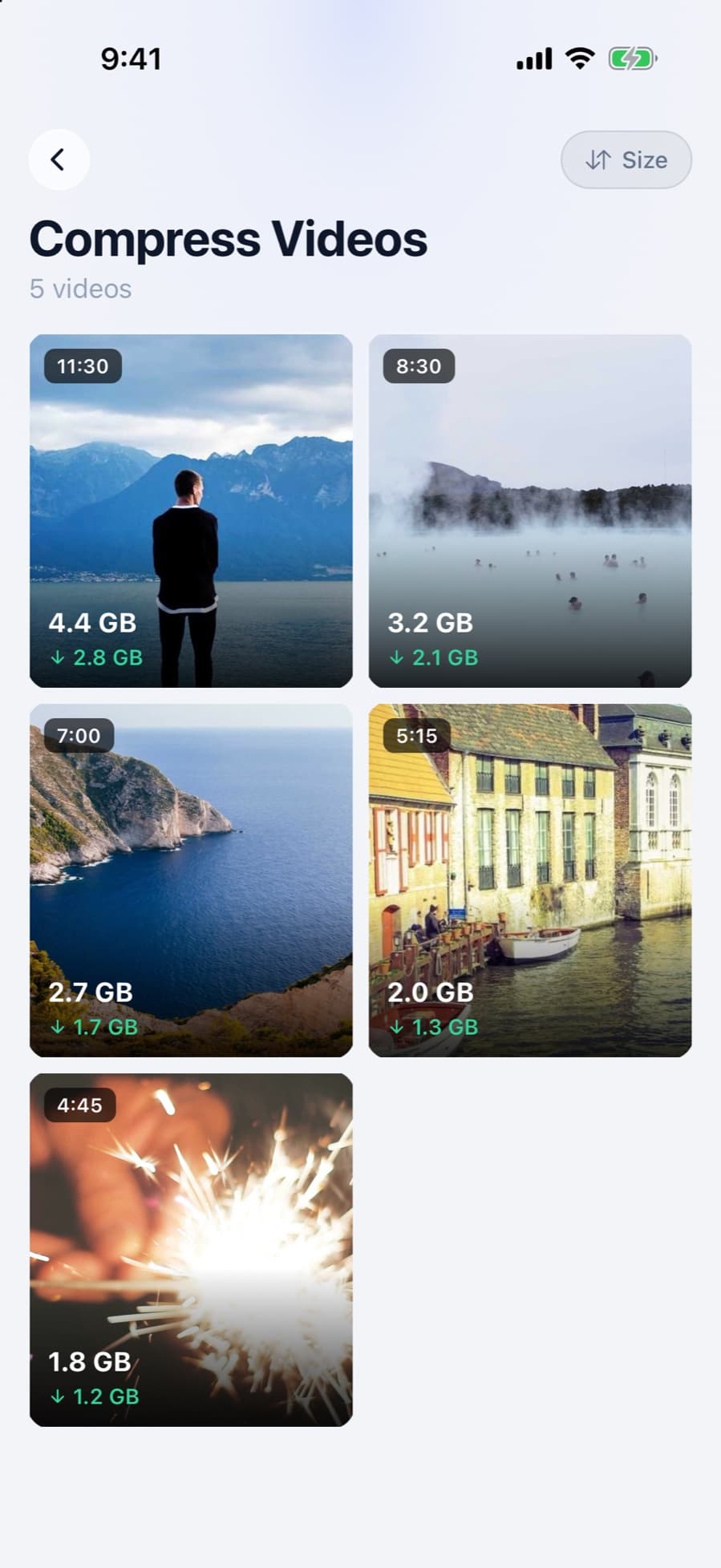
Find and compress your largest videos with CleanX
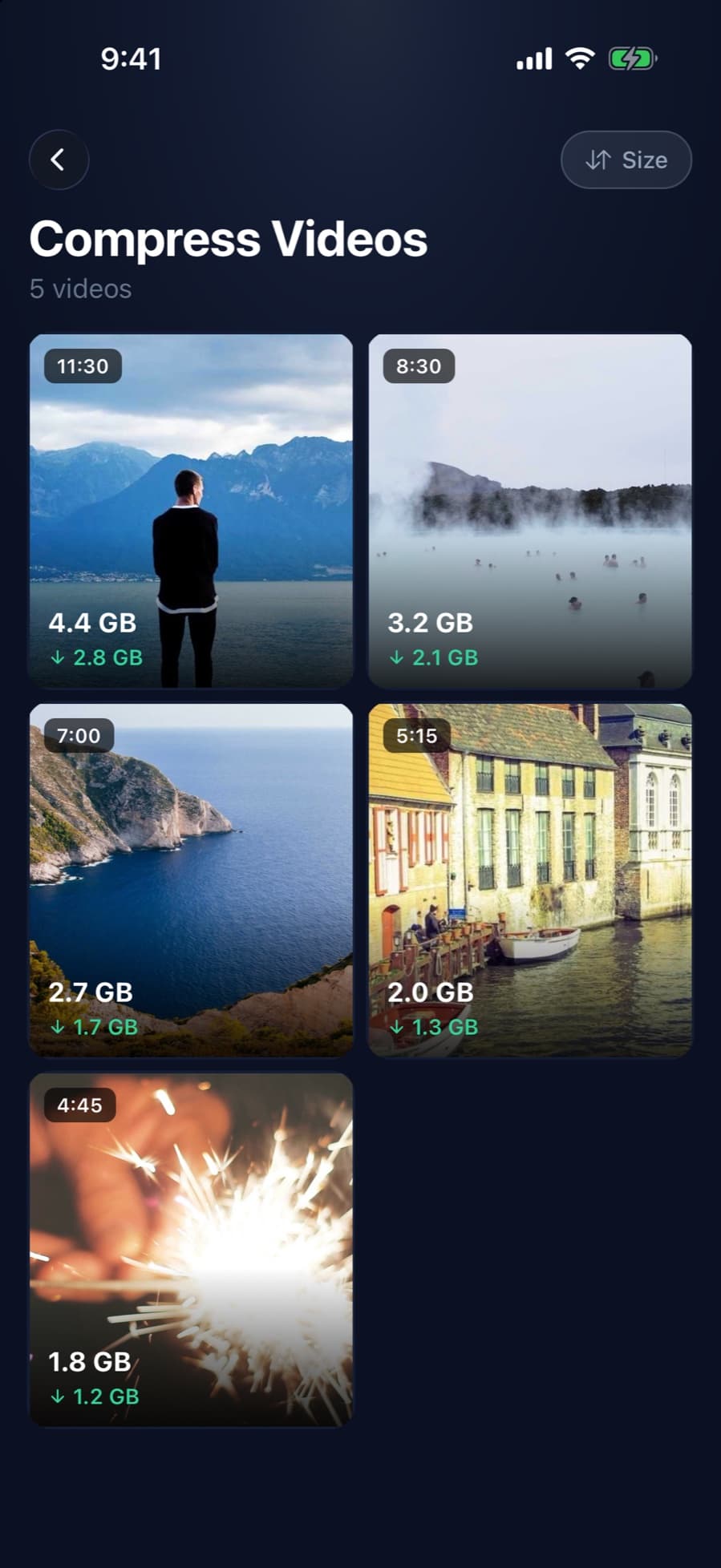
CleanX lists your videos largest first; tap one to see an estimated new size for each quality before you start. It saves the smaller copy with the original date and location, then deletes the original, which iOS asks you to confirm; if you don’t, both videos stay. If a video wouldn’t get meaningfully smaller, CleanX leaves the original as it is.
- Sort videos by size or date
- Choose High (1080p), Medium (720p) or Low
- Viewing sizes is free; compressing needs CleanX Pro
Before you compress
- Lower resolution can’t be undone. Apple notes quality might drop, depending on how the video was recorded. Watch the smaller copy before you delete the original.
- With iCloud Photos, deleting the original removes it from your other devices too.
- Videos aren’t the only thing filling your iPhone: see how to free up space on iPhone.
Frequently asked questions
How do I compress a video on my iPhone for free?
Use Apple’s free iMovie app: add the video to a new Movie project, tap Share › Save or Share Video › Options, choose a lower resolution such as 720, 540 or 360, then tap Save Video.
How do I reduce the MB size of a video on my iPhone?
Export it at a lower resolution in iMovie, or trim the parts you don’t need in Photos and save them as a new clip. Apple puts one minute of 1080p video at 70–105 MB and one minute at 540p at 12–16 MB.
What happens when I compress a video on iPhone?
Exporting at a lower resolution makes the file smaller, but Apple notes the video quality might drop, depending on the settings used when it was recorded.
Does compressing a video delete the original?
Not in iMovie: the export is added as a new video and the original stays until you delete it. CleanX replaces the original with the smaller copy and moves the original to Recently Deleted.
Why are my iPhone videos so big?
Higher resolutions and frame rates make larger files. Settings › Camera › Record Video shows roughly how big one minute is for each format your iPhone supports.
Related guides
- How to Free Up Space on iPhoneSee what fills your iPhone and clear it with the settings Apple already gives you.
- How to Send a Large Video From iPhoneAirDrop it, send it with Mail Drop, share an iCloud Drive link, or make a smaller copy.
- How to Compress a Video for Discord on iPhoneDiscord checks the original file against 20 MB, so make a smaller copy first: iMovie at 360 or 540, or trim it.
- How to Compress a Video for WhatsApp on iPhoneKnow WhatsApp’s 100 MB / 720p default, pick Standard or HD, trim or shrink the video, or send it as a document.
