
How to Send a Large Video From iPhone
By CleanX TeamPublished
Quick answer
- To a nearby Apple device: open the video in Photos, tap Share, then AirDrop.
- To anyone by email: tap Share › Mail. Mail Drop sends attachments up to 5 GB, and recipients have 30 days to download them.
- For a text message, make a smaller copy in iMovie; Apple suggests 360p for messaging.
Apple says some long video files are too large to send in a standard text message, and notes elsewhere that the size limit for attachments is set by your service provider. For a large video, use AirDrop, Mail Drop or iCloud instead, or send a smaller copy.
Send a large video with AirDrop
Apple calls AirDrop the simplest way to send a large video to a nearby iPhone, iPad, Mac or Apple Vision Pro. It uses Wi-Fi and Bluetooth, so both of you need them turned on in Control Center.
Step 1: If they’re not in your contacts
Ask the other person to go to Settings › General › AirDrop and tap Everyone for 10 Minutes (on a Mac, they choose Everyone in AirDrop & Handoff settings).
Step 2: Share the video
In Photos, tap the video, then tap the Share button.
Step 3: Send the original (optional)
To send it in its original format with metadata, location and edit history, tap Options and turn on All Photos Data.
Step 4: Send
Tap AirDrop, then the person or device. They get an alert to accept or decline.
Email a large video with Mail Drop
Step 1: Open Mail
In Photos, tap the video, tap the Share button, then Mail.
Step 2: Address it
Enter the recipient in the To field and add a subject or message if you like.
Step 3: Send
Tap the Send button. If the message is larger than your email provider allows, Mail asks whether to send the attachment with Mail Drop.
- Up to 5 GB: Apple says a message with its attachments can be up to 5 GB with Mail Drop.
- No iCloud storage used: Mail Drop attachments don’t count against your iCloud storage.
- 30 days: recipients have 30 days to download the attachment.
- The recipient’s email app might have a smaller size limit that stops the attachment from arriving.
Share an iCloud Drive link
With iCloud Drive, you can send a link to the video instead of the file itself.
Step 1: Save it to Files
In Photos, open the video, tap the Share button, tap Save to Files and choose a folder in iCloud Drive.
Step 2: Find the file
Open the Files app, go to that folder and touch and hold the video.
Step 3: Create the link
Tap the Share button, tap the menu under the file’s name, then Share a Link. To let anyone with the link open it, tap the access option and choose Anyone with the link. Under New Participants Can, choose view and download only.
Step 4: Send
Choose how to send the link, such as Messages or Mail.
Make a smaller copy to send
If the video has to go by text message or an app with a size limit, send a smaller copy. In iMovie, add the video to a new Movie project, tap Share › Save or Share Video › Options and choose a lower resolution. Apple suggests 540p for social media and 360p for text messages, and puts one minute of 360p video at about 6–9 MB. See how to compress a video on iPhone for the full steps (Apple’s iMovie steps are for iOS 26 or later).
| Built into iPhone | CleanX | |
|---|---|---|
| Send at full size | AirDrop, Mail Drop up to 5 GB, or an iCloud Drive link | Not covered |
| Make the video smaller | iMovie exports a smaller copy; the original stays | Compresses and replaces the original (not meant for sending) |
| Cost | Free | Viewing sizes free; compressing needs CleanX Pro |
CleanX
Keep big videos on your iPhone at a smaller size with CleanX
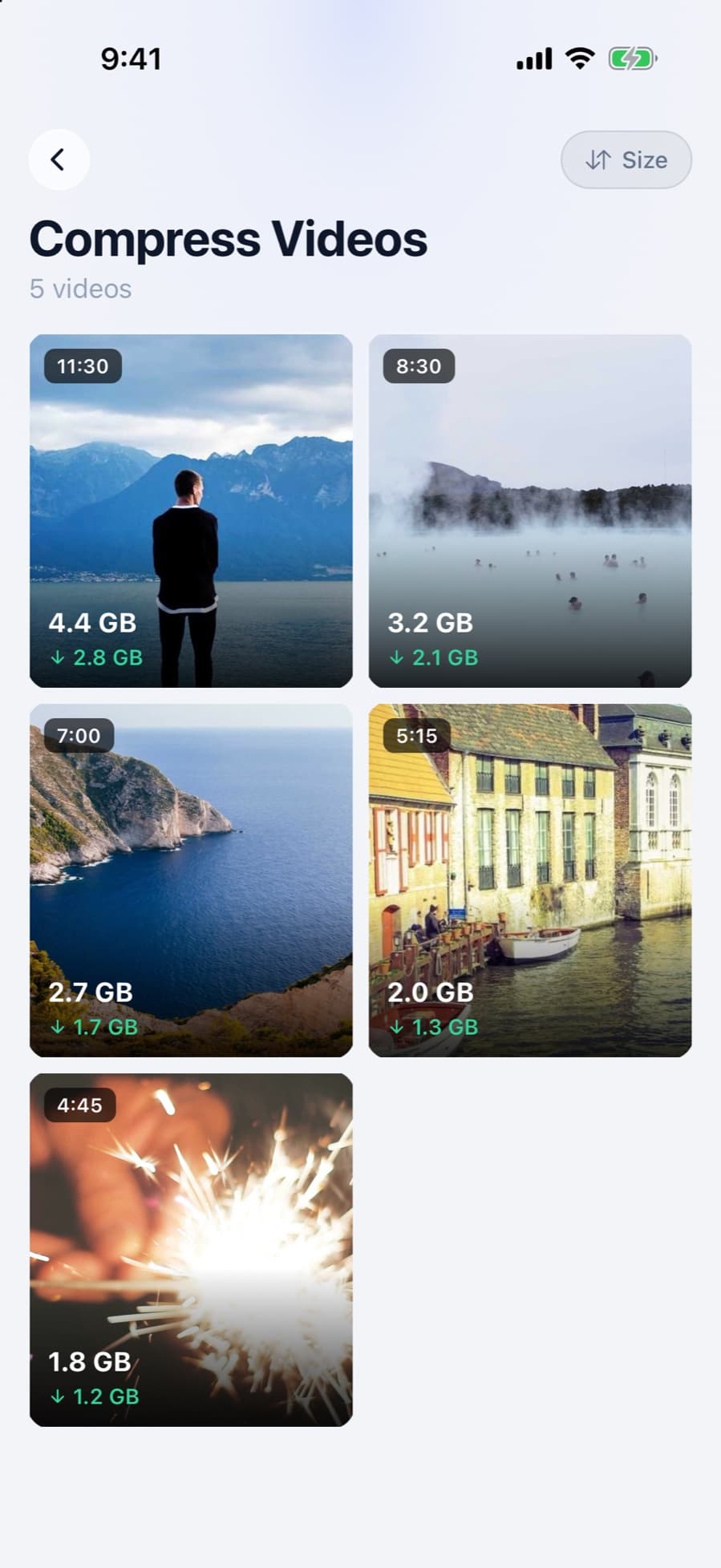
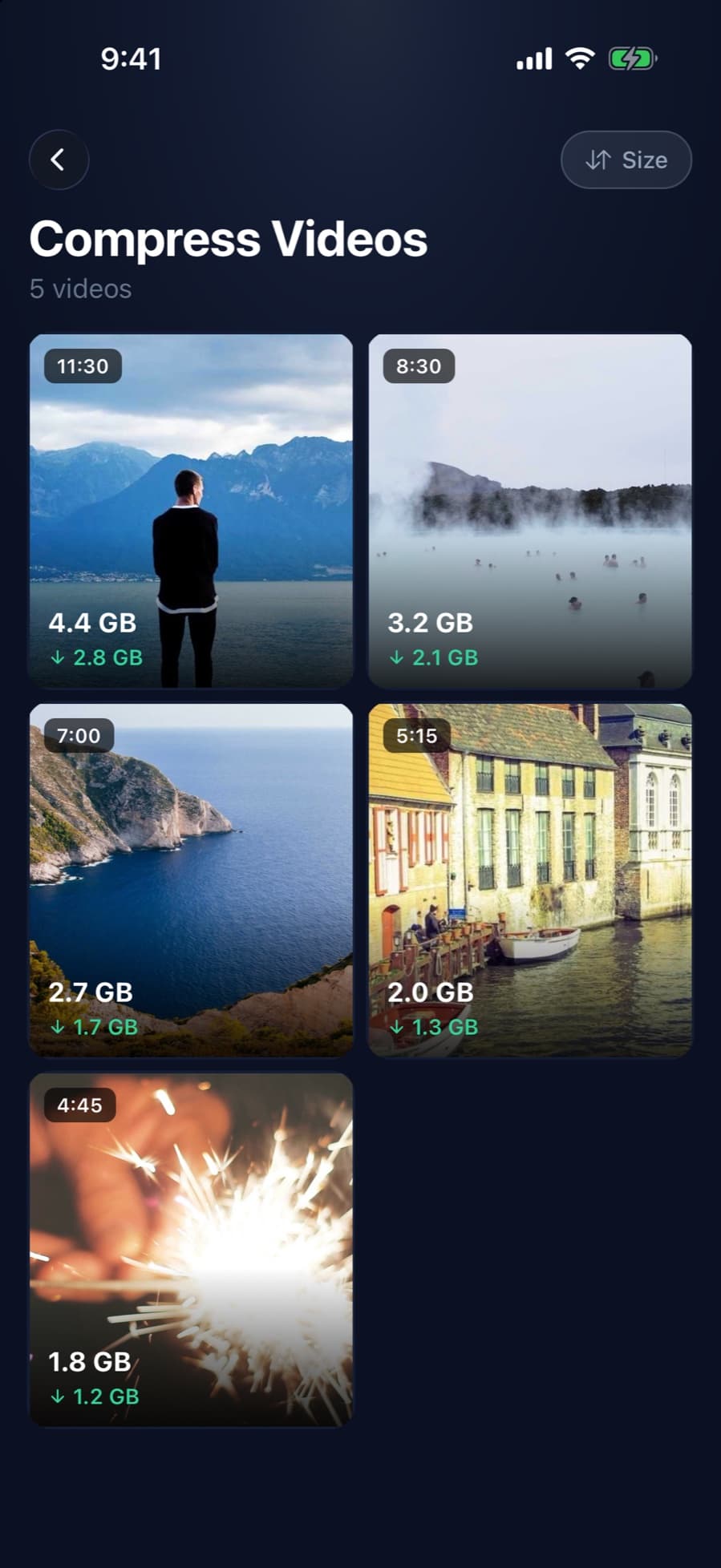
CleanX doesn’t send videos. It’s for when you want to keep a large video on your iPhone but smaller: it shows an estimated new size for each quality, saves the smaller copy with the original date and location, then deletes the original after iOS asks you to confirm. To send a smaller copy and keep the original as it is, use iMovie instead.
- Videos listed largest first
- Choose High (1080p), Medium (720p) or Low
- Viewing sizes is free; compressing needs CleanX Pro
Before you send
- Metadata goes with it. Apple says sharing a photo or video includes its metadata, such as date and time, location, device and captions.
- Large uploads take time. For Mail Drop, Apple notes that upload and download times depend on your internet connection and the size of the attachment.
Frequently asked questions
How do I send a large video from my iPhone?
Use AirDrop for a nearby Apple device, Mail Drop for email (up to 5 GB), or share an iCloud Drive link. For text messages, send a smaller copy made in iMovie.
How do I send a video that’s too large for email?
Send it from the Mail app: if the message is larger than your provider allows, Mail offers Mail Drop, which handles attachments up to 5 GB.
Why can’t I send a long video in a text message?
Apple says some long videos are too large for a standard text message, and notes that attachment size limits are set by your service provider. Use AirDrop, Mail Drop or iCloud, or send a smaller copy.
How long does a Mail Drop link last?
Recipients have 30 days to download Mail Drop attachments, then the attachment expires.
Does Mail Drop use my iCloud storage?
No. Apple says Mail Drop attachments don’t count against your iCloud storage.
Related guides
- iCloud Storage Full? How to Free Up iCloud StorageWhat stops working when iCloud is full, and the built-in ways to free it up.
- How to Compress a Video on iPhoneExport at a lower resolution in iMovie, trim in Photos, and record smaller videos from now on.
- How to Compress a Video for Discord on iPhoneDiscord checks the original file against 20 MB, so make a smaller copy first: iMovie at 360 or 540, or trim it.
- How to Compress a Video for WhatsApp on iPhoneKnow WhatsApp’s 100 MB / 720p default, pick Standard or HD, trim or shrink the video, or send it as a document.
