iCloud Storage Full? How to Free Up iCloud Storage
By CleanX TeamPublished
Quick answer
- Start with Settings › [your name] › iCloud › Recommended for You for suggested items to remove.
- Delete old backups in iCloud › Storage › Backups, or turn off apps you don’t need in your current backup.
- With iCloud Photos, deleting photos you don’t need frees iCloud space; items in Recently Deleted don’t count toward it.
- Also check iCloud Drive files and attachments in Messages.
Every Apple Account comes with 5 GB of free iCloud storage, shared by backups, iCloud Photos, iCloud Drive, Messages, Mail and more. When it fills up, Apple says your device stops backing up to iCloud, new photos and videos stop uploading to iCloud Photos, iCloud Drive and other iCloud apps stop staying up to date across devices, and you can’t send or receive email with your iCloud email address.
Check Recommended for You
Step 1: Open iCloud settings
Open Settings, tap your name, then iCloud.
Step 2: Open recommendations
Tap Recommended for You (iOS 17 or later).
Step 3: Follow a suggestion
Tap an option, such as photos, large files or old backups, and follow the onscreen steps.
Make your iCloud Backup smaller
Step 1: Open Backups
In Settings › [your name] › iCloud, tap Storage or Manage Account Storage, then Backups.
Step 2: Choose a device
Tap the device you’re using and turn off apps you don’t want to back up, then confirm with Turn Off. Apple says this removes that app’s backup information from iCloud. Some apps are always backed up.
Step 3: Delete old backups
For a device you no longer use, tap it and choose Turn Off and Delete from iCloud, then Turn Off and Delete. This also turns off iCloud Backup for that device.
Free up space taken by iCloud Photos
With iCloud Photos, your photos and videos use iCloud storage, so deleting ones you don’t need frees space. Apple notes that items in Recently Deleted don’t count toward your iCloud storage, and that if you’re already over your limit, deleted photos and videos are removed immediately instead of going to Recently Deleted.
- Merge or delete duplicates: see how to delete duplicate photos on iPhone.
- In an iCloud Shared Photo Library, photos count toward the storage of the person who created the library.
- In iOS 27 or later, photos added to a shared album count toward the storage of the person who created the album.
- If you don’t use iCloud Photos, your photo library is part of your iCloud Backup instead. Check its size in iCloud › Storage › Backups, tap your device and look at Photo Library.
| Built into iPhone | CleanX | |
|---|---|---|
| Backups | Choose apps or delete old backups in iCloud settings | Not covered |
| Photos and videos | Duplicates album and manual deletion in Photos | Similar and duplicate photos, screenshots, blurry shots, video compression |
| iCloud Drive and Messages | Delete in Files and in each conversation | Not covered |
| Cost | Free | Scanning free; deleting and compressing need CleanX Pro |
CleanX
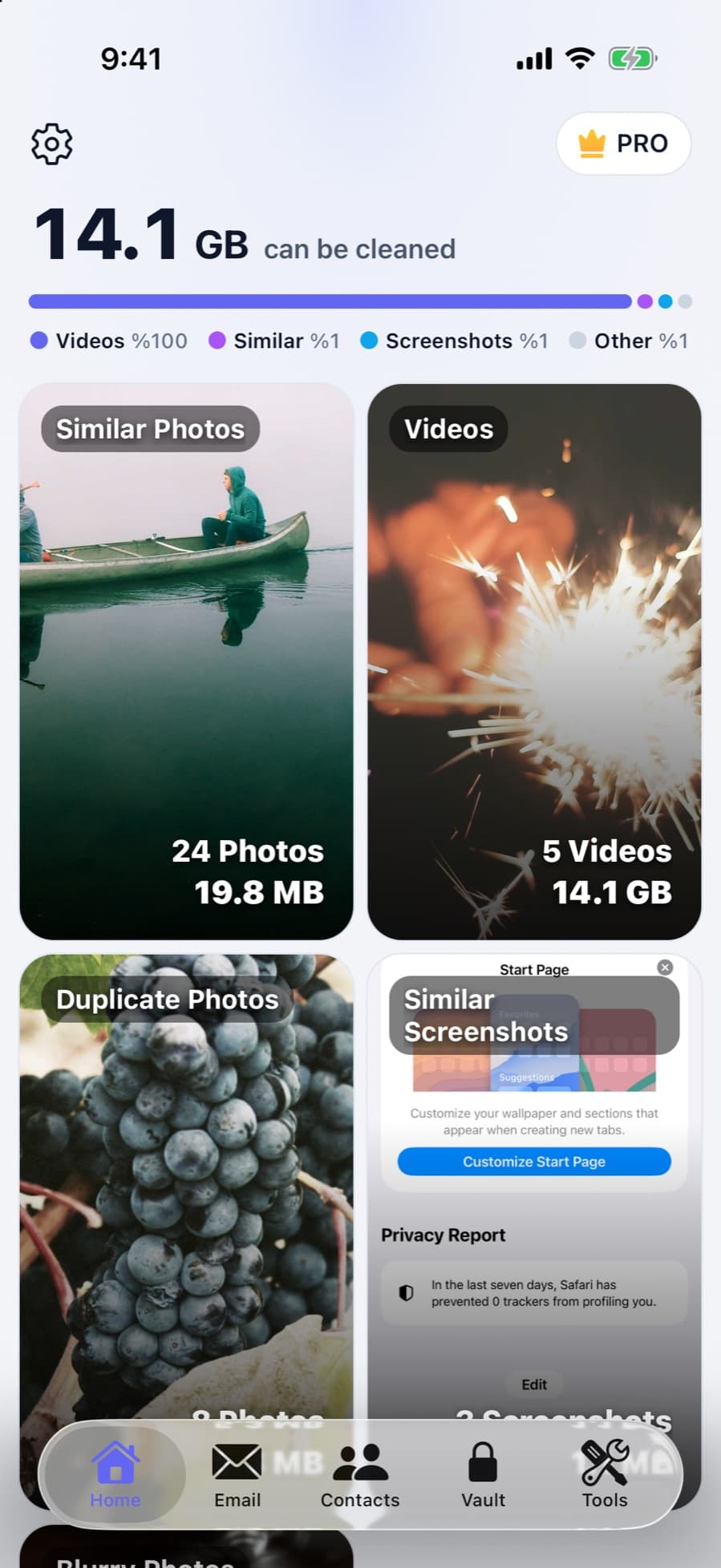
Find photos and videos worth removing with CleanX
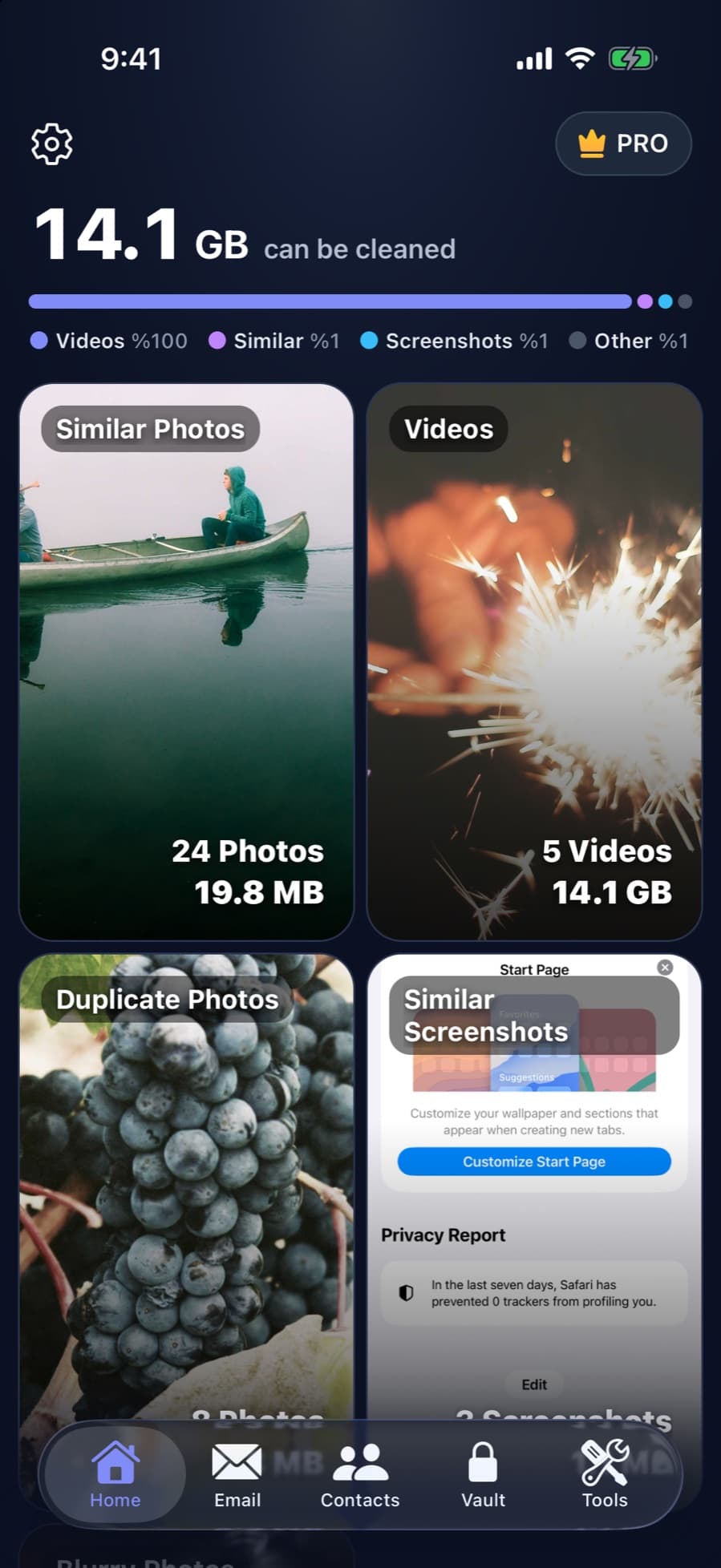
CleanX scans your photos and videos on your iPhone and shows how much space similar photos, duplicates, screenshots, blurry shots and videos take. With iCloud Photos on, what you delete is removed from iCloud too, like any deletion in Photos.
- Counts and sizes for each group of photos and videos
- Compress large videos to 1080p, 720p or 480p
- Scanning is free; deleting and compressing need CleanX Pro
Clear iCloud Drive and Messages
Step 1: iCloud Drive
Open Files, tap Browse, then iCloud Drive. Tap the More button, then Select, choose files or folders and tap Delete. Apple says this removes them from iCloud Drive on all your devices.
Step 2: Messages attachments
With Messages in iCloud, attachments use iCloud storage. Apple’s steps for iOS 26 and later: in a conversation, tap the contact’s name, then Photos. Tap Edit › Select Photos, choose images, tap Delete and confirm with Delete Attachment. Deleted messages and attachments stay in Recently Deleted in Messages for up to 30 days.
Step 3: Old messages
Messages can also delete old conversations automatically: Settings › Apps › Messages › Keep Messages.
Frequently asked questions
What happens when iCloud storage is full?
Apple says your device stops backing up to iCloud, new photos stop uploading to iCloud Photos, iCloud Drive stops syncing, and you can’t send or receive email with your iCloud address.
Will I lose photos if my iCloud storage is full?
Apple doesn’t say photos are deleted; it says new photos and videos stop uploading to iCloud Photos. If you’re over the limit, photos you delete skip Recently Deleted and are removed immediately.
Why is my iCloud still full after deleting photos?
If you don’t use iCloud Photos, your photo library is stored in your iCloud Backup, so check Backups. In a Shared Photo Library, photos count toward the creator’s storage. Backups, iCloud Drive and Messages also use iCloud storage.
Is iCloud storage the same as iPhone storage?
No. iCloud storage is online and shared by your devices; iPhone storage is on the phone. See [how to free up space on iPhone](/en/how-to/free-up-space-iphone) for the device side.
Can I delete an old iPhone backup from iCloud?
Yes. In iCloud › Storage › Backups, tap the device and choose Turn Off and Delete from iCloud. A backup that’s currently restoring a device can’t be deleted.