
“iPhone Storage Full” When Taking Photos: Make Room in Minutes
By CleanX TeamPublished
Quick answer
- Fastest: Settings › General › iPhone Storage, tap a large app you don’t need right now, then Offload App. Its data stays.
- Delete a few large videos, then empty Recently Deleted; deleted items keep taking space there for 30 days.
- Later: make sure Settings › Camera › Formats is set to High Efficiency, and turn on Optimize iPhone Storage if you use iCloud Photos.
When storage runs out, the Camera shows “iPhone Storage Full” (or “Optimize iPhone Storage” if you use iCloud Photos) and says you don’t have enough storage to take more photos. If you’re in the middle of something, you need space now, not a full clean-up. These steps free the most space in the least time.
Free space right now
Step 1: Offload a big app
Go to Settings › General › iPhone Storage, tap a large app you won’t use in the next hour (a game, for example), then Offload App. Apple says offloading frees the app’s storage but keeps its documents and data; reinstall it later from the App Store.
Step 2: Delete a few large videos
In Photos, open Collections › Media Types › Videos and delete long videos you don’t need. If iCloud Photos is on, deleting here also removes them from iCloud and your other devices, and a video you just shot may not have uploaded yet.
Step 3: Empty Recently Deleted
Deleted photos and videos stay in Recently Deleted for 30 days and still take space. In Collections, open it under Utilities and delete them there to get the space back; this can’t be undone. See Recently Deleted on iPhone.
Step 4: Try the camera again
If it still says storage is full, offload another app, delete more videos or remove downloaded music in iPhone Storage.
Keep it from happening again
- Use High Efficiency formats: in Settings › Camera › Formats, choose High Efficiency. Apple says HEIF and HEVC use less storage than JPEG and H.264 while keeping the same visual quality.
- Optimize iPhone Storage: if you use iCloud Photos, the Camera itself suggests keeping originals in iCloud and smaller versions on your iPhone. Turn it on in Settings › [your name] › iCloud › Photos (in iOS 27, then iPhone Storage).
- Offload Unused Apps: turn it on in Settings › Apps › App Store so iPhone removes apps you don’t use when storage is low.
- Clear duplicates regularly: see how to delete duplicate photos on iPhone.
| Built into iPhone | CleanX | |
|---|---|---|
| Fastest way to free space | Offload App in iPhone Storage | Not covered; offload in Settings |
| Large videos | Media Types › Videos, deleted by hand | Videos listed largest first, compressed or deleted |
| Duplicates and similar shots | Duplicates album; similar shots by hand | Duplicates and similar photos grouped |
| Cost | Free | Scanning free; deleting and compressing need CleanX Pro |
CleanX
Find the videos and duplicates taking space
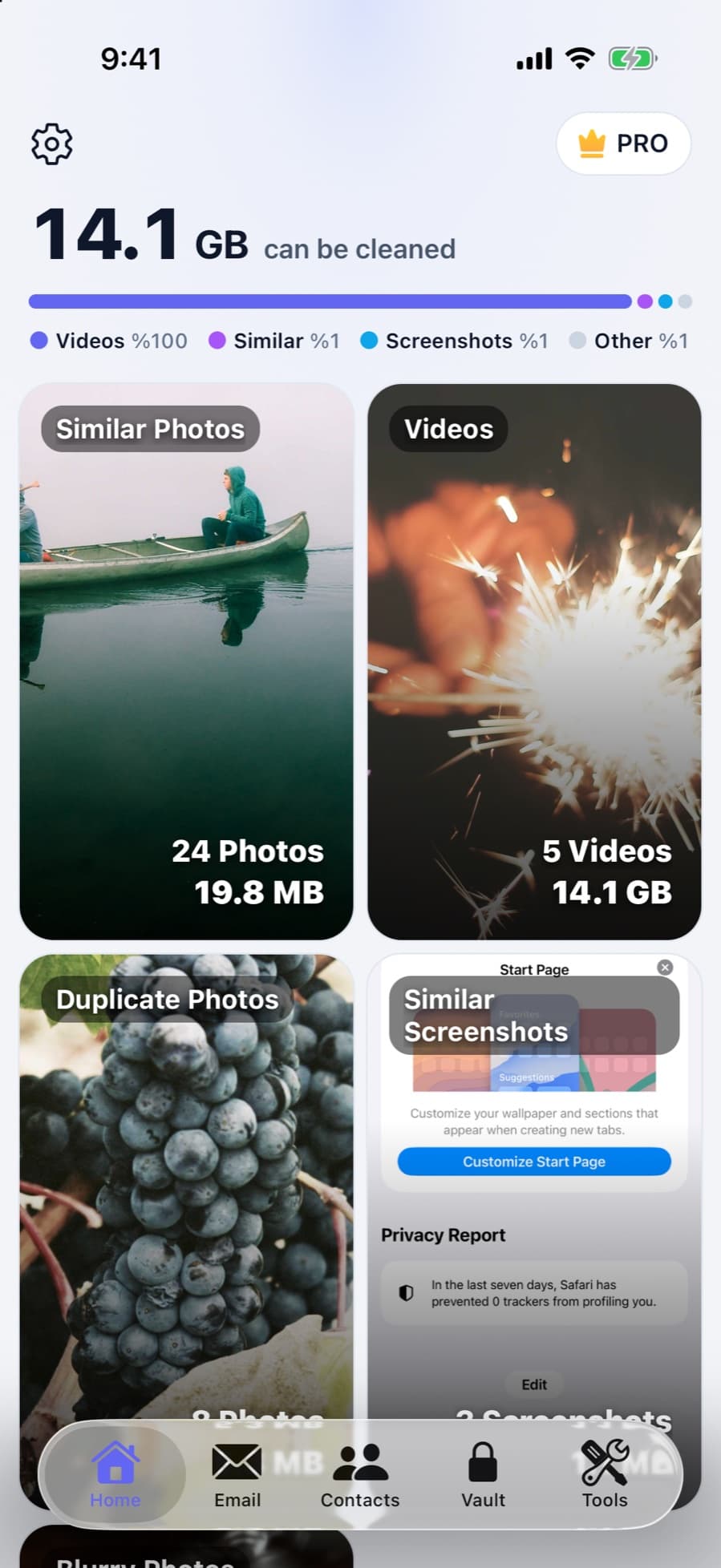
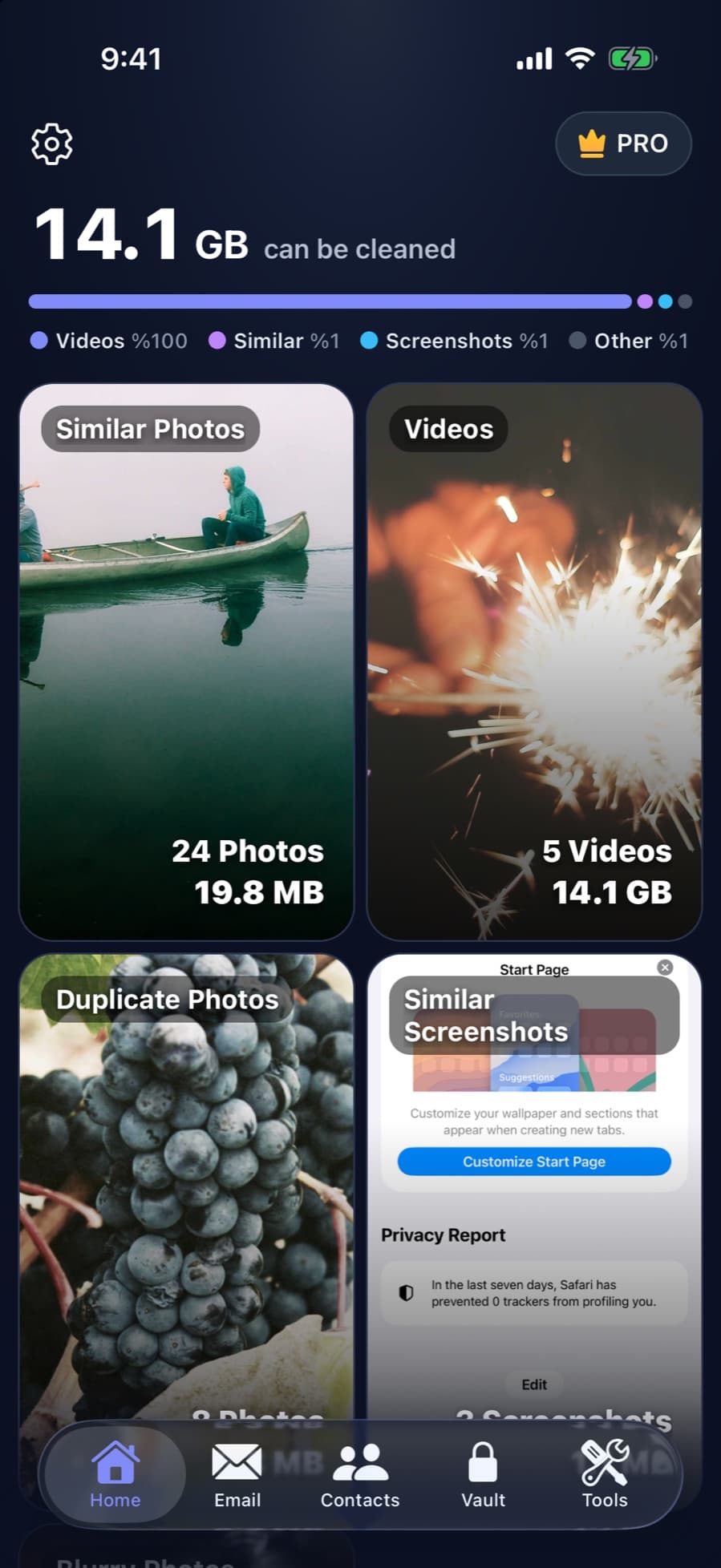
When you have a few minutes, CleanX scans the photos and videos on your iPhone and shows how much space duplicates, similar shots, screenshots and videos take. Videos are listed largest first, so you can compress a long video instead of deleting it: the smaller copy replaces it and the original goes to Recently Deleted. Deleted photos go to Recently Deleted for 30 days, like any deletion in Photos.
- Videos listed largest first, with compression
- Duplicates and similar photos grouped, with the space they take
- Scanning is free; deleting and compressing need CleanX Pro
If you need a lot more space
For a fuller clean-up, see how to free up space on iPhone, and if storage looks full for no clear reason, see iPhone storage full for no reason.
Frequently asked questions
Why can’t I take photos when my iPhone storage is full?
The Camera needs free space to save each photo or video. When there isn’t enough, it shows “iPhone Storage Full” and asks you to free up space.
What’s the quickest way to free space to take photos?
Offload a large app in Settings › General › iPhone Storage. Its data stays, and you can reinstall it later. Then delete a few large videos and empty Recently Deleted.
Does offloading an app delete my data?
No. Apple says offloading frees the storage the app uses but keeps its documents and data. Deleting the app removes its data.
Do HEIF photos take less space?
Apple says HEIF and HEVC use less storage than JPEG and H.264 with the same visual quality. Choose High Efficiency in Settings › Camera › Formats.
Related guides
- Recently Deleted Photos on iPhone: Find, Recover or EmptyWhere deleted photos go, how to get them back, and how to clear them for good.
- How to Free Up Space on iPhoneSee what fills your iPhone and clear it with the settings Apple already gives you.
- How to Compress a Video on iPhoneExport at a lower resolution in iMovie, trim in Photos, and record smaller videos from now on.
