
How to Unsubscribe From Emails (Gmail, Outlook, iPhone, Yahoo)
By CleanX TeamPublished
Quick answer
- Open the email and use the Unsubscribe button your email service shows near the top. Gmail, Outlook.com, iCloud Mail and Yahoo Mail also have a list or recommendations to unsubscribe from many senders.
- Outlook.com: Settings › Mail › Subscriptions, then Unsubscribe next to the sender. Gmail: More › Manage subscriptions.
- Didn’t sign up, or the email looks like a scam? Don’t click its links; report it as spam or block the sender instead.
- Unsubscribing can take a few days to work, and it doesn’t delete the emails you already have.
The FTC notes that many email providers have features that help you unsubscribe from email lists, shown as a banner or a button when you open the email. In the US, it also says marketers must give you an unsubscribe link or another online way to opt out, and must honor your request within 10 business days. The steps below use each provider’s own tool, which is safer than hunting for a link inside the email.
Unsubscribe in Gmail
Open the email and click or tap Unsubscribe next to the sender’s name; some senders show Go to website instead. To see every subscription in one place, go to More › Manage subscriptions on a computer, or Menu › Manage subscriptions in the iPhone app. Google says unsubscribing from one email might take you off only one of the sender’s lists, and that the ability to manage subscriptions is gradually rolling out and may not be available to you yet. Full steps: how to unsubscribe from emails in Gmail.
Unsubscribe in Outlook.com
Microsoft says Outlook.com looks for subscription identifiers in the header of incoming emails, after filtering out junk mail, and lists the subscriptions it finds.
Step 1: Open Subscriptions
In Outlook.com, select Settings, then Mail › Subscriptions.
Step 2: Unsubscribe
In Your current subscriptions, find the sender you no longer want and select Unsubscribe.
Step 3: Confirm
Select OK in the confirmation window.
Microsoft notes you might not be able to unsubscribe from emails that were filtered into junk mail, from senders on your blocked list, or from emails that aren’t from the same sender. To block a sender from the same list, select the three dots next to it and choose Block followed by the sender’s name, then OK.
Unsubscribe on iPhone (iCloud Mail)
For iCloud Mail, Apple’s iPhone User Guide for iOS 26 and later describes iCloud Mail Cleanup: it can recommend senders in the Updates and Promotions categories to unsubscribe from in bulk. Apple notes it may not be available in all languages.
Step 1: Open iCloud Mail Cleanup
Open Settings, tap [your name] › iCloud, then below Saved to iCloud tap Mail › iCloud Mail Cleanup.
Step 2: Get recommendations
Under Unsubscribe Recommendations, tap Get Recommendations.
Step 3: Unsubscribe
Select each sender you want to unsubscribe from, then tap Unsubscribe.
If you change your mind, tap Unsubscribed › Edit on the same screen and remove the sender. For a Gmail, Outlook or Yahoo account added to the Mail app, use that provider’s own unsubscribe tool above. To stop one sender in Mail, tap a message from them, tap their email address, tap View Contact Card, then Block this Contact.
Unsubscribe in Yahoo Mail
Step 1: Open the email
In the Yahoo Mail app, tap the email to open it.
Step 2: Unsubscribe
Tap the More icon, then Unsubscribe.
Step 3: No option?
Try the Unsubscribe view tab: under the mailing list, tap Unsubscribe, then tap Unsubscribe again to confirm. Or mark the message as spam.
On the web, Yahoo says that when you mark a message from a mailing list as spam and it trusts the sender, you’re offered Unsubscribe instead of marking it as spam.
Unsubscribe, block or mark as spam?
- Unsubscribe when you signed up and simply don’t want the emails anymore. It asks the sender to stop; Google says it can take a few days.
- Block a sender who keeps writing. Gmail sends their future emails to Spam; Outlook moves them to the Junk Email folder. Google says blocking doesn’t automatically unsubscribe you from the mailing list.
- Mark as spam or junk for emails you never asked for. Google says Gmail then identifies similar emails as spam more efficiently, and Apple says Mail marks future messages from the same sender as junk.
| Gmail / Outlook.com / Yahoo | iCloud Mail Cleanup | CleanX | |
|---|---|---|---|
| Accounts | That provider’s own account | iCloud Mail only | Gmail only |
| Many senders in one list | Gmail: Manage subscriptions; Outlook.com: Subscriptions; Yahoo app: Unsubscribe tab | Unsubscribe Recommendations | Senders with an unsubscribe link in your latest 2,000 inbox emails, most emails first |
| Old emails from the sender | Delete them separately | Can move future messages to Trash | A Trash button moves that sender’s scanned emails to Gmail’s Trash |
| Cost | Free | Free | Scanning free; unsubscribing and trashing need CleanX Pro |
CleanX
Unsubscribe and clear old Gmail newsletters with CleanX
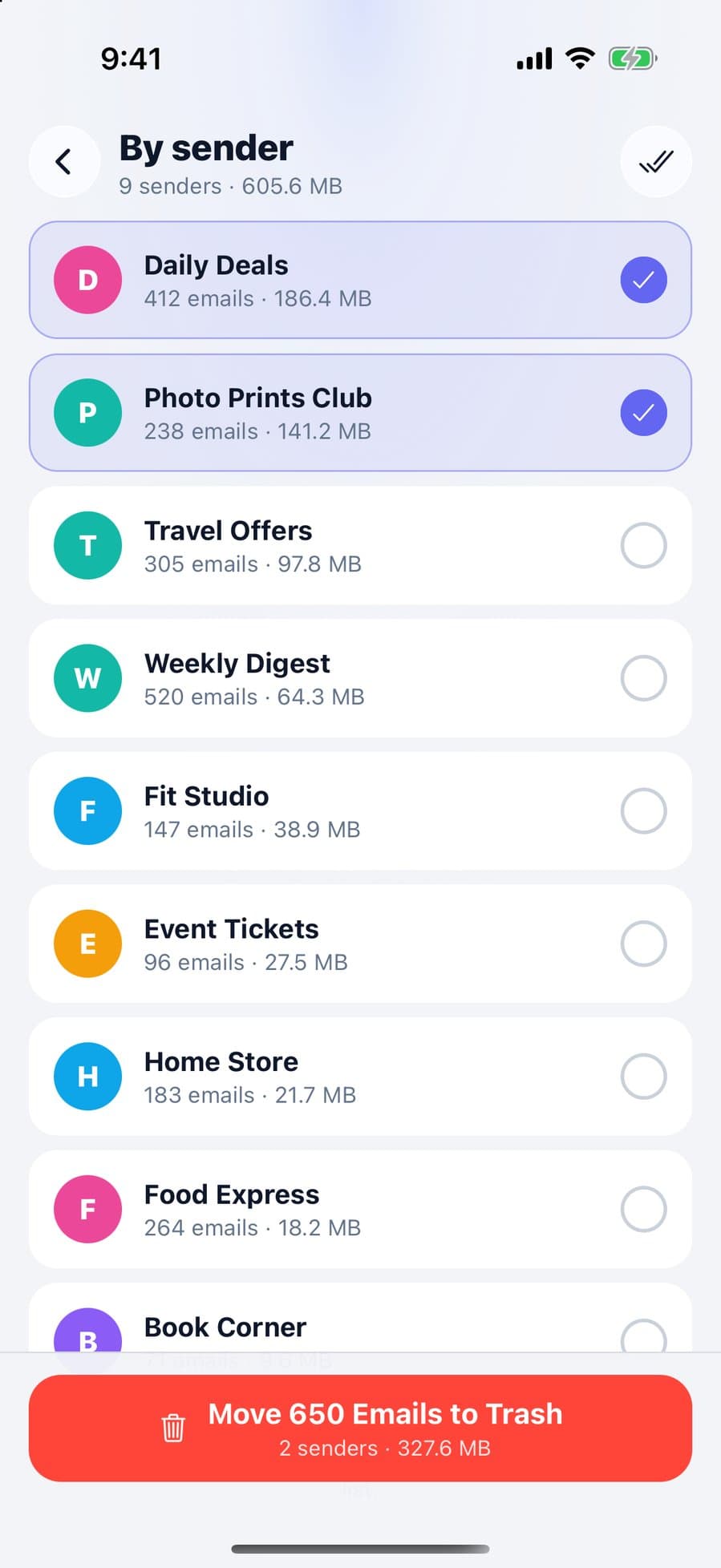
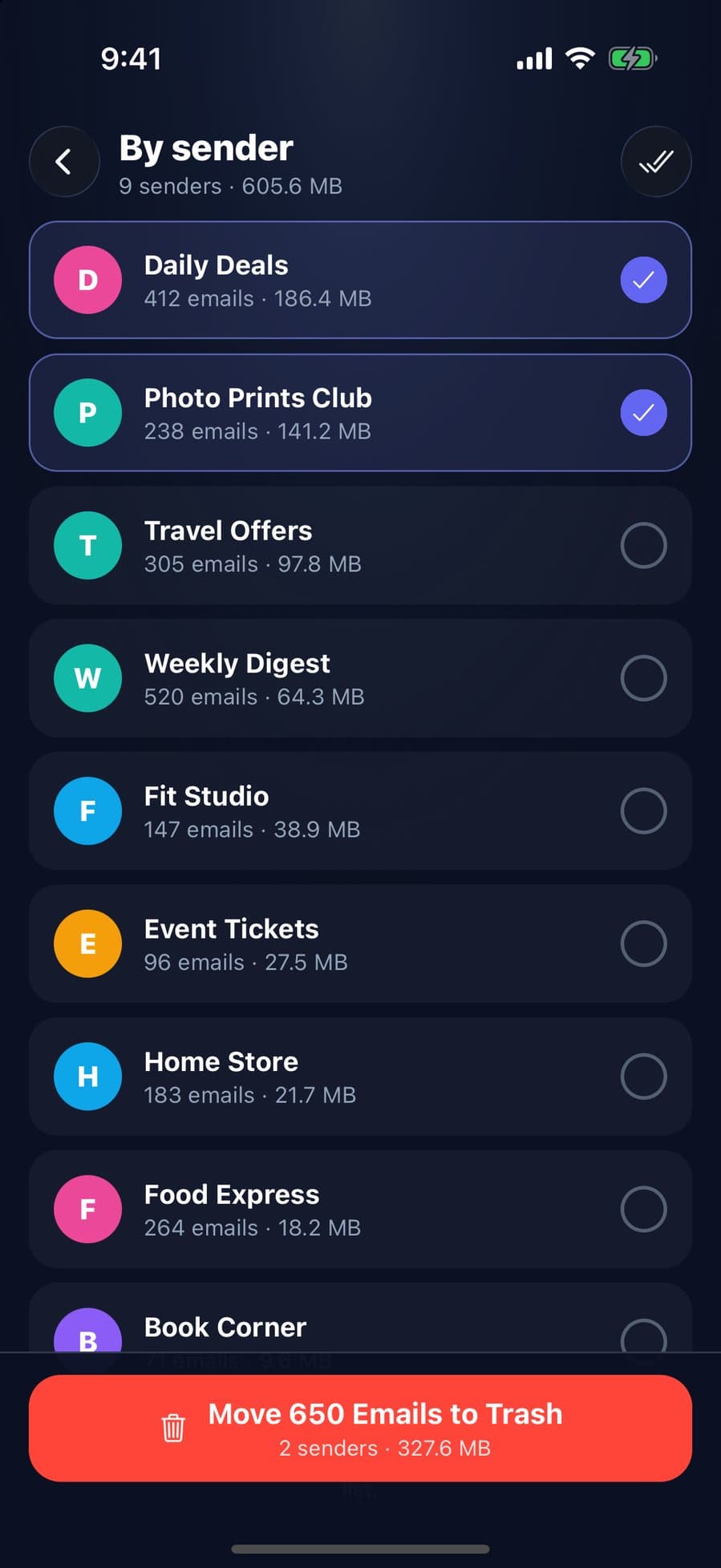
CleanX works with Gmail only, not Outlook, Yahoo or iCloud Mail. After you sign in with Google, the Subscriptions tab lists senders in your latest 2,000 inbox emails that include an unsubscribe link, with the most emails first. Tap Unsubscribe and CleanX sends a one-click unsubscribe request, sends an unsubscribe email from your Gmail, or opens the sender’s unsubscribe page in your browser, depending on what the sender supports. A Trash button also moves that sender’s scanned emails to Gmail’s Trash, where you can restore them for 30 days. The Senders tab groups your inbox by sender, by space used, so you can trash several senders at once.
- Gmail only, on iPhone and Android
- Unsubscribe from each sender, then trash their emails
- Scanning is free; unsubscribing and moving to Trash need CleanX Pro
Don’t unsubscribe from scam emails
The FTC warns that phishing emails can contain links that install harmful malware if clicked. Google’s advice is not to click links in emails from untrustworthy or unknown senders, and for emails Gmail flags as phishing or from an unconfirmed sender: don’t reply or open any links. Yahoo adds: never reply to email subscriptions asking to be removed.
After you unsubscribe
- Give it a few days. Senders may take time to process the request.
- Old emails stay. Unsubscribing only stops new ones. To clear the backlog, see how to delete all emails in Gmail.
- Want them back? For iCloud Mail, Apple says to remove the sender from the Unsubscribed list and sign up again on their website.
Frequently asked questions
How do I mass unsubscribe from emails?
Use your email service’s subscriptions list: More › Manage subscriptions in Gmail, Settings › Mail › Subscriptions in Outlook.com, the Unsubscribe tab in the Yahoo Mail app, or iCloud Mail Cleanup for iCloud Mail on iPhone. You still choose sender by sender.
How do I stop spam emails?
For emails you never signed up for, mark them as spam or junk and block the sender rather than unsubscribing. The FTC also suggests checking your spam folder occasionally for real emails.
Is it safe to click unsubscribe?
From a sender you know and signed up with, yes; your email service’s own Unsubscribe button is the safest way. Google advises against clicking links in emails from unknown or untrustworthy senders, so report those as spam instead.
Why do I still get emails after unsubscribing?
It can take a few days for the sender to process the request; in the US the FTC says companies have 10 business days. In Gmail, unsubscribing from one email might cover only one of the sender’s lists.
Does blocking a sender unsubscribe me?
No. Google says blocking a sender doesn’t automatically unsubscribe you from their mailing list; their future emails go to Spam instead. In Outlook, they go to the Junk Email folder.
Related guides
- How to Delete All Emails in Gmail (Bulk Delete)Select every conversation on a computer, target mail with search, then empty the Trash.
- How to Unsubscribe From Emails in Gmail (Many at Once)Use Manage subscriptions for every list, the Unsubscribe link for one, and know when to block.
- “Your iCloud Storage Is Full” Email: How to Tell If It’s a ScamDon’t tap the link: check your real iCloud storage in Settings, report the email to Apple, and change your password if you entered it.
