
How to Delete Duplicate Photos in Google Photos
By CleanX TeamPublished
Quick answer
- Google’s help pages don’t describe a duplicate finder in Google Photos.
- On iPhone, when you’re out of storage, Google Photos offers Review similar photos: it groups nearly identical shots, selects photos to delete and keeps the best shot.
- On Android and iPhone, Photos settings (on iPhone: Google Photos settings) › Backup › Manage storage lists categories to clean up, such as large photos and videos.
Google Photos has tools that help with near-identical photos and with storage, but Google’s help pages don’t describe a general “find duplicates” button. Here’s what Google documents, and what deleting does to your phone and your backup.
Review similar photos (iPhone, when out of storage)
Step 1: Watch for the prompt
In Google Photos on iPhone, when you’re out of storage, you’re prompted to “Clean up your similar photos to free up space.” Tap Review similar photos.
Step 2: Review the groups
Google says the app automatically selects photos to delete and keeps the best shot. Change the selections to keep any you like.
Step 3: Delete
Tap Delete [number] similar photos, then Move to trash.
Clean up with Manage storage
Step 1: Open Manage storage
In Google Photos, tap your profile picture or initial, then Photos settings (on iPhone: Google Photos settings), Backup and Manage storage. On a computer, it’s at photos.google.com under Storage.
Step 2: Pick a category
Under the storage summary, choose a recommended category, such as large photos and videos.
Step 3: Delete
Tap Select, choose the items, then tap Move to trash.
Keep one photo from a stack
Google Photos can group similar photos into stacks (More › Stack similar photos), and picks a “Top pick” for each. Google says turning stacks on only organizes your view and doesn’t change your storage, but inside a stack you can tap the photo’s thumbnail menu, then Keep this, delete rest and Move to trash. Stacks only include backed-up photos.
| Google Photos | CleanX | |
|---|---|---|
| What it looks at | Your Google Photos library | Photos on your phone |
| Near-identical photos | Keep this, delete rest in photo stacks (backed-up photos); Review similar photos on iPhone when out of storage | Duplicate and similar photos grouped, any time, on iPhone and Android |
| Keeps the best | Top pick in stacks; best shot kept in Review similar photos | One photo per group left unselected; marked Best in similar-photo groups |
| Cost | Free | Scanning free; deleting needs CleanX Pro |
CleanX
Find duplicates on your phone with CleanX
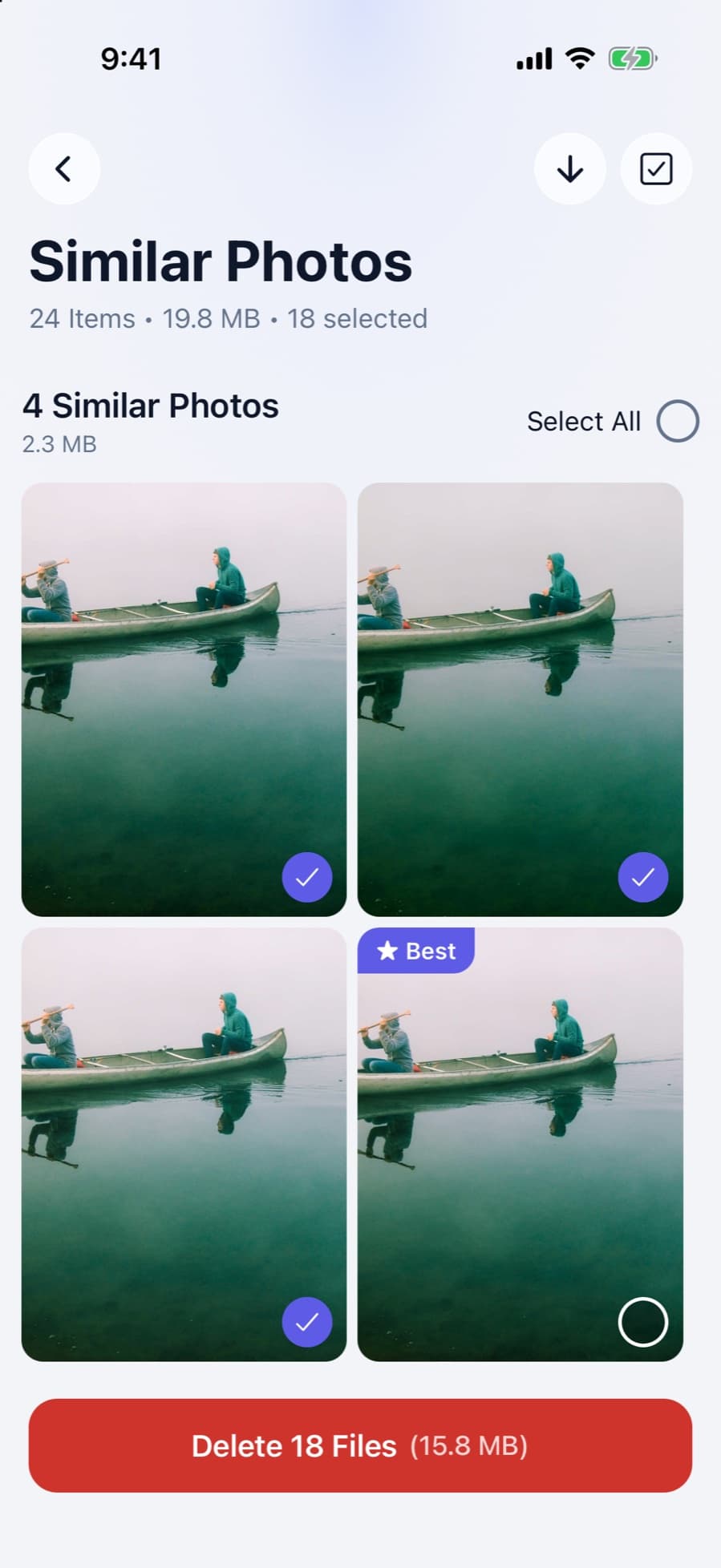
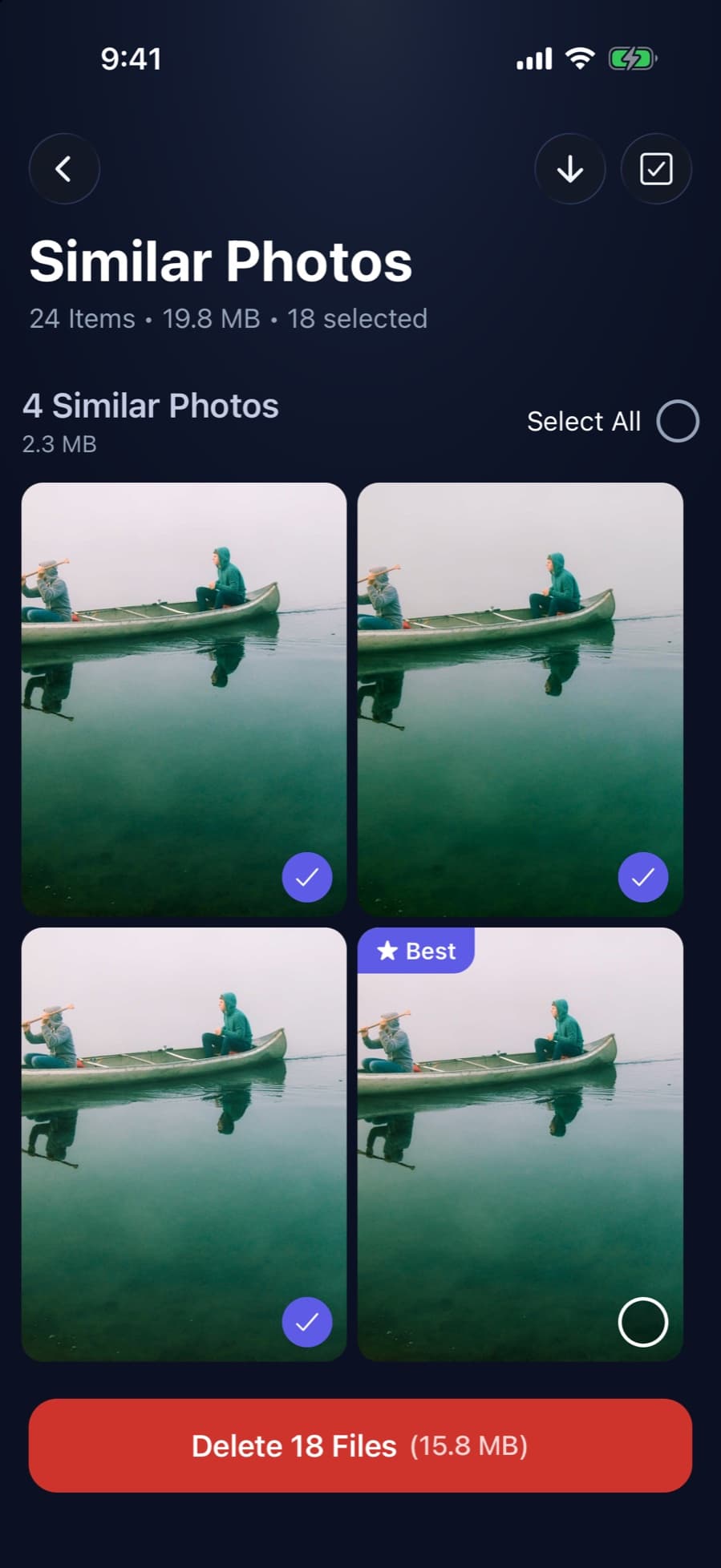
CleanX works on the photos stored on your phone; it doesn’t see photos that are only in Google Photos. It scans your iPhone or Android phone for duplicates and similar shots, groups them, leaves one photo per group unselected (in similar groups it’s marked Best) and shows how much space each group takes. On iPhone, deleted photos go to Recently Deleted for 30 days; on Android, they’re deleted permanently, without a trash, and on Android 11 and later Android asks you to confirm first.
- Duplicate and similar photos grouped
- One photo per group left unselected
- Scanning is free; deleting needs CleanX Pro
More duplicate guides
Frequently asked questions
Does Google Photos have a duplicate finder?
Google’s help pages don’t describe one. On iPhone, Review similar photos appears when you’re out of storage, and Manage storage lists categories to clean up.
Why do I have duplicate photos in Google Photos?
Google’s help pages don’t cover the causes. To clear them, use Keep this, delete rest in a photo stack, Review similar photos on iPhone when you’re out of storage, or a duplicate finder for the photos on your phone.
Will deleting duplicates in Google Photos delete them from my phone?
Yes. Google says deleting in the app deletes the same items from your device and from all devices with backup on, if they’re backed up.
Do photo stacks remove duplicates?
Stacking itself doesn’t; Google says it doesn’t change your storage. But inside a stack you can tap Keep this, delete rest.
Related guides
- How to Delete Duplicate Photos on iPhoneUse the built-in Duplicates album, then deal with the similar shots it leaves behind.
- Gmail Storage Full? How to Free Up Google StorageGmail, Drive and Photos share one 15 GB. Empty Trash, delete large emails, then clean up the rest.
- How to Delete Duplicate Photos on AndroidUse the Duplicate files card in Files by Google, keep the Original, then empty Trash.
- Google Photos Storage Full? How to Free Up SpaceSee what uses your 15 GB, clean up with Manage storage, switch to Storage saver and free space on the phone too.
