
Google Photos Storage Full? How to Free Up Space
By CleanX TeamPublished
Quick answer
- Google Photos shares your Google Account’s 15 GB with Gmail and Drive. When it’s full, Google says new photos and videos stop backing up.
- In Google Photos, open Manage storage to find large videos, blurry photos and screenshots you can delete; deleted items stay in trash for 30 days.
- Choose Storage saver as the backup quality so new photos take less space.
- Phone full instead? Free up space on this device removes copies that are already backed up.
“Storage full” can mean two things in Google Photos: your Google Account storage in the cloud, or the storage on your phone. Most people mean the first. Google says every Google Account comes with up to 15 GB, shared by Gmail, Google Drive and Google Photos.
What happens when your Google storage is full
- Backup stops: Google says you can’t back up new photos and videos to Google Photos while you’re over your storage limit.
- Gmail and Drive are affected too: sending and receiving email can be affected, and you can’t upload new files to Drive.
- After 2 years over the limit, your content may be removed. Google says it notifies you at least 3 months before.
Which photos count toward your storage
Photos and videos backed up in Original quality count. So do photos and videos backed up in Storage saver (formerly High quality) or Express quality after June 1, 2021. Items backed up in High quality or Express before June 1, 2021 don’t count, so Google notes that deleting them doesn’t free any space.
Clean up with Manage storage
Step 1: Open the storage manager
In Google Photos, tap Manage storage (or Clean up space). Google says this opens the Google One storage manager, which helps you find items you can delete, like blurry photos, screenshots and large videos.
Step 2: Choose Google Photos
Under Clean up by service, choose Google Photos and select the items you want to delete.
Step 3: Delete
Tap Review, then Delete › Move to trash.
If you’re over your limit, Google says the storage manager on iPhone also shows a cleanup target: how much you need to delete to keep using the service. While selecting, you can swipe right to mark an item for deletion and left to keep it. For duplicates, see how to delete duplicate photos in Google Photos; for Gmail and Drive, see Gmail storage full.
Switch new backups to Storage saver
Step 1: Open backup settings
In Google Photos, tap your profile picture or initial, then Google Photos settings › Backup › Photos & videos quality.
Step 2: Choose Storage saver
Google says Storage saver compresses photos, resizes photos larger than 16 MP to 16 MP and videos above 1080p to 1080p.
Google notes you can’t change the backup quality while you’re out of storage, so clean up first.
If your phone storage is full instead
In Google Photos, tap your profile picture or initial, then Free up space on this device and Free up [x] from device. Google says this deletes the copies on your phone while the backed-up copies stay in Google Photos; photos and videos less than 30 days old may stay on the device. See how to free up space on Android.
| Google Photos and Google One | CleanX | |
|---|---|---|
| Cleans backed-up photos in your Google Account | Yes, with Manage storage | No, it works on the photos on your phone |
| Large videos | Finds large videos to delete | Lists your videos by size and compresses one at a time on the phone |
| Similar photos | Review similar photos on iPhone when you’re out of storage | Groups similar photos and marks one as Best |
| Cost | Free; more storage with Google One | Scanning free; deleting and compressing need CleanX Pro |
CleanX
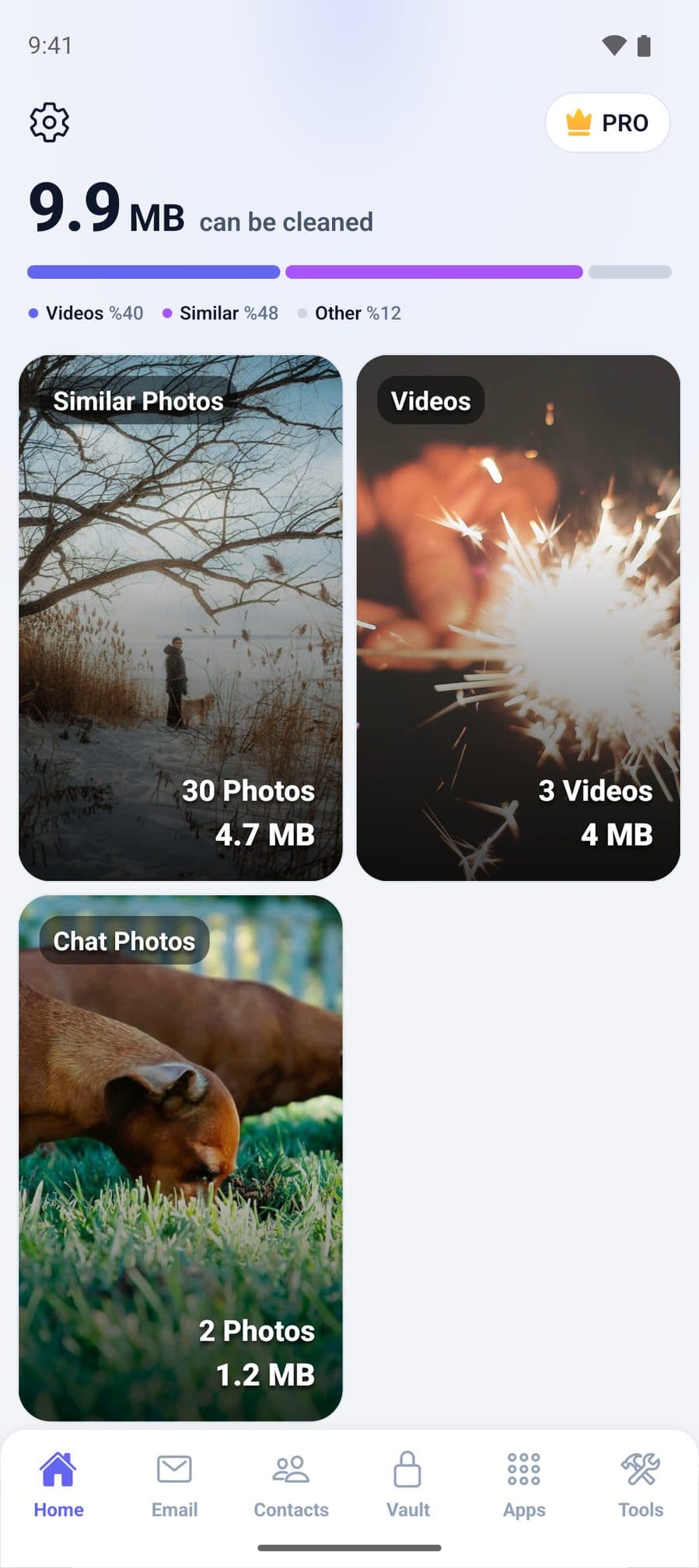
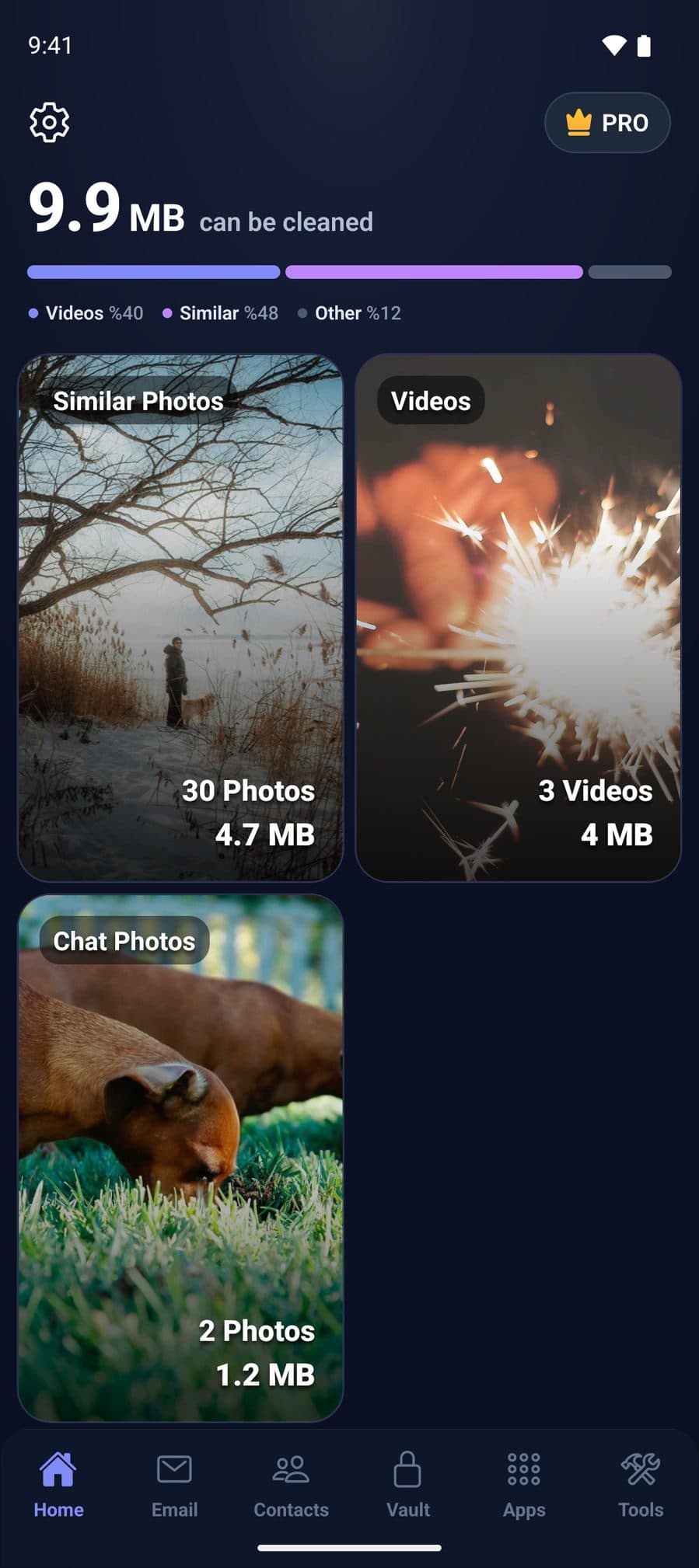
Clean up the photos on your phone with CleanX
CleanX works on the photos and videos stored on your iPhone or Android phone: it groups similar photos, marks one as Best, and lists your videos from largest to smallest so you can compress the big ones. It doesn’t delete anything from Google Photos; to free Google storage, delete backed-up items in Google Photos itself.
- Similar photos grouped, with the space each group takes
- Videos by size, compressed on the phone
- Scanning is free; deleting and compressing need CleanX Pro
Before you delete
- Download what you want to keep: Google says another way to free space is to download files to your own device, then delete them from cloud storage.
- Check what’s in trash: items stay there for 30 days, and you can restore them until then.
- Need more room? Google One plans add storage where available.
Frequently asked questions
Why is my Google Photos storage full?
Google Photos shares your Google Account’s 15 GB with Gmail and Drive. Photos backed up in Original quality, and in Storage saver after June 1, 2021, count toward it.
What happens if Google Photos storage is full?
New photos and videos stop backing up, and Gmail and Drive can be affected. If you stay over the limit for 2 years, Google says your content may be removed, after at least 3 months’ notice.
Does deleting photos from my phone free up Google storage?
Using Free up space on this device only removes the phone copies; the backups stay and keep using storage. To free Google storage, delete the items in Google Photos.
Why didn’t deleting old photos free up space?
Google says photos backed up in High quality (now Storage saver) before June 1, 2021 never counted toward your storage, so deleting them doesn’t free space.
Is Storage saver worth it?
It uses less space: photos above 16 MP are resized to 16 MP and videos above 1080p to 1080p. Keep Original quality if you need full resolution, for example for large prints.
Related guides
- Gmail Storage Full? How to Free Up Google StorageGmail, Drive and Photos share one 15 GB. Empty Trash, delete large emails, then clean up the rest.
- How to Free Up Space on AndroidCheck Settings › Storage, remove backed-up photos, uninstall unused apps and clear junk files.
- How to Delete Duplicate Photos in Google PhotosUse Review similar photos (iPhone, when out of storage) and Manage storage; stacks don’t free space.
