
How to Clean Up Your iPhone Before Selling It (Without Losing Photos)
By CleanX TeamPublished
Quick answer
- Don’t delete photos or contacts by hand first. Apple says that when you’re signed in to iCloud, deleting items manually removes them from iCloud and all your connected devices.
- Instead: back up, transfer to your new phone, sign out of your Apple Account, then Settings › General › Transfer or Reset iPhone › Erase All Content and Settings.
- Unpair your Apple Watch first, and take out anything you keep in app vaults that don’t move to a new phone.
Cleaning up an iPhone before you sell it doesn’t mean going through your photos one by one. Erasing the phone removes everything from it in one step, while your iCloud copies stay safe. The order matters: back up first, erase last.
What to check before you erase
- Repairs: Apple says that if a part in Parts and Service History shows Finish Repair, you need to finish that repair before you can trade the device in.
- Switching to Android: see how to transfer contacts from iPhone to Android.
- AppleCare: Apple says you can cancel your plan or transfer it to the new owner.
- Apps that keep data only on the phone: vault apps, offline notes and authenticator apps may not move with a backup. Export or move that data first.
Clean up your iPhone before selling, in order
Step 1: Back up
Make a backup to iCloud or your computer so you can restore your data on a new device.
Step 2: Transfer to your new phone
Apple says that with iOS 11 or later you can use Quick Start to move your data to a new iPhone automatically. If your phone number is changing, add another trusted phone number to your Apple Account first.
Step 3: Unpair your Apple Watch
If you paired an Apple Watch with this iPhone, unpair it before you erase.
Step 4: Sign out of your Apple Account
If you’re switching to Android, deregister iMessage first. Then open Settings, tap your name, scroll down and tap Sign Out. In iOS 26 and later, choosing Erase This iPhone erases it as part of signing out; choosing Sign Out But Don’t Erase leaves some data on the phone, so do the next step. In iOS 18 and earlier, Apple says to enter your Apple Account password and tap Turn Off.
Step 5: Erase the iPhone
Go to Settings › General › Transfer or Reset iPhone › Erase All Content and Settings, enter your passcode if asked, and confirm. If you turned on Find My iPhone, you may need your Apple Account password; Apple says erasing turns off Find My iPhone and Activation Lock. If the phone uses an eSIM, Apple says to choose to erase the eSIM too when you’re selling it.
Step 6: Remove it from your trusted devices
Apple says to remove the old device from your list of trusted devices after you erase it.
| Erase All Content and Settings | Deleting by hand | CleanX | |
|---|---|---|---|
| Removes data from the phone | Everything, in one step | Only what you pick | Not for selling; erase instead |
| Your iCloud copies | Stay in iCloud | Deleted from iCloud too, with iCloud on | Deletions also remove from iCloud, with iCloud Photos on |
| When it helps | Last step before handing over | Not recommended before selling | Optional, before the backup, to keep clutter off the new phone |
| Vault contents | Erased with the phone | Not affected | Vault can’t move to another phone; save photos and videos to your library first |
CleanX
Where CleanX fits, and where it doesn’t
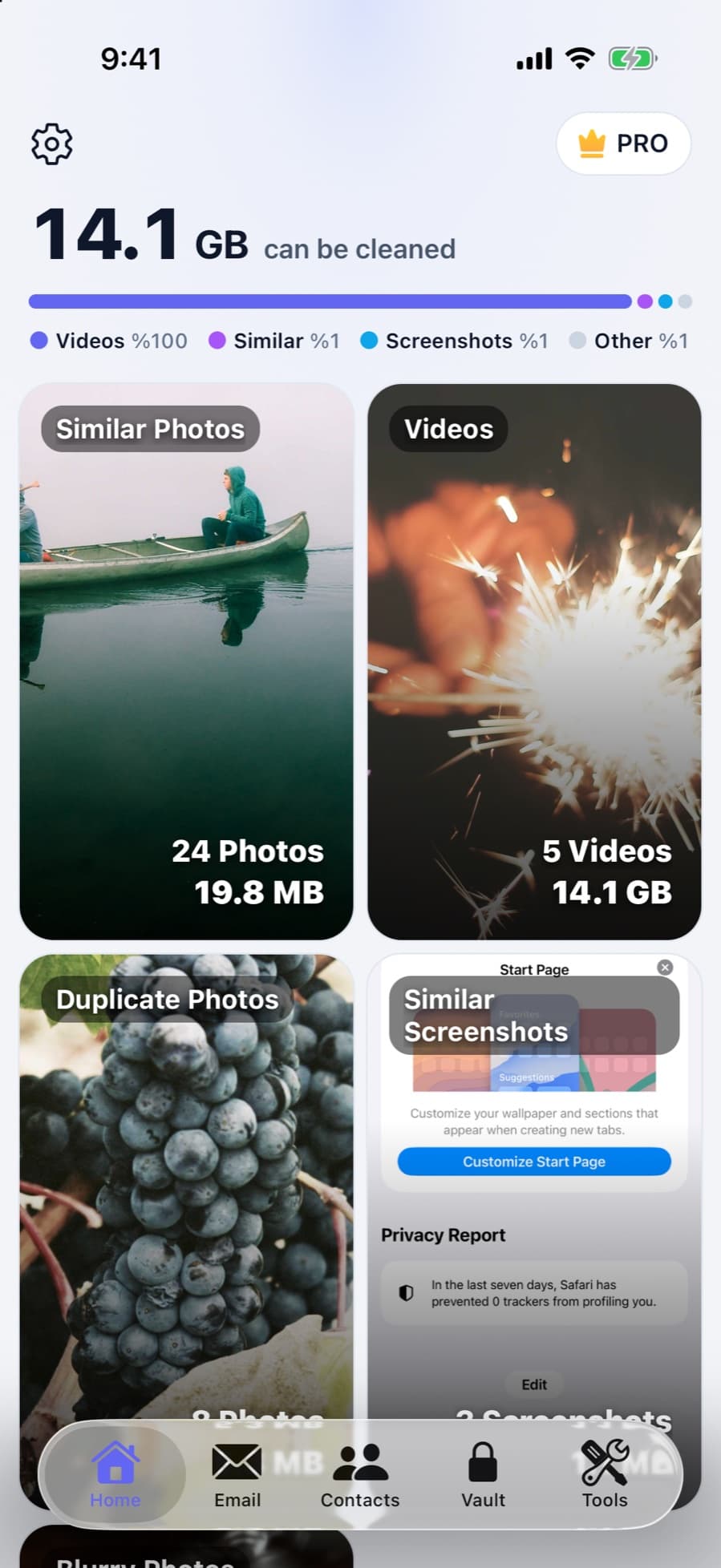
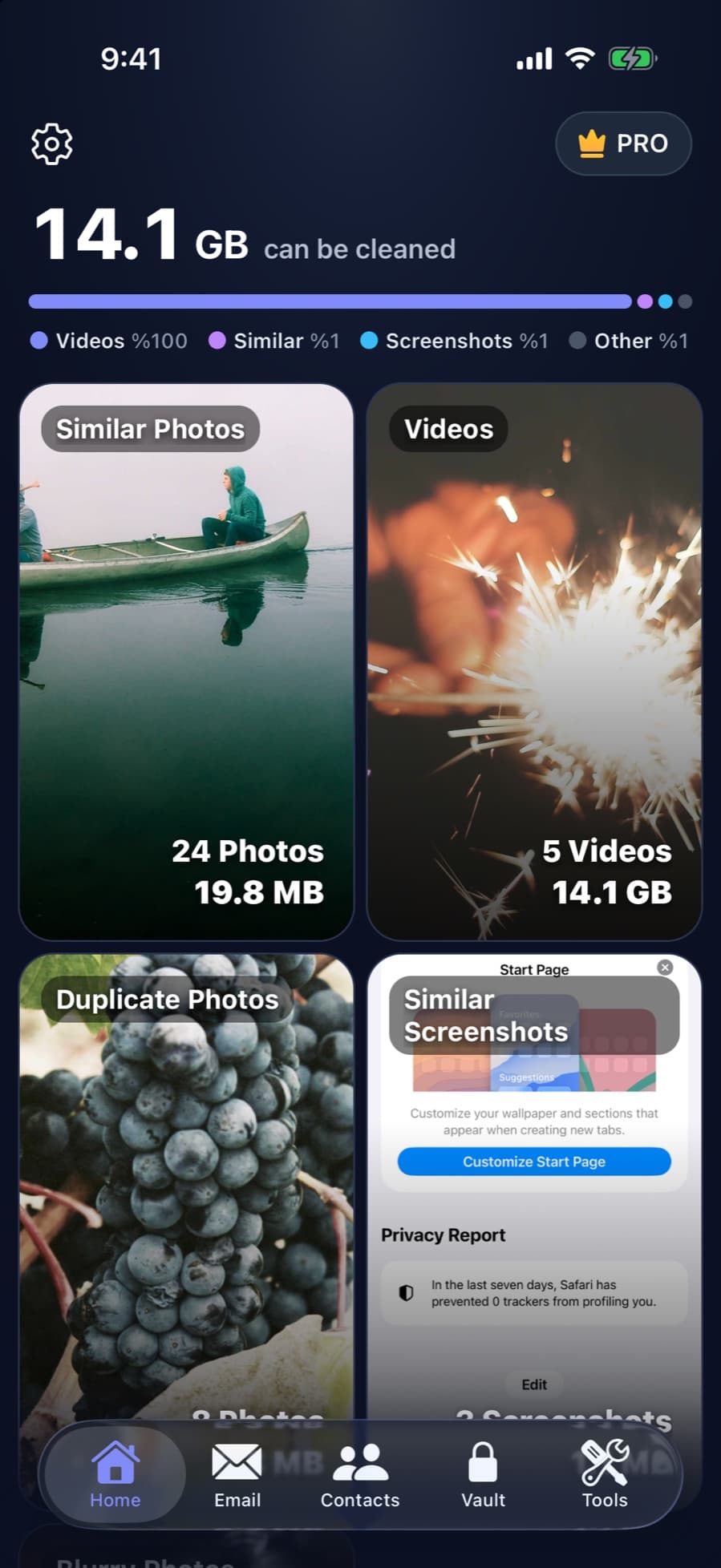
CleanX doesn’t replace erasing your iPhone. Where it can help, if you want, is before the backup: clearing duplicate photos, similar shots and large videos means less clutter moves to your new phone. Remember that with iCloud Photos on, what you delete is removed from iCloud too, and it stays in Recently Deleted for 30 days. CleanX isn’t needed to sell the phone. If you use the CleanX vault, save the photos and videos you want to keep to your library, share documents out and copy any notes before you erase: the vault is tied to the phone and can’t be moved to another one, even with a backup.
- Clear duplicates and large videos before the backup
- Save vault photos and videos to your library before erasing
- Scanning is free; deleting needs CleanX Pro
If you already sold it without erasing
- Ask the new owner to erase it with the steps above.
- Erase it remotely: Apple says that if the device is lost or stolen, erase it in Find Devices on iCloud.com.
- Change your Apple Account password and turn on two-factor authentication: Apple says this won’t remove data on the old device, but it stops the new owner from deleting your information from iCloud.
- Remove it from your trusted devices and remove your cards and passes in Wallet.
- Switching to a non-Apple phone: deregister iMessage.
Frequently asked questions
Should I delete my photos before selling my iPhone?
No. Apple says deleting items by hand while signed in to iCloud removes them from iCloud and all your devices. Back up, sign out and erase the iPhone instead.
Does erasing my iPhone delete my iCloud photos?
No. Apple says your content isn’t deleted from iCloud when you erase your device. Still, sign out of your Apple Account as part of Apple’s steps.
How do I wipe my iPhone completely?
Go to Settings › General › Transfer or Reset iPhone › Erase All Content and Settings, enter your passcode if asked, and confirm.
I sold my iPhone without erasing it. What now?
Ask the new owner to erase it, or erase it in Find Devices on iCloud.com, remove it from your trusted devices and change your Apple Account password and turn on two-factor authentication, and remove your cards and passes from Wallet.
Related guides
- Delete Photos From iCloud but Not iPhone (or the Other Way Around)Deletes sync everywhere with iCloud Photos on. Turn off sync first, or let Optimize Storage free iPhone space.
- How to Transfer Contacts From iPhone to AndroidCopy them during Android setup, use Transfer to Android, or export a vCard from iCloud and import it into Google Contacts.
- Photo Vault Apps: Free Built-in Options and What to CheckiPhone and Android can lock photos for free. If you want a separate vault, check its passcode, encryption, recovery and what happens to the originals.
