
How to Transfer Contacts From iPhone to Android
By CleanX TeamPublished
Quick answer
- Easiest: when your new Android phone asks to copy data from another device, choose iPhone or iPad and include contacts. Google says contacts transfer with every transfer method during setup.
- With iOS 26.3 and a compatible Android 17 phone, Apple also offers Settings › General › Transfer or Reset iPhone › Transfer to Android.
- Already set up? Export your contacts from iCloud.com as a vCard and import the file in Google Contacts.
Google lists contacts among the data that copies from an iPhone with the Android Switch app, with a cable, and with the upgraded transfer process on newer phones. Before you start, Google says to connect the iPhone to Wi-Fi and turn off iMessage.
Copy contacts while setting up the Android phone
Step 1: Start setup
Turn on the new Android phone and tap through the first few screens.
Step 2: Choose iPhone
When asked to copy data from another device, select iPhone or iPad. If a QR code appears, scan it with the iPhone camera to pair the phones.
Step 3: Pick contacts
Follow the prompts and select the data to copy, including contacts.
Use Transfer to Android on the iPhone
Apple says that in iOS 26.3 you can go to Settings › General › Transfer or Reset iPhone › Transfer to Android, scan the setup QR code on the Android phone, and choose data such as contacts. It needs a compatible version of Android 17 on the new phone, Bluetooth on both phones and the iPhone on Wi-Fi.
Already set up? Move contacts with a vCard
Step 1: Export from iCloud
On a computer, go to icloud.com/contacts, choose Select All Contacts from the Actions button, then Export vCard from the Share button.
Step 2: Import to Google
In Google Contacts on a computer, click Import › Select file, choose the .vcf file and click Import.
Step 3: Sync on Android
Sign in to the same Google Account on the Android phone; Google says contacts saved to it sync with your Android devices.
| Apple and Google | CleanX | |
|---|---|---|
| Copy contacts to Android | Android setup, Transfer to Android, or a vCard via Google Contacts | Not covered |
| Clean up first | View Duplicates in Contacts merges cards with the same first and last name | Duplicates plus contacts with missing info, before you move |
| A copy before you switch | vCard export from iCloud.com or Contacts | A backup inside the app on the iPhone; it doesn’t move to Android |
| Cost | Free | Scanning free; merging, deleting and creating backups need CleanX Pro |
CleanX
Clean up your contacts before you move them with CleanX
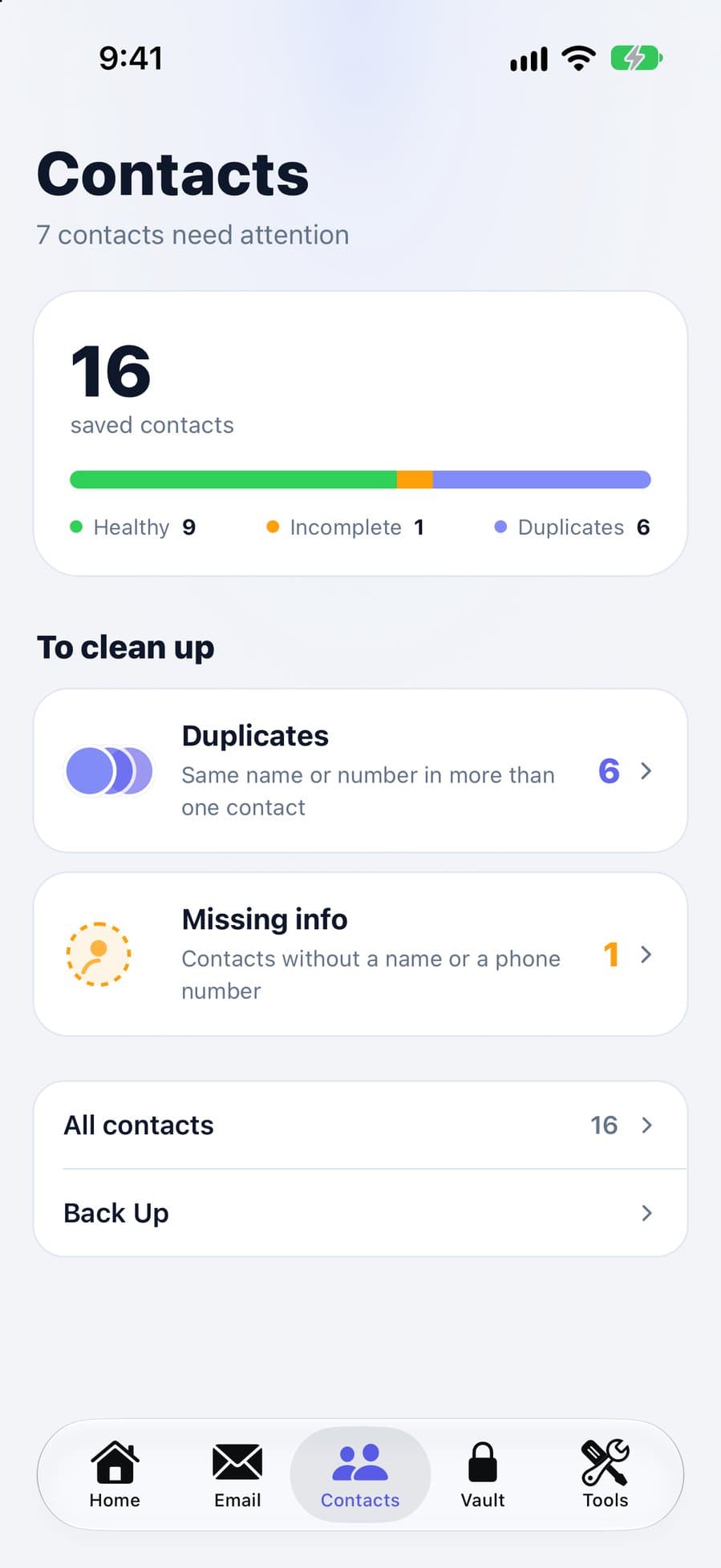
Duplicates and half-empty cards move to the new phone too. On your iPhone, CleanX finds duplicate contacts and contacts with missing info (no name or no phone number), so you can merge or delete them before you switch. CleanX doesn’t copy contacts to Android itself.
- Duplicate contacts and contacts with missing info
- Merge or delete before the transfer
- Scanning is free; merging and deleting need CleanX Pro
Before you switch
- Make sure contacts are in iCloud if you’ll use the vCard route: see how to back up contacts on iPhone.
- Merge duplicates first: see how to merge duplicate contacts on iPhone.
Frequently asked questions
What’s the easiest way to transfer contacts from iPhone to Android?
Copy them while setting up the Android phone: choose iPhone or iPad when asked to copy data. Google says contacts transfer with every transfer method during setup.
Can I transfer contacts from iPhone to Android without a computer?
Yes. Android setup copies them wirelessly or with the iPhone’s cable, and Transfer to Android works from the iPhone on iOS 26.3 with a compatible Android 17 phone.
How do I move contacts after the Android phone is set up?
Export a vCard from icloud.com/contacts and import it in Google Contacts, then sign in to that Google Account on the Android phone.
Will contacts in my Gmail account move too?
Contacts saved to your Google Account sync to Android when you sign in with it. Google says contacts saved there sync with all your Android devices.
Related guides
- How to Merge Duplicate Contacts on iPhoneUse View Duplicates in Contacts, link the rest, and catch same-number duplicates.
- How to Back Up Contacts on iPhoneTurn on iCloud Contacts, export a vCard, and know what iCloud’s archive keeps.
- How to Restore Deleted Contacts on iPhoneCheck iCloud first, then restore from the iCloud archive, Google Contacts or a vCard.
