
How to Delete Screenshots on Android
By CleanX TeamPublished
Quick answer
- In Google Photos, tap Collections › On this device › Screenshots, tap and hold a screenshot, select more and tap Trash.
- No Google Photos? Open your Gallery app, tap Album view and open the Screenshots folder.
- In Files by Google, the Old screenshots card lists screenshots older than 4 weeks.
- In Google Photos, deleted screenshots stay in the trash for 30 days. Empty it to get the space back now.
On most phones, screenshots collect in a Screenshots folder, so they’re easy to find in one place. Google’s steps below are for the Google Photos and Files by Google apps; your phone’s own Gallery app may use different names.
Delete screenshots in Google Photos
Step 1: Open the Screenshots folder
Open Google Photos and tap Collections › On this device › Screenshots.
Step 2: Select screenshots
Tap and hold a screenshot, then tap the others you want to delete.
Step 3: Move them to the trash
At the bottom, tap Trash.
Delete screenshots in your Gallery app
If you don’t have the Google Photos app, Google says to open your phone’s Gallery app and tap Album view › Screenshots folder. Select the screenshots you don’t need and delete them. Menu names depend on your phone maker.
Clear old screenshots with Files by Google
Files by Google suggests screenshots created or received more than 4 weeks ago, which are often the ones you no longer need.
Step 1: Open Clean
Open Files by Google and tap Menu › Clean.
Step 2: Pick old screenshots
On the Old screenshots card, tap Select files and choose what to delete.
Step 3: Move to trash
Tap Move x file(s) to Trash, then confirm.
Empty the trash to get the space back
Google says deleted photos stay in the Google Photos trash for 30 days, including screenshots that weren’t backed up on Android 11 and up. To free the space right away, tap Collections › Trash › More › Empty Trash › Delete permanently. Permanently deleted items can’t be restored.
| Google Photos or Gallery | Files by Google | CleanX | |
|---|---|---|---|
| What you see | All screenshots in the Screenshots folder | Screenshots older than 4 weeks | Groups of similar shots, screenshots included |
| Good for | Going through all of them | Clearing old ones quickly | Several screenshots of the same thing |
| Space per group | No | No | Yes |
| Cost | Free | Free | Scanning free; deleting needs CleanX Pro |
CleanX
Find screenshots that repeat with CleanX
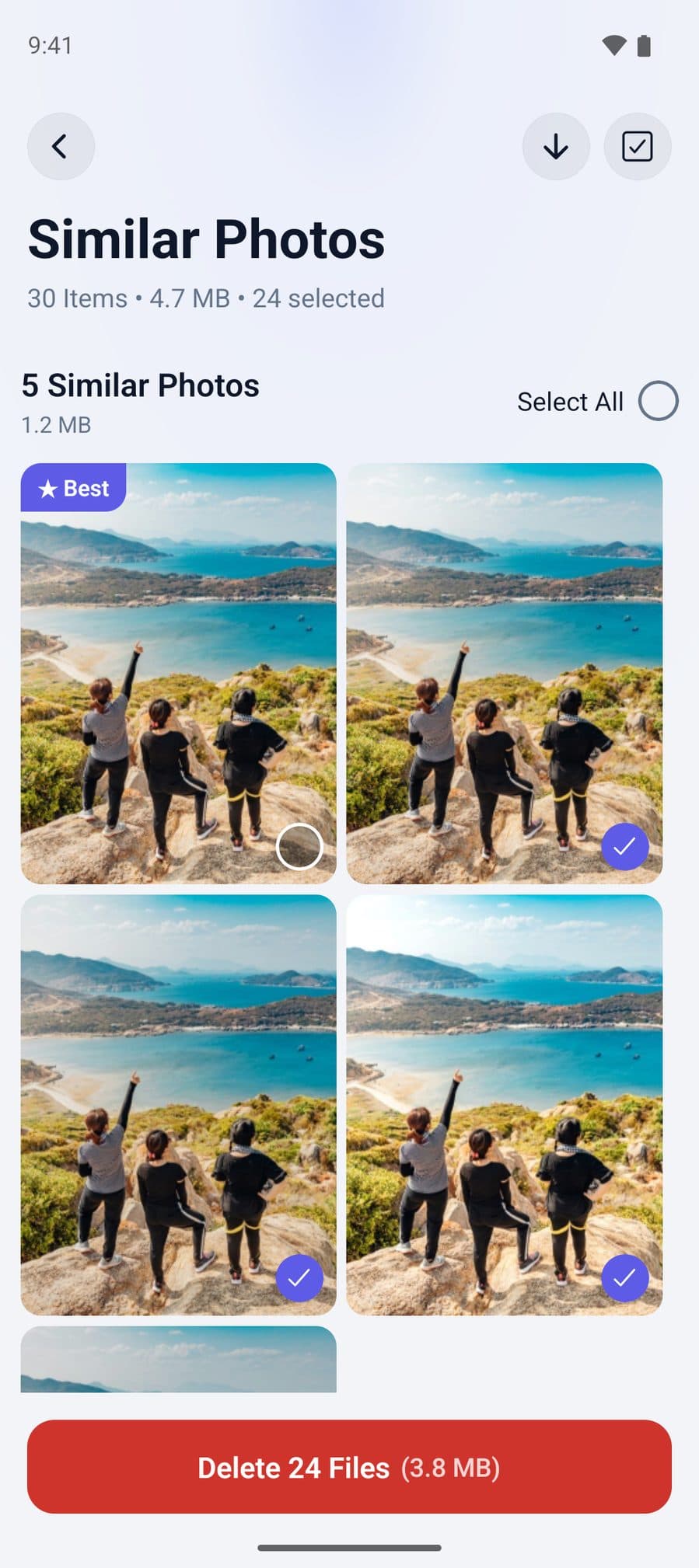
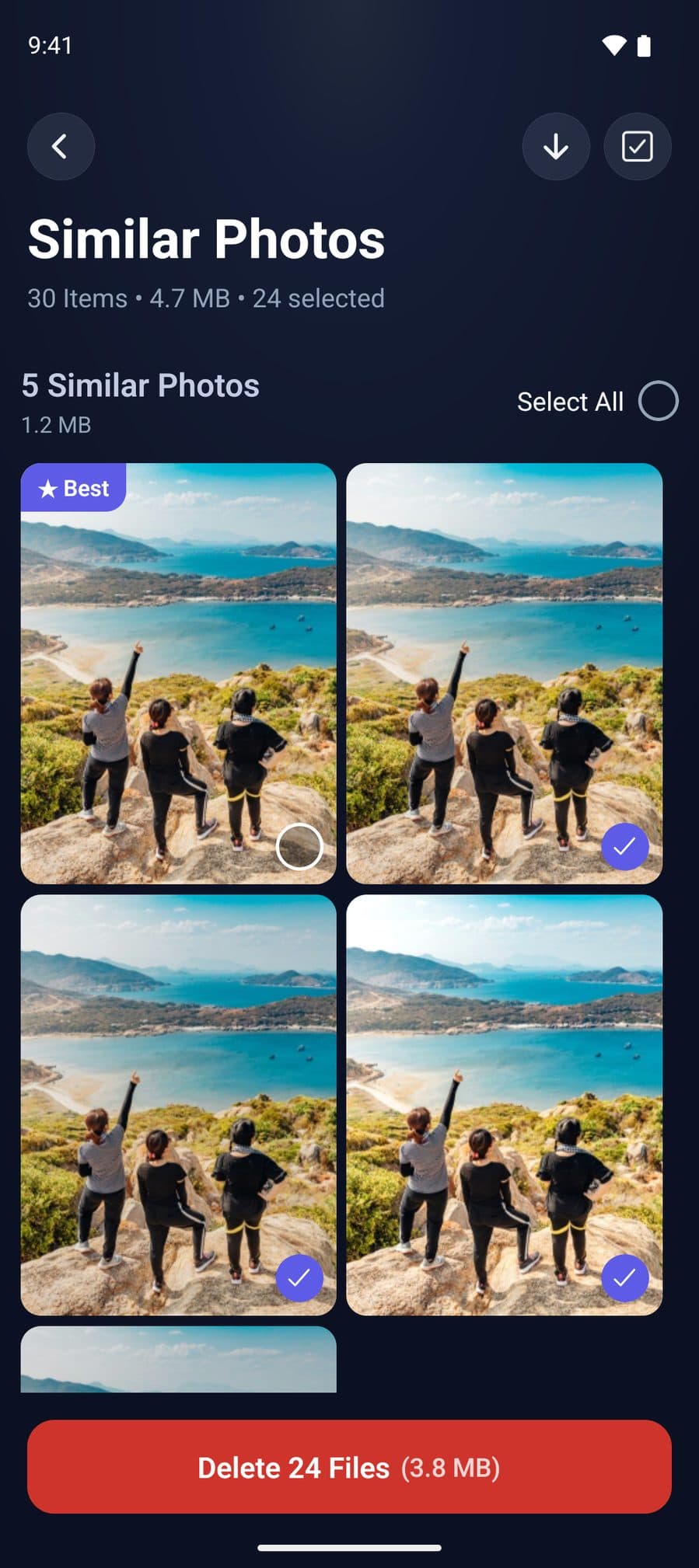
If you take several screenshots of the same screen, CleanX on Android groups similar screenshots and shows how much space each group takes. It usually marks one as Best and leaves it unselected, so you can delete the rest in one go.
- Similar shots grouped, screenshots included, with the space each group takes
- Usually leaves the Best one in each group unselected
- Scanning is free; deleting needs CleanX Pro
Before you delete
- Look for screenshots you still need: codes, tickets, receipts and addresses often end up there.
- Memory card: Google notes deleted photos may stay on a removable memory card; delete them there with your Gallery app.
- On iPhone? See how to delete screenshots on iPhone.
Frequently asked questions
Where are screenshots saved on Android?
On most phones, in a Screenshots folder. In Google Photos, tap Collections › On this device › Screenshots; in a Gallery app, look under Album view.
How do I delete all screenshots at once?
Open the Screenshots folder in Google Photos or Gallery, select the screenshots and delete them. In Files by Google, the Old screenshots card lets you select those older than 4 weeks together.
Will deleting screenshots in Google Photos delete my backup?
Yes. Google says deleting in Google Photos removes the item from your phone and from your backup. Use Delete from device to remove only the phone copy of a backed-up item.
Do deleted screenshots free up space right away?
Not right away. In Google Photos, they stay in the trash for 30 days. Empty the trash to free the space now.
Related guides
- How to Delete Duplicate Photos on AndroidUse the Duplicate files card in Files by Google, keep the Original, then empty Trash.
- How to Free Up Space on AndroidCheck Settings › Storage, remove backed-up photos, uninstall unused apps and clear junk files.
- How to Delete All Screenshots on iPhone at OnceOpen Collections › Media Types › Screenshots, Select › Select All, delete, then empty Recently Deleted.
